Landing Page
The landing page is displayed when first opening Orgvue workspace
The default view is the datasets tab, and it contains:
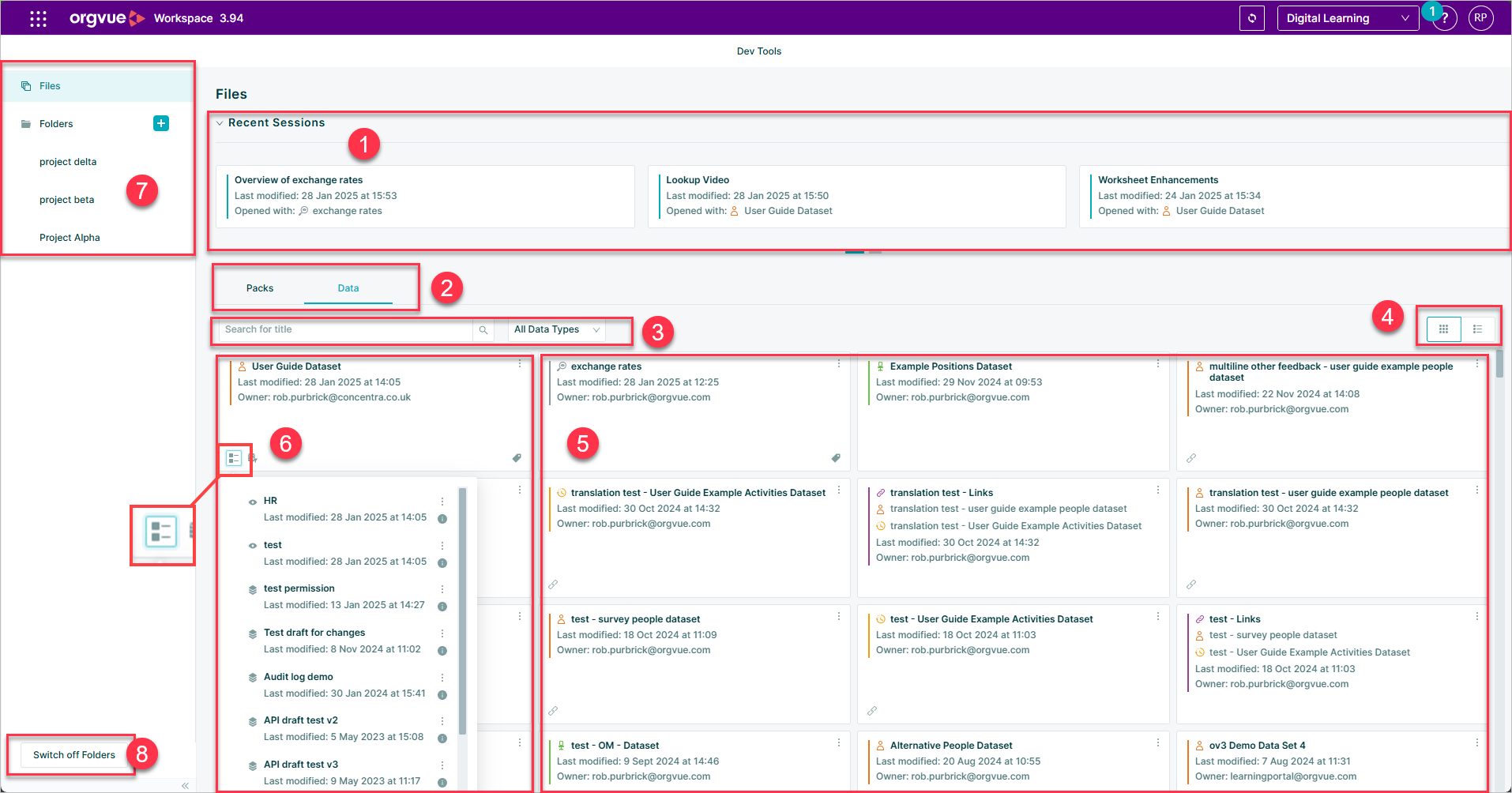
- Recent Sessions
- Datasets Packs tab
- Landing Page Search
- List View Selector
- Dataset cards
- Dataset cards may be expanded to display any views or drafts created from them
- Folders
- Switch Off Folders
Data Type Tabs
The type of data document displayed on the Landing Page can be chosen by selecting the required tab
Datasets Tab
The default view is the datasets tab as shown above
Packs Tab
The packs tab will display:
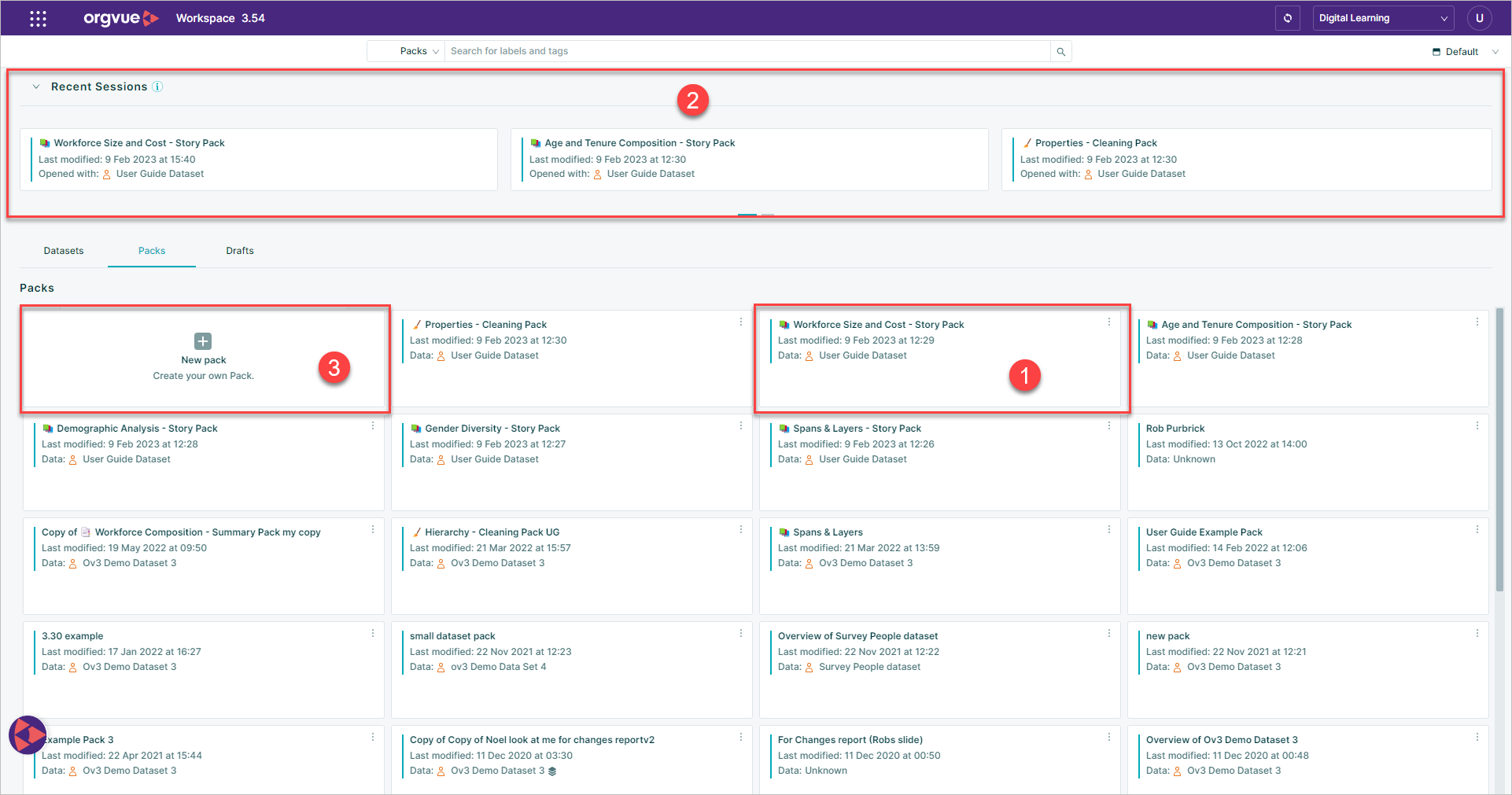
- A Pack Card for each pack
- Recent Sessions
- Create New Pack
Recent Sessions
The recent sessions area of the home screen will display up to the last 9 packs opened or datasets saved by the current user and contains:
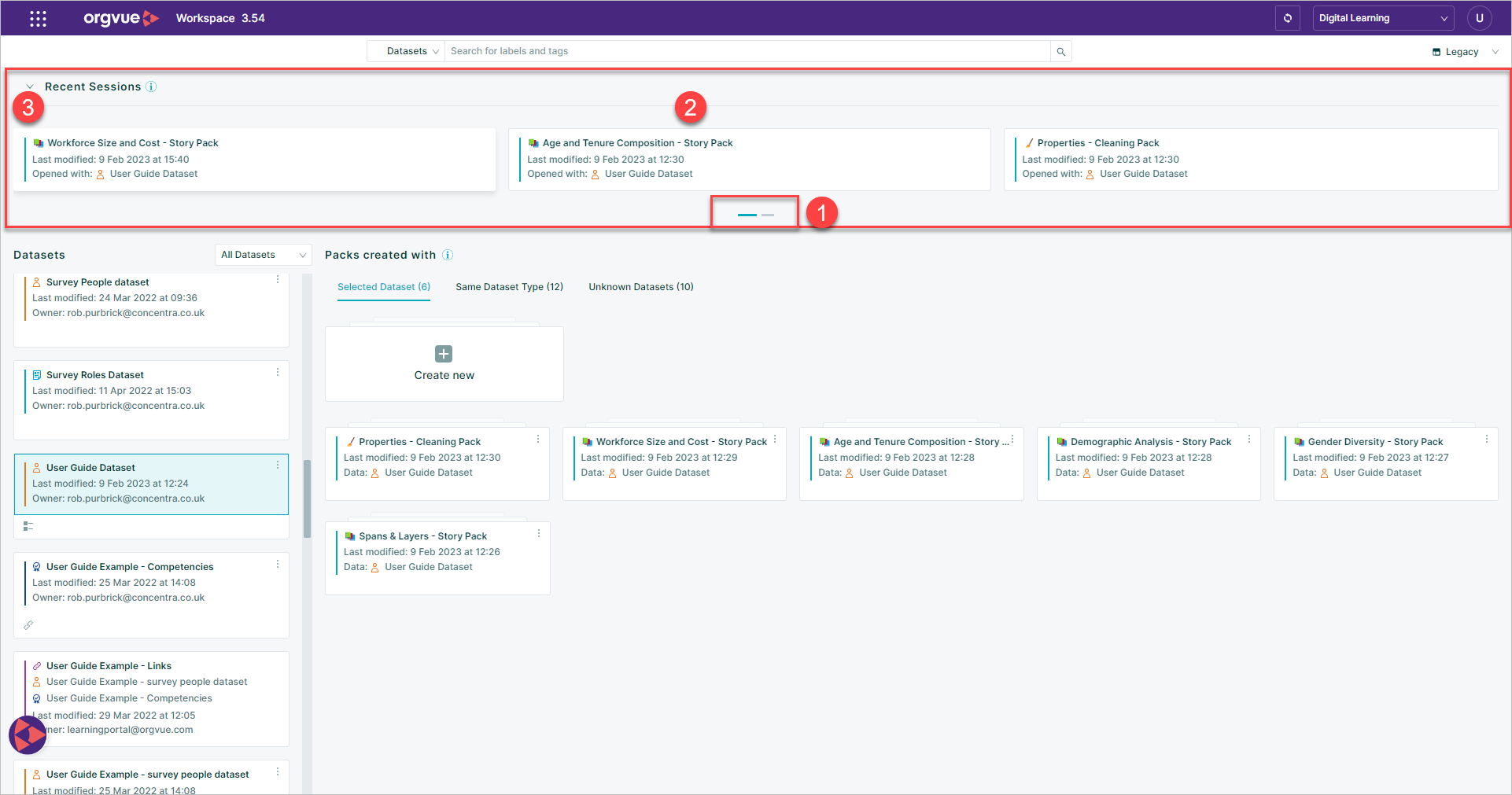
- Carousel Indicator with up to 3 pages available
- Each page of the Carousel will display up to 3 recent packs or datasets
- The Recent sessions area of the Landing Page may be collapsed or expanded using the button
Language menu
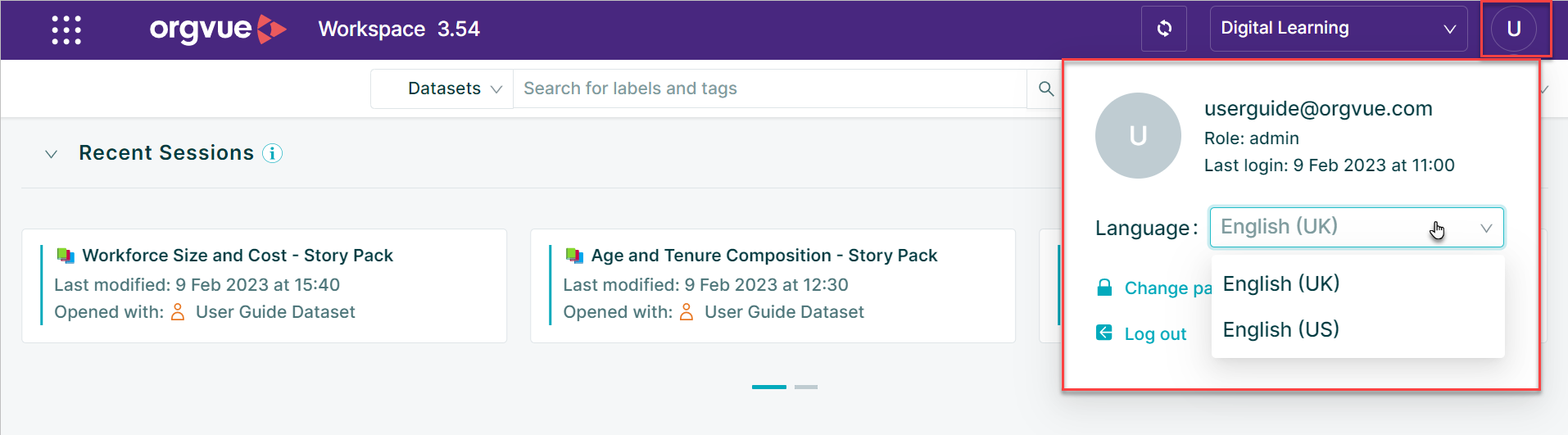
From the Language button you can switch your language preferences between English (US) and English (UK).
The option you select will change the date format of any Properties you select based on a date and Orgvue will expect and prompt any date entries to be entered in this format:
- MM / DD / YYYY for US, and
- DD / MM / YYYY for UK
Language selection in Orgvue is overridden by browser language settings and it is this setting that also determines the prompted date format in a blank date property
Tenant Selection
Many users may have access to more than one tenant as part of their account
If more than one Tenant is available for the user that is logged then it is possible to switch tenants directly from Workspace without the need to log in again by:
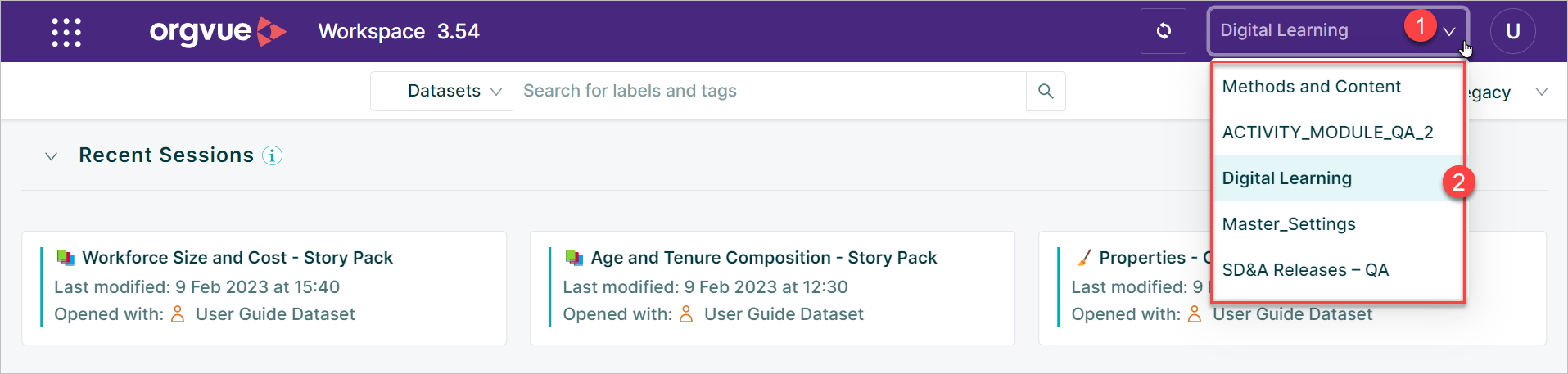
- Selecting the
Tenant Selectionwindow - Selecting the required Tenant from the list of available tenants shown
Account Information
Clicking the single letter icon will open the account information panel which shows:
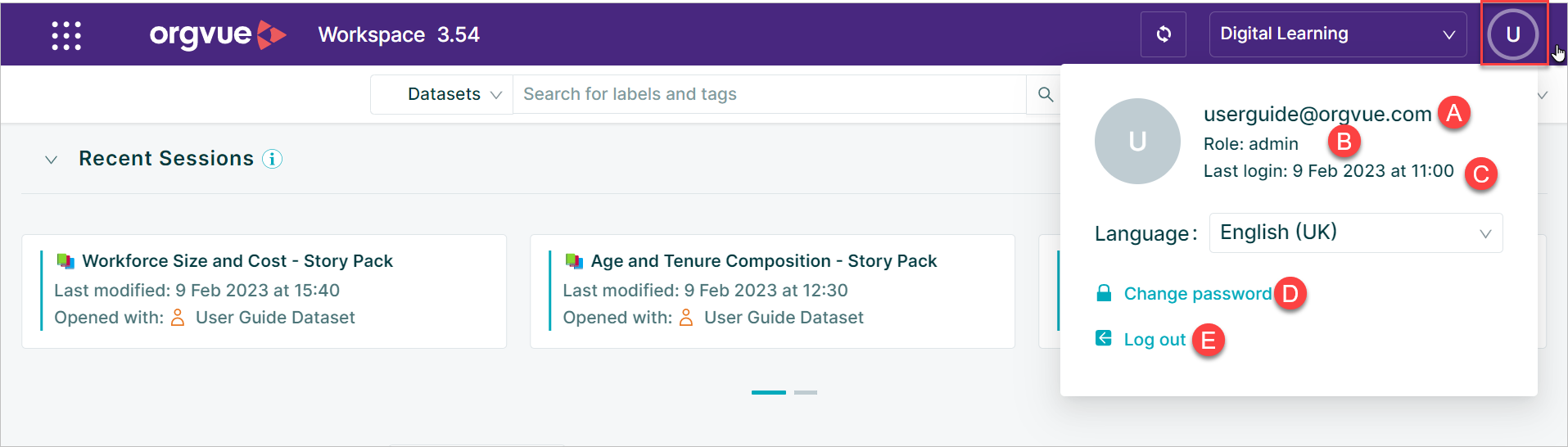
- A. Logon id
- B. Roles assigned to logon id
- C. Last Logon date and time
- D. Change Password
- E. Log out option
Change Password option will not be show if the user has logged in via Single Sign On
Reload Datasets

If there have been any changes in the dataset since you last logged on, the reload button on the header bars allows you to refresh the data shown in your packs
When in a pack selecting Data & Reload from the Menu bar will also reload data in your pack
Menu Button
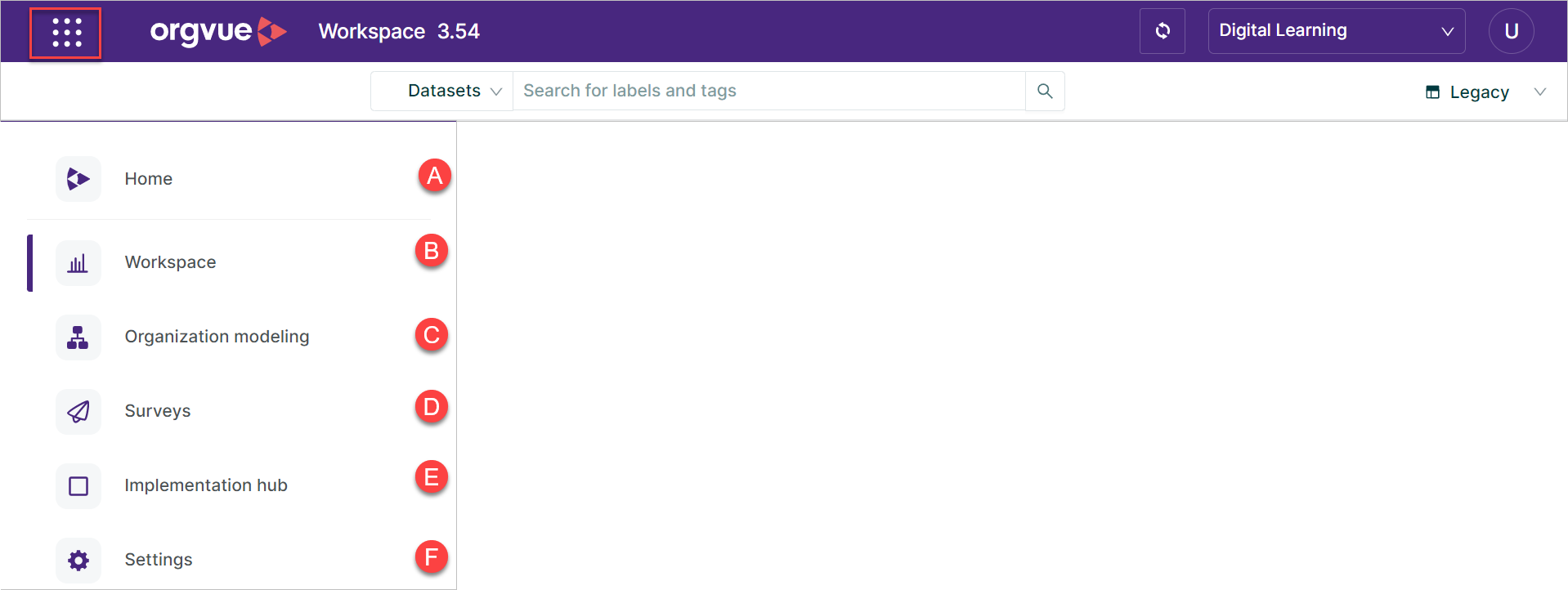
From the menu button you can navigate to:
- A. Home
- B. Workspace shown as current application
- C. Organization Modelling
- D.
- E.
- F. Settings
Landing Page Search
The search bar located on the Landing Page will allow the searching of labels and tags in:
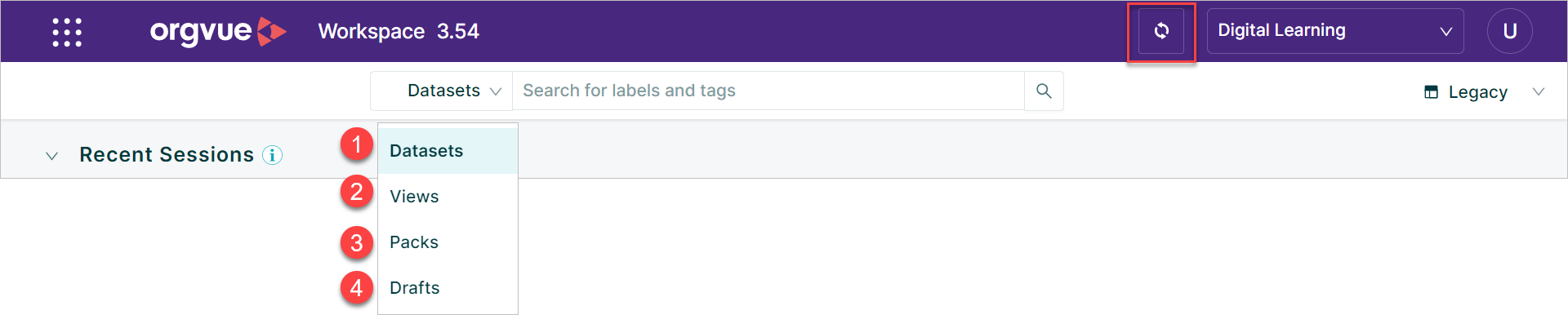
- Datasets
- Views
- Packs
- Drafts
To search the Landing Page:
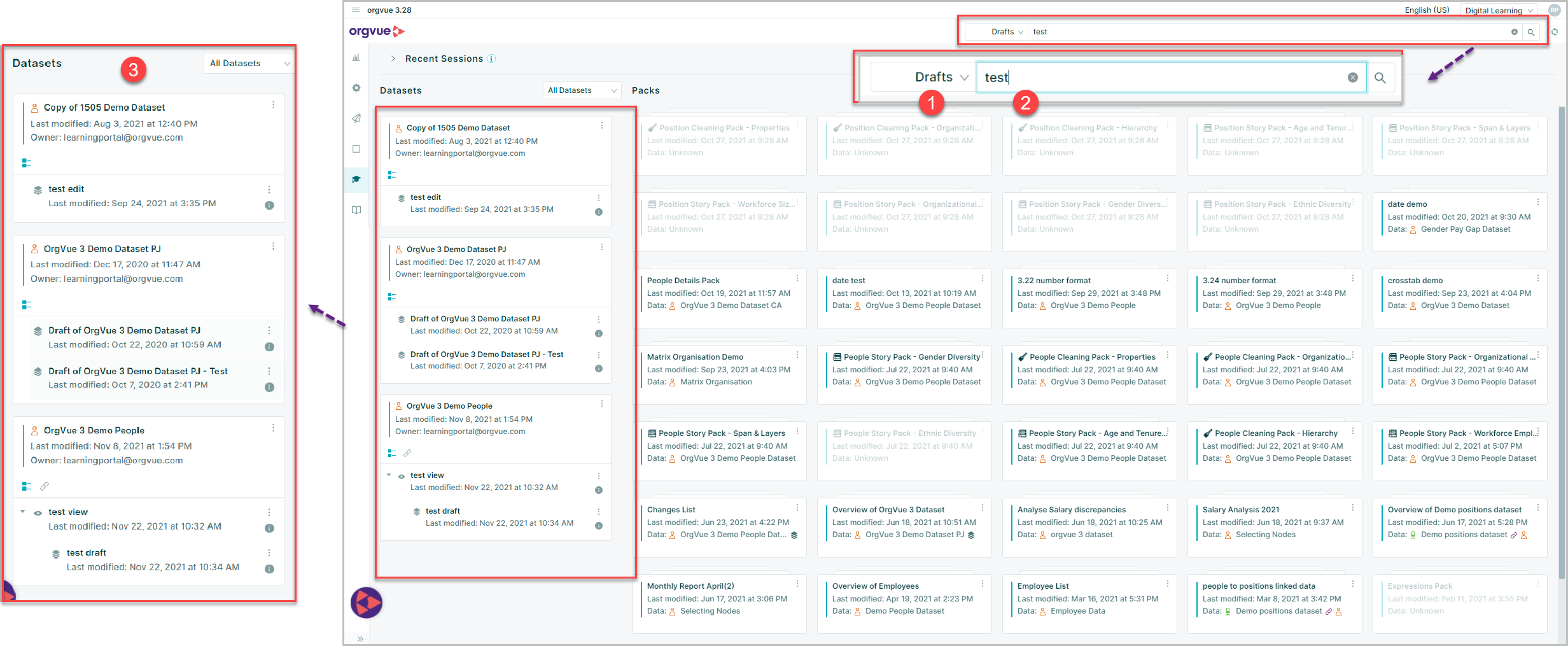
- Select the document type from the drop-down list
- Enter the search string into the window
- Search results will be displayed in the selected area of the Landing Page
Dataset List View
The default dataset card view may be changed to a list view by selecting the List View button
This will present the datasets available to current user in a table with the following columns:
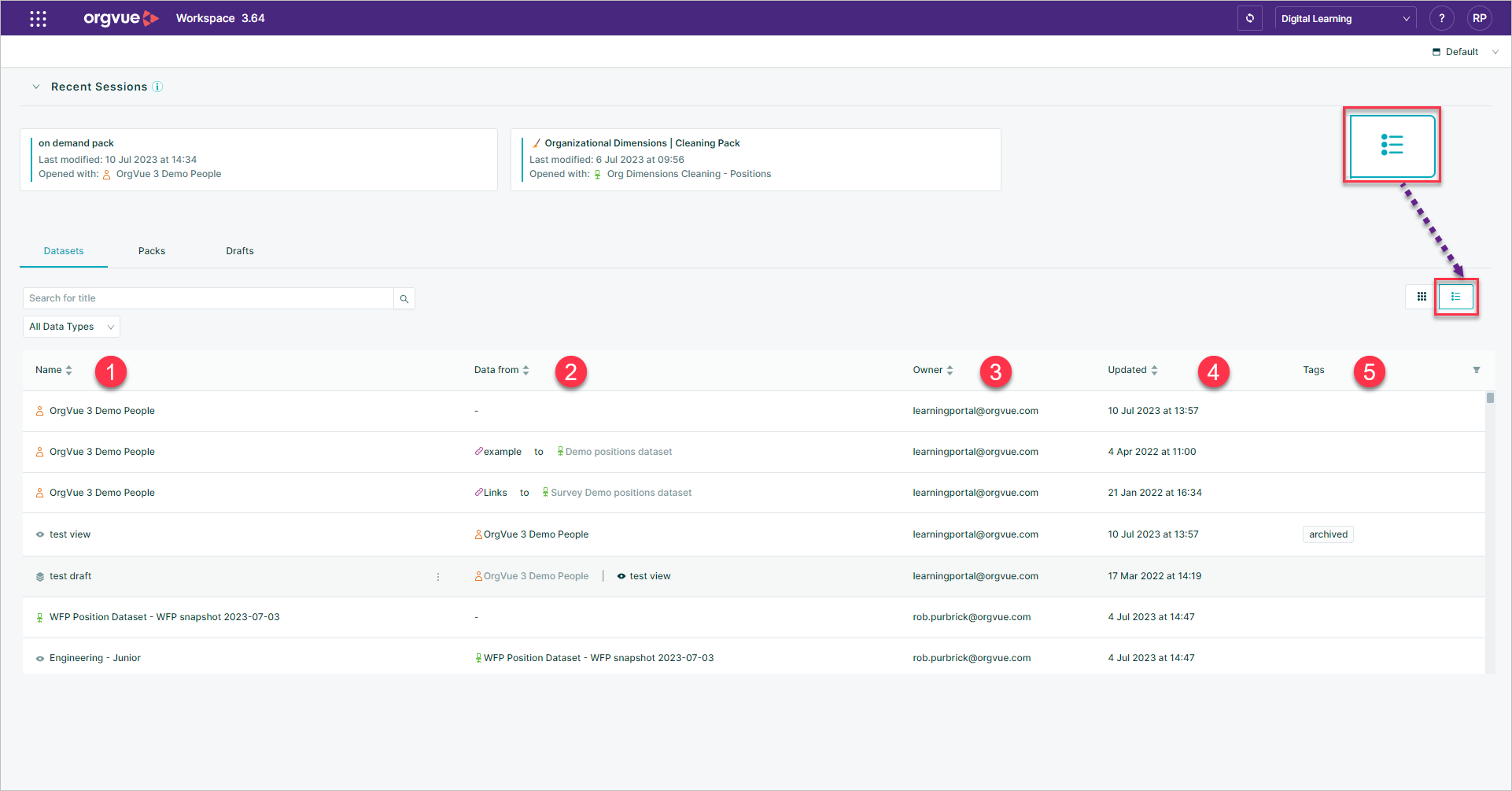
- Dataset Name
- Data from: For Views, Drafts or Linked Datasets the parent dataset will be shown
- Owner
- Last Updated Date
Return to Landing Page
The option to return to the Landing Page from any pack or dataset can be accessed from the <- Back button
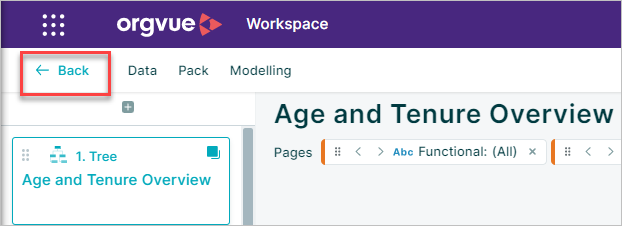
If you choose to return to the Landing Page and Data and/or Pack changes have not been saved, a warning message will be displayed with a summary of the unsaved changes
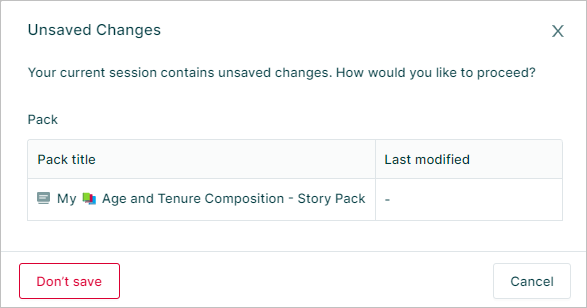
To save these changes select the Cancel option and follow the steps in Data Save and Pack Save to save the changes as required
Selecting Don’t save will return you to the Landing Page and any unsaved changes will be lost
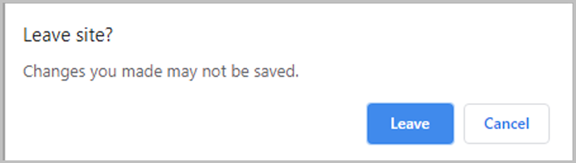
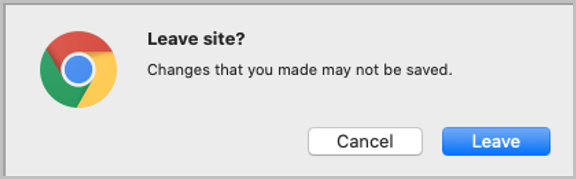
If you close your browser tab with unsaved changes, a warning will also be displayed which may vary in appearance depending on the operating system