Header Bar
Whenever you have a pack open, the header bar will be shown at the top of the screen and will contain different elements depending on the current dataset and pack status
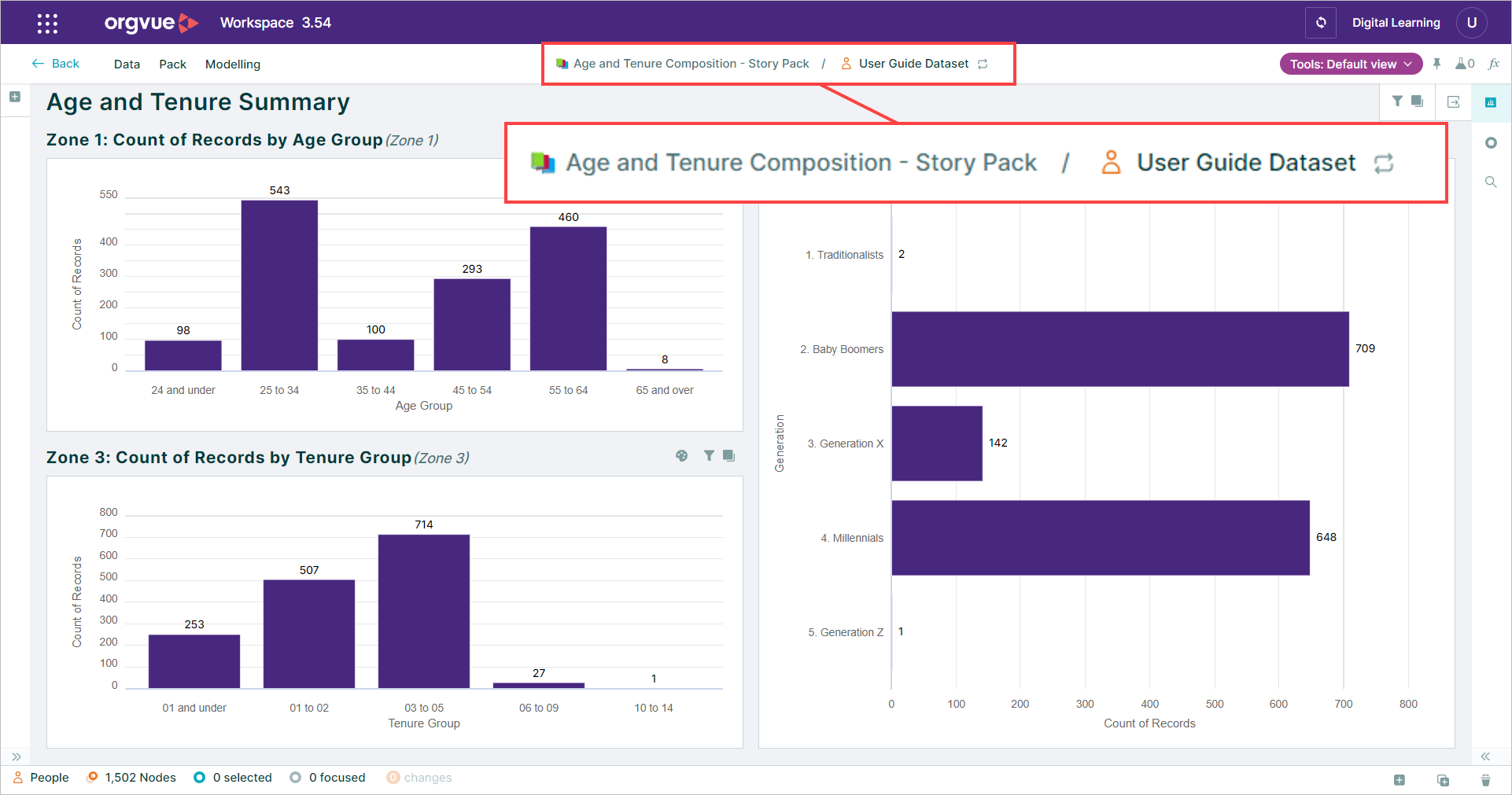
Crumbtrail
The header bar will display detail on:
- A. Pack Name
- B. Dataset(s) Name
- C. View Name
- D. Draft Name



Unsaved Changes
When working in a pack and dataset, if there are any unsaved changes, purple indicators will be displayed in the header bar to show if the unsaved changes exist in:
- Pack

- Dataset

- Draft

Selecting Pack – Save or Data – Save from the menu bar saves the unsaved changes and the indicator will be removed
Dataset switching
From the header of any pack you are able to switch the dataset, view or draft being used to supply the underlying data that is being displayed to another suitable dataset, view or draft
This may be useful if you have a number of datasets with different coverage and wish to be able to see the same pack layout for each one.
E.g. monthly data extracts of the same data

The datasets available for you to switch to are displayed in a menu which is displayed when you click on the dataset name in the header bar
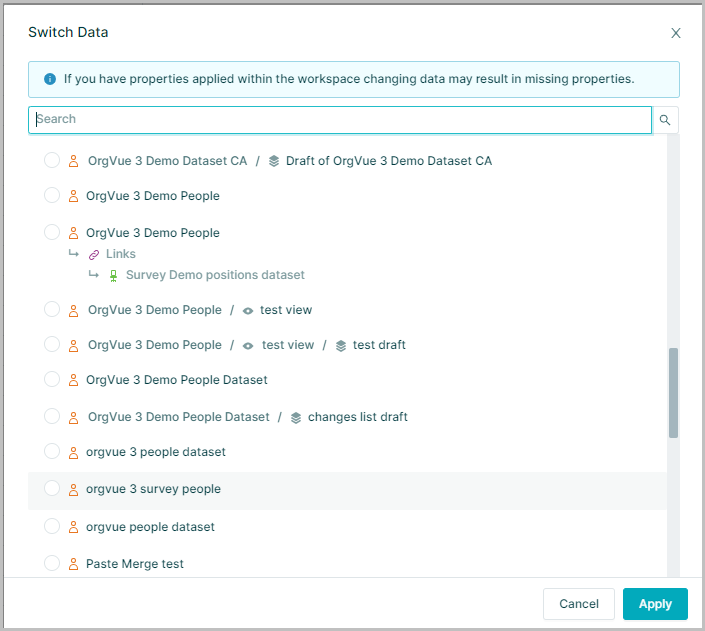
The dropdown feature only displays datasets that have the exact matching property metadata,
i.e.
- The same property keys
- The same property data types
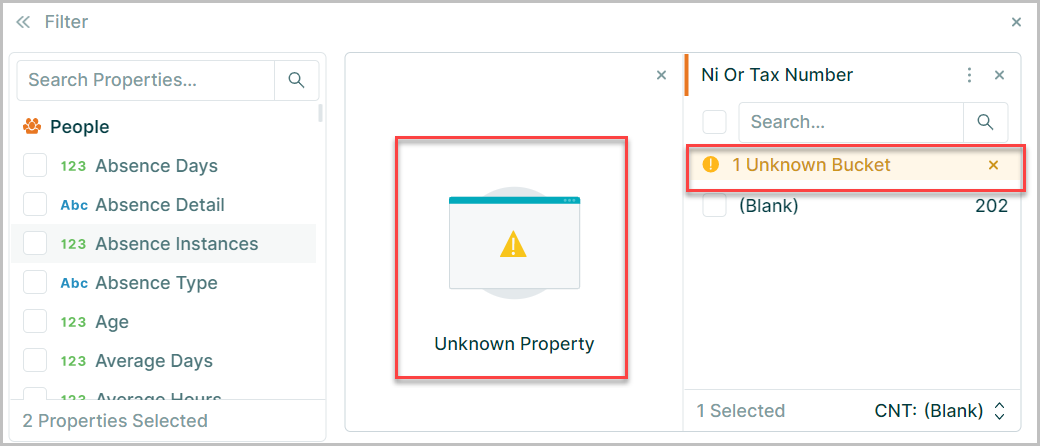
If any filters are applied to properties in the original dataset, when the data buckets do not exist in the switched to dataset, a warning will be displayed, and the filter will highlight the property affected
For admin roles only the option to Replace missing properties will be available within the Pack menu
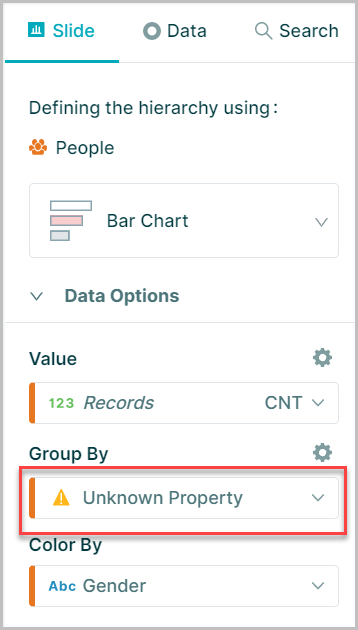
If a property was used in a slide visualization, from the original dataset that does not appear in the switched to dataset, a warning will be displayed on the slide tab
For admin roles only the option to Replace missing properties will be available within the Pack menu
Read Only
If you are not the owner of a dataset or have the role of admin you will not be able to see or use a dataset unless the owner has given permission to you via settings
It is possible to allow access with modify permission's which will enable you to have full access to edit the data in the dataset as if you were the owner
It is also possible to grant read only access to a dataset via settings which will allow you to view the data but not edit it. When this is done the read only indicator will be displayed in the crumbtrail for the dataset
