Home
The Home page is the default page from which you can start your journey into organization analysis and modelling with Orgvue
It contains:
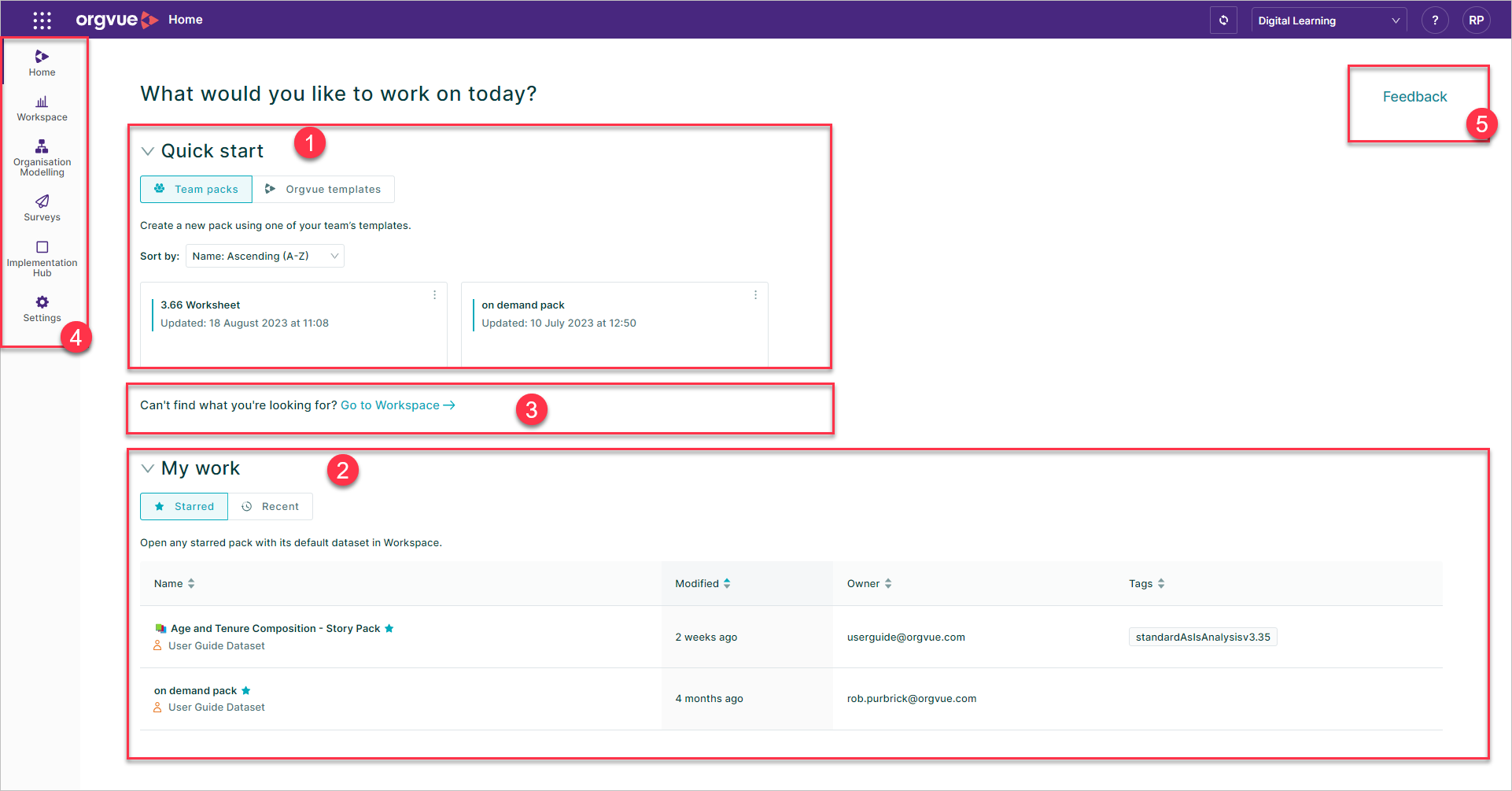
Quick Start
The quick start section contains:
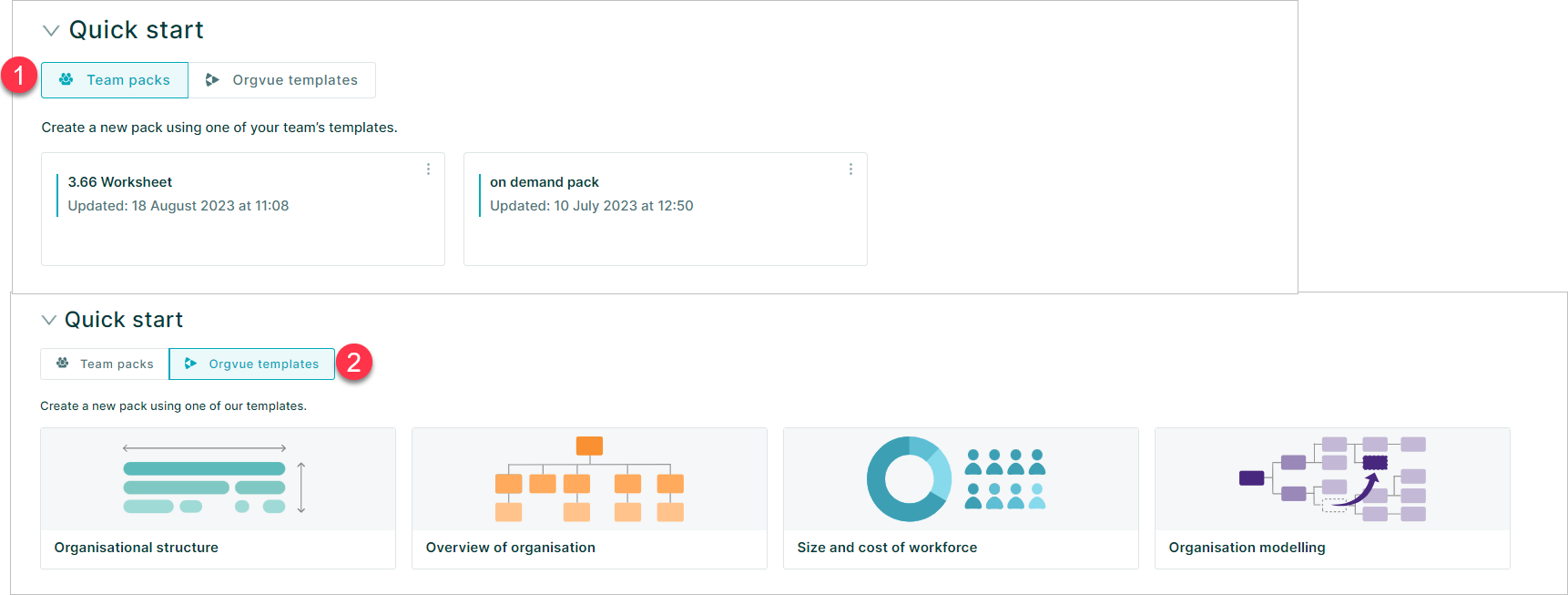
The Quick Start area will initially default to show Orgvue Templates until at least one Team Pack is added when it will then switch
Team Packs
Team Packs are ones that have been added to the Orgvue Home screen by your tenant Admin
Selecting any Team Pack button will open the Dataset Selection modal
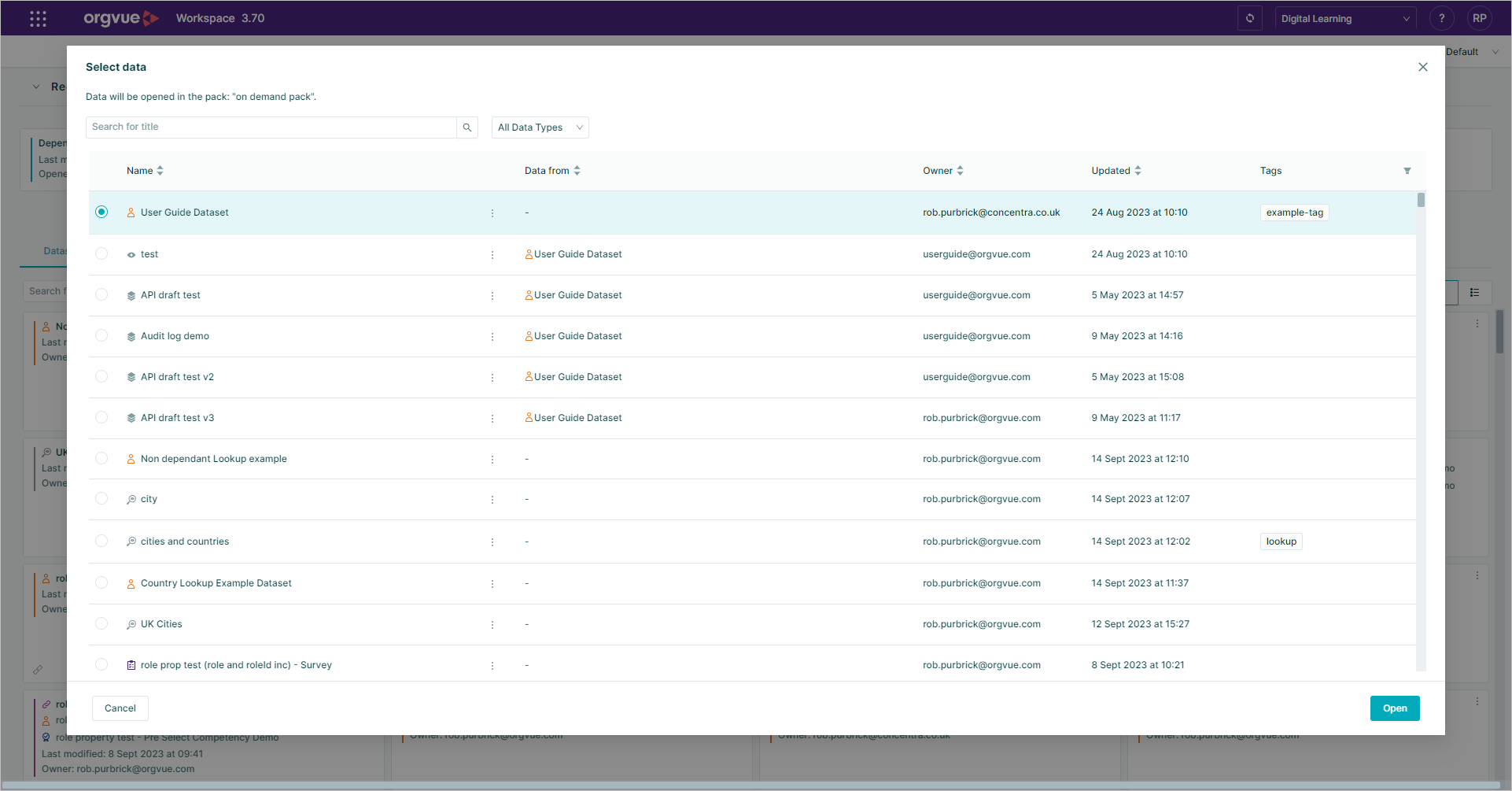
Select the required data source to open your team pack
Orgvue Templates
Create a new pack using one of the in built Orgvue templates
Hovering the mouse on any of the buttons will display detail of the pack template
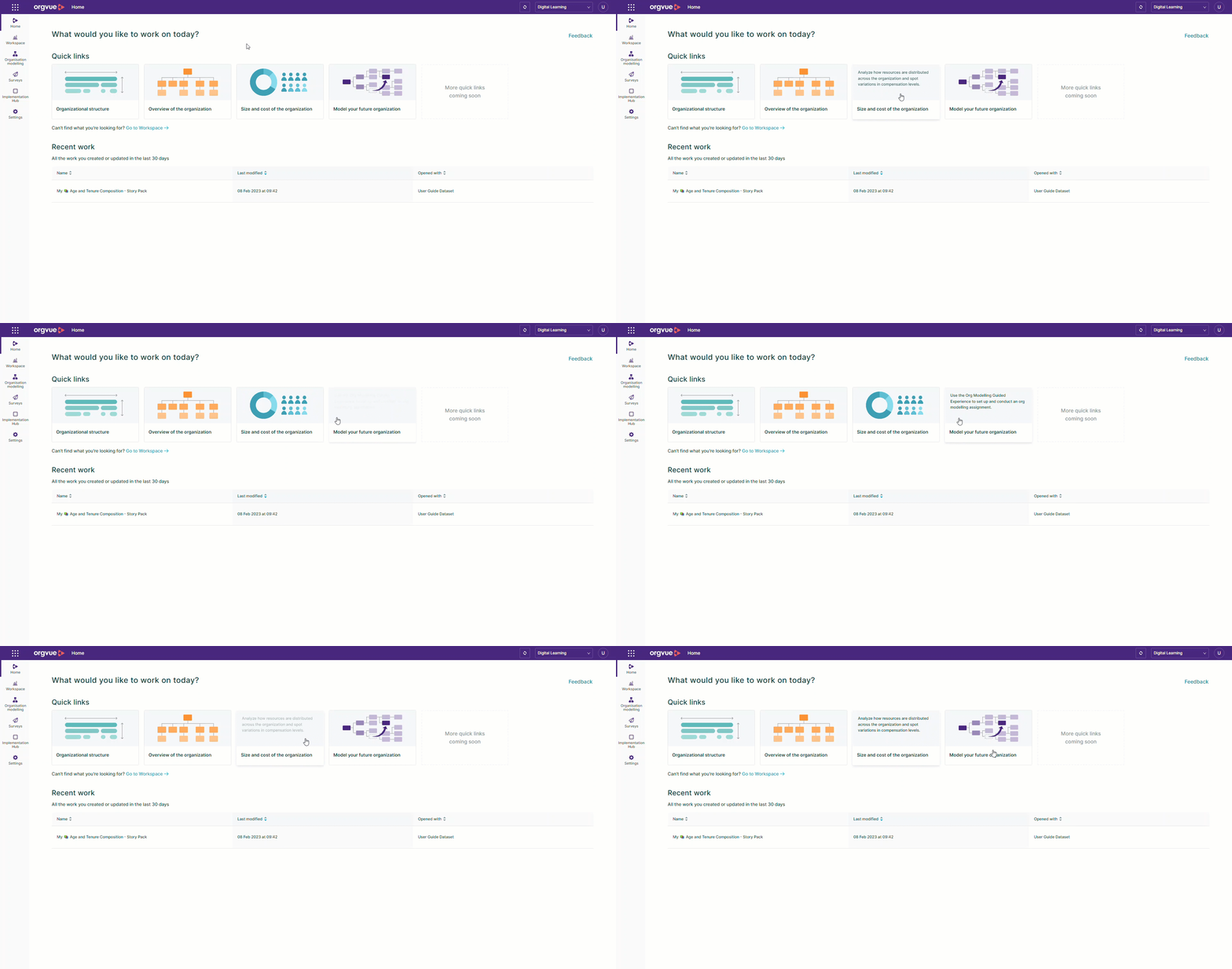
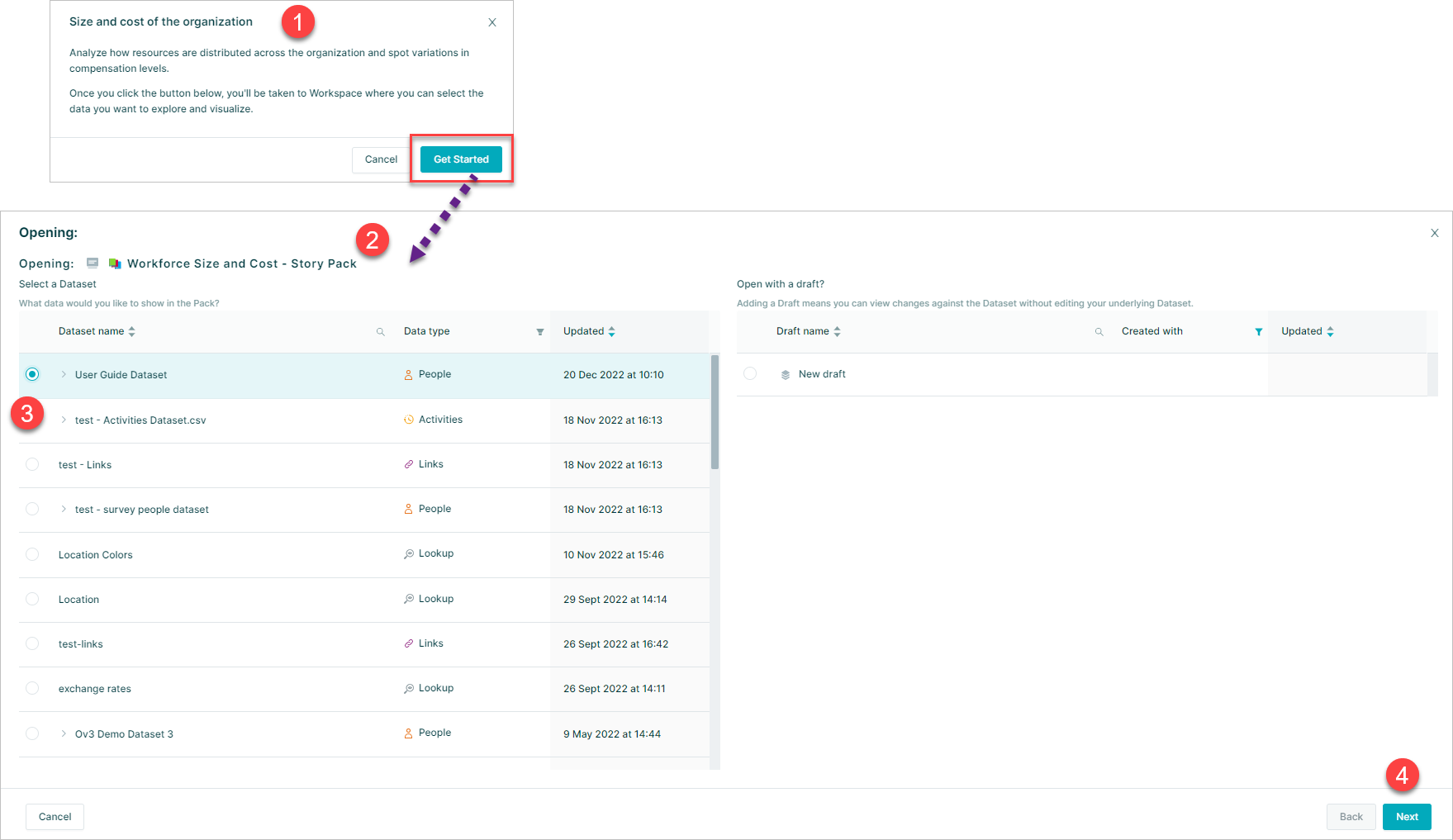
- Selecting any of the links will open a dialogue box with details of the link
- Selecting the
Get Startedbutton will open theOpen Packwindow in Workspace in a new browser tab - Select the Dataset to be used with the Pack
- Select
Nextto map properties and open the pack
My Work
The My Work section contains:
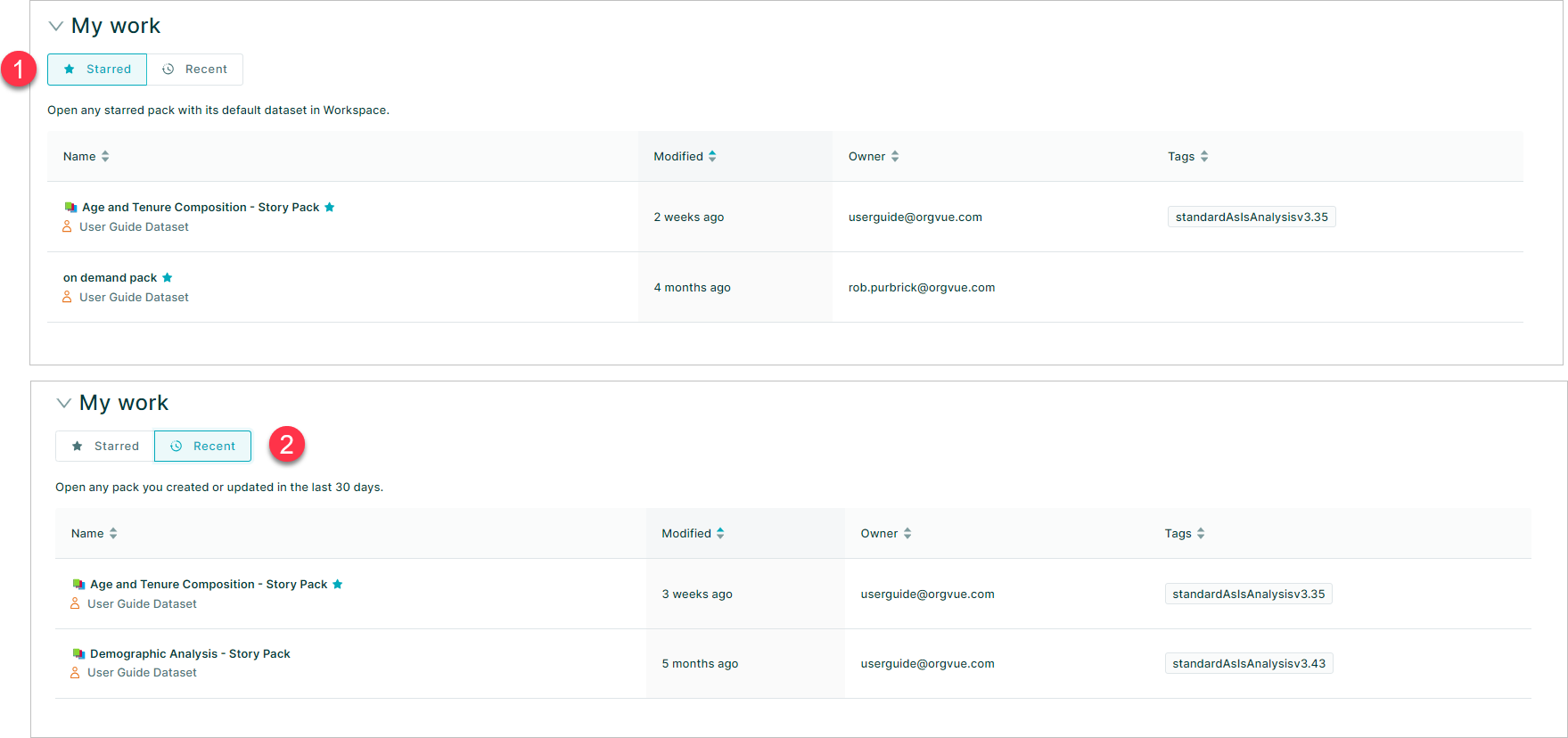
Starred Packs
The Starred Packs area will contain shortcuts to any Pack and Dataset combinations that have been added to the Home screen from the Workspace Landing page
To add a Pack shortcut to the Home page see Add Pack Shortcut To Home
Recent Work
The recent work area of the home page will display packs that you have created or updated in the last 30 days
it contains:
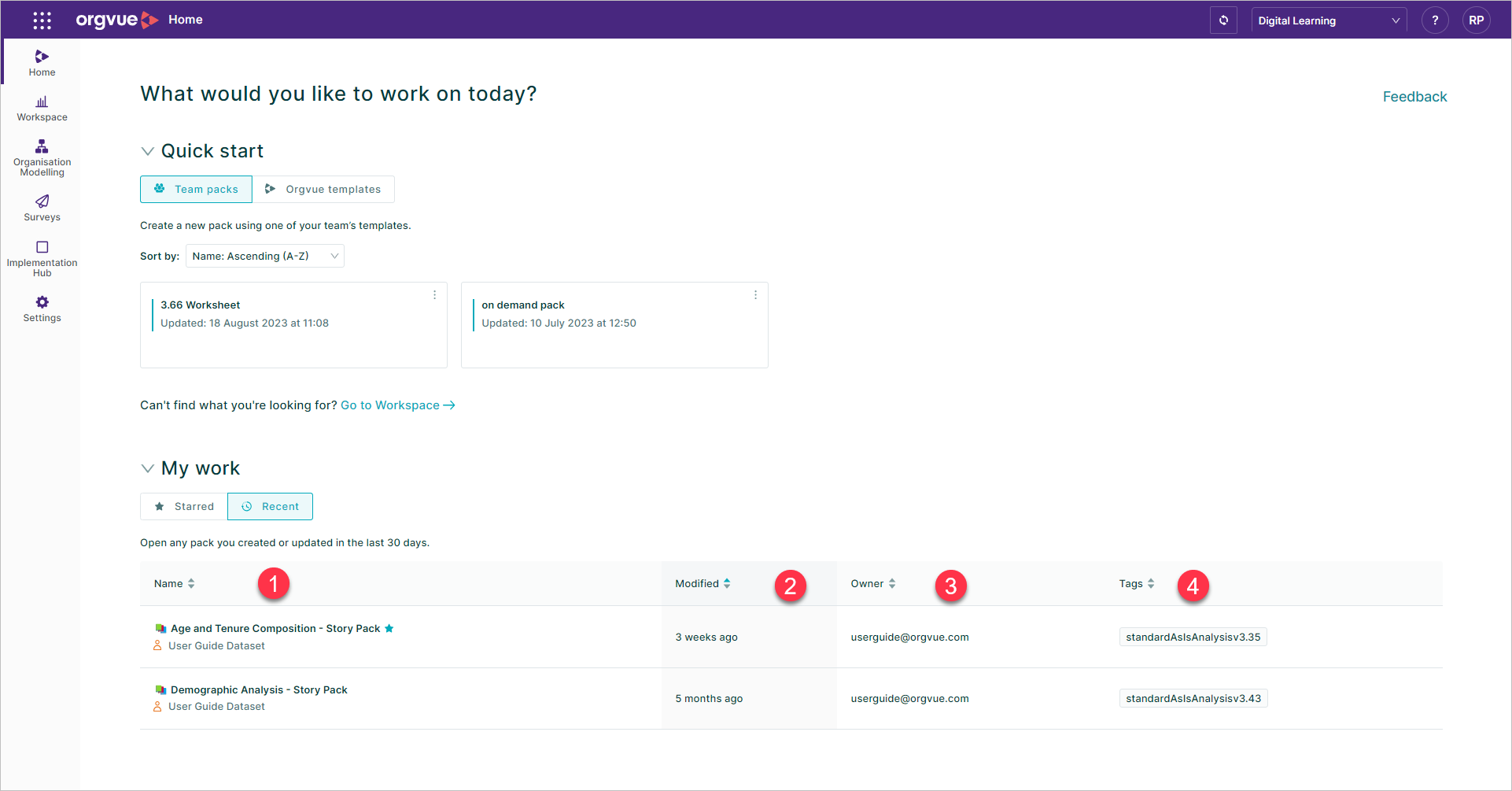
- Pack Name and Dataset that pack was last opened with
- Last Modified Date
- Owner
- Tags
The displayed items may be sorted by any one of the columns
By default, it will be show the most recently modified pack first in the list
Go to Workspace
The Go to workspace link will open the Workspace Landing Page in a new browser tab
Feedback
Select this link to Submit Feedback
Applications Menu
Select from: