Account Activation & Password Setup
To gain access to your company's instance of Orgvue, you must first contact your company's Orgvue Tenant Administrator. This person will create a user account for you and advise if you need to Set a Password for your account or use your company Single Sign On credentials
When your user account has been created you will receive an email from donotreply@Orgvue.com (If you don't, check your Junk folder. If it's not there, contact Orgvue support at support@Orgvue.com or +44 (0) 203 355 8008)
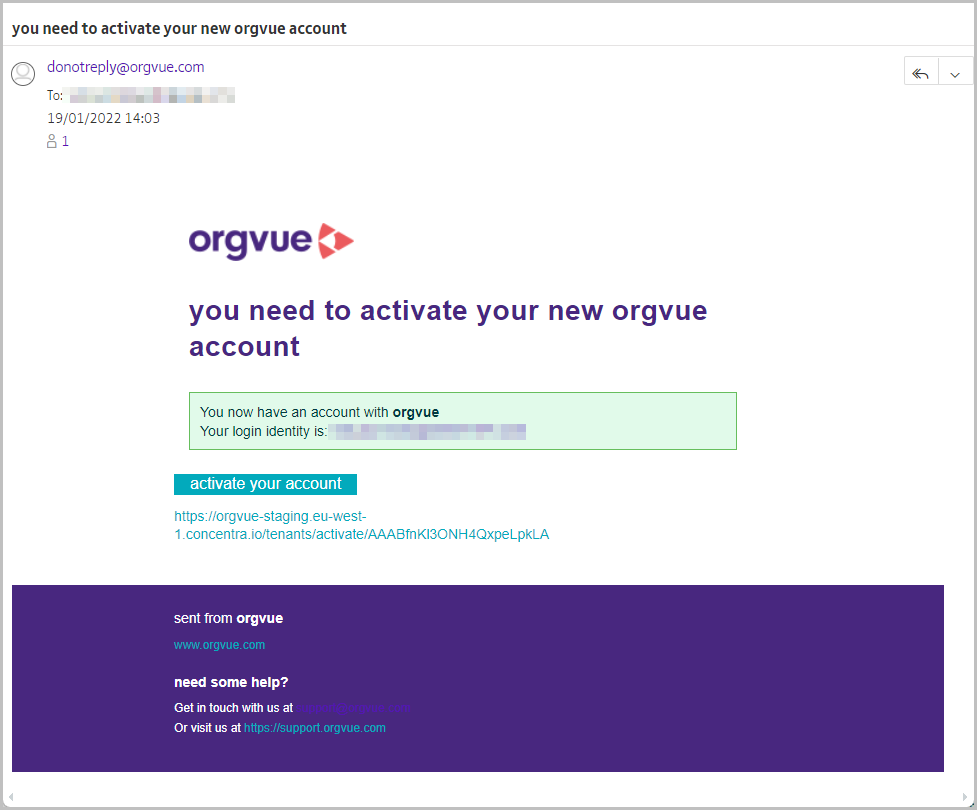
Note: the link in this Activation email is time-limited for security purposes. The link is only active for one hour. If you do not activate your account within the one-hour time limit, then follow the instructions for resetting your password
Single Sign On SSO
If enabled for your tenant, it is possible to use your own company Single Sign On (SSO) credentials to authenticate your identity and log into Orgvue
To log into Orgvue if SSO is available enter your email address and press enter without entering a password

Set Password
Clicking the activate your account button will open a browser window where you will be directed to set a password for your account
This screen will also be shown if the Reset Password option is selected from the Menu
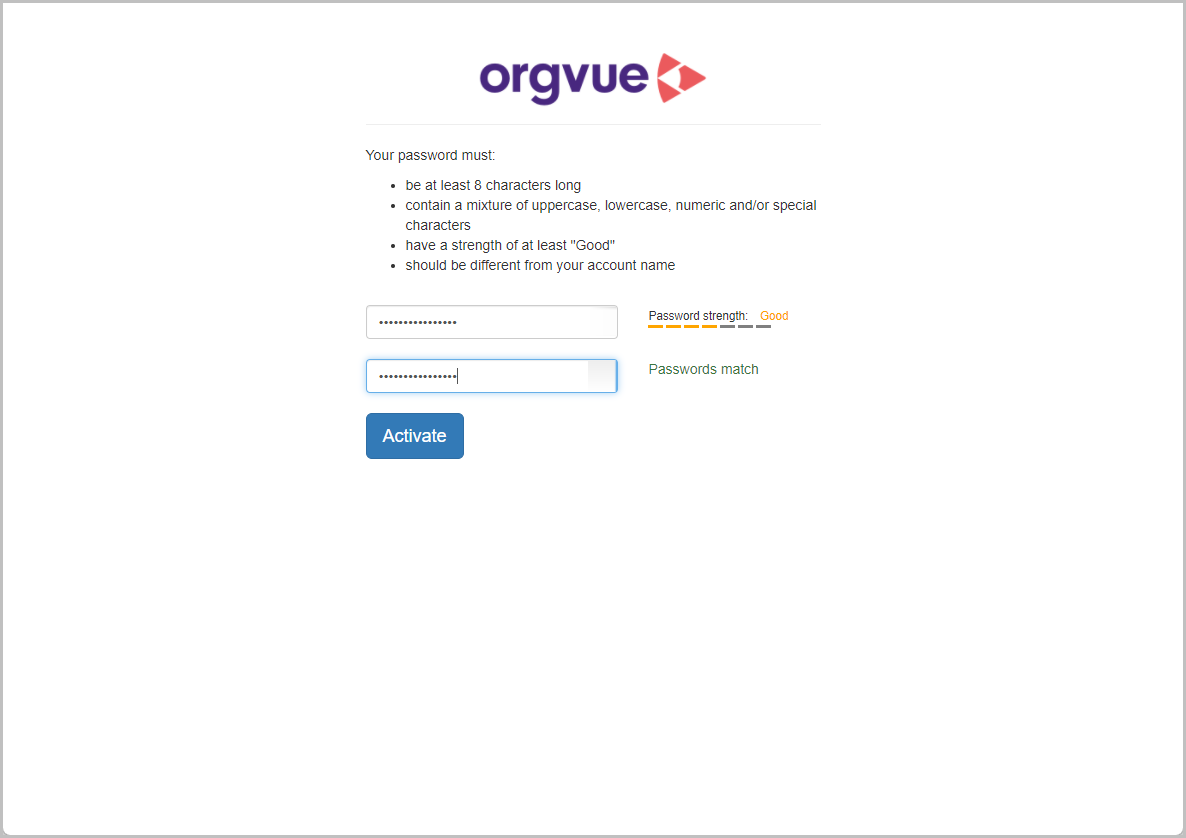
Once you have set your password you will receive a second email from Orgvue, this email will contain a link to access the logon screen for your account
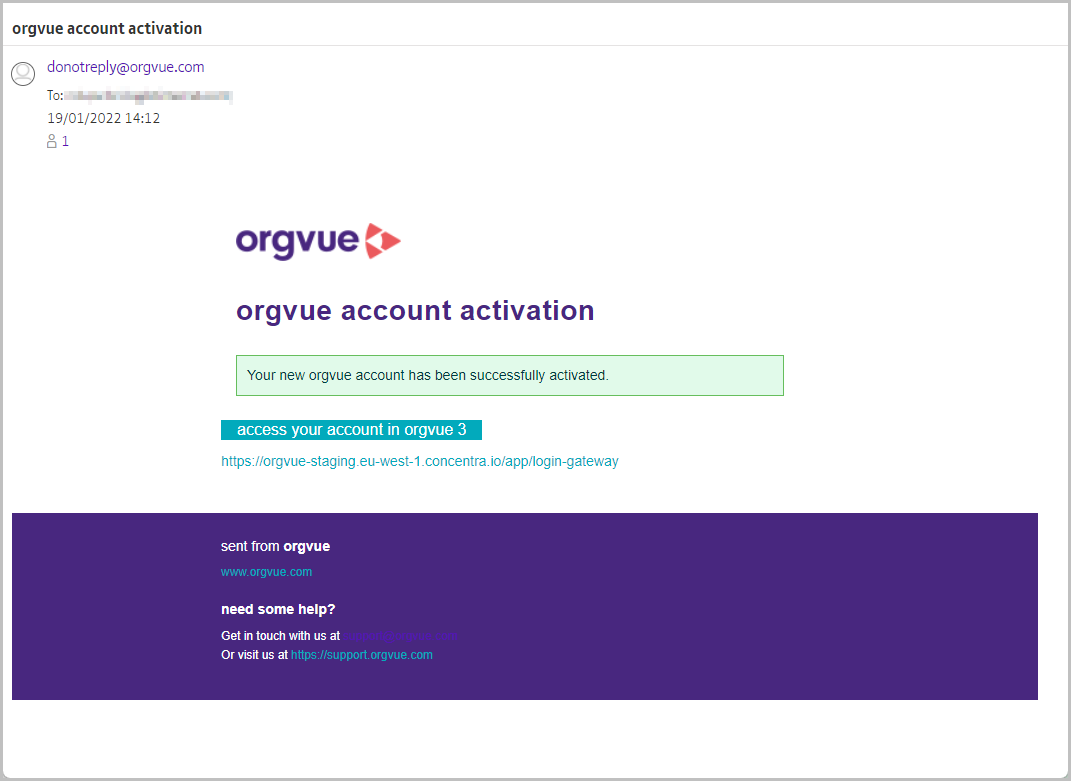
Click the appropriate link, and you will be taken to the Orgvue login screen
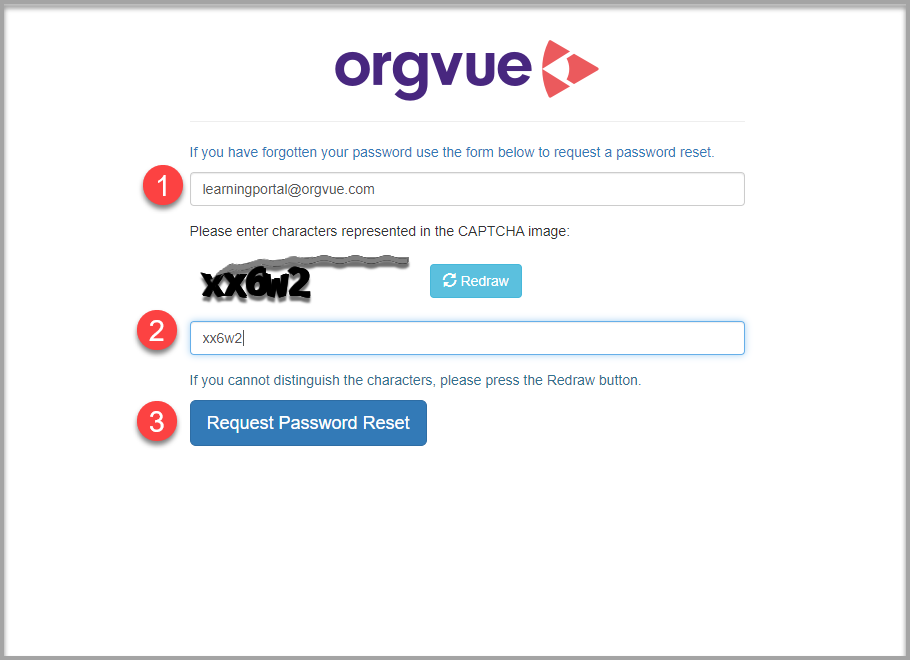
Forgotten Password
If you forget your password, select the forgotten password link
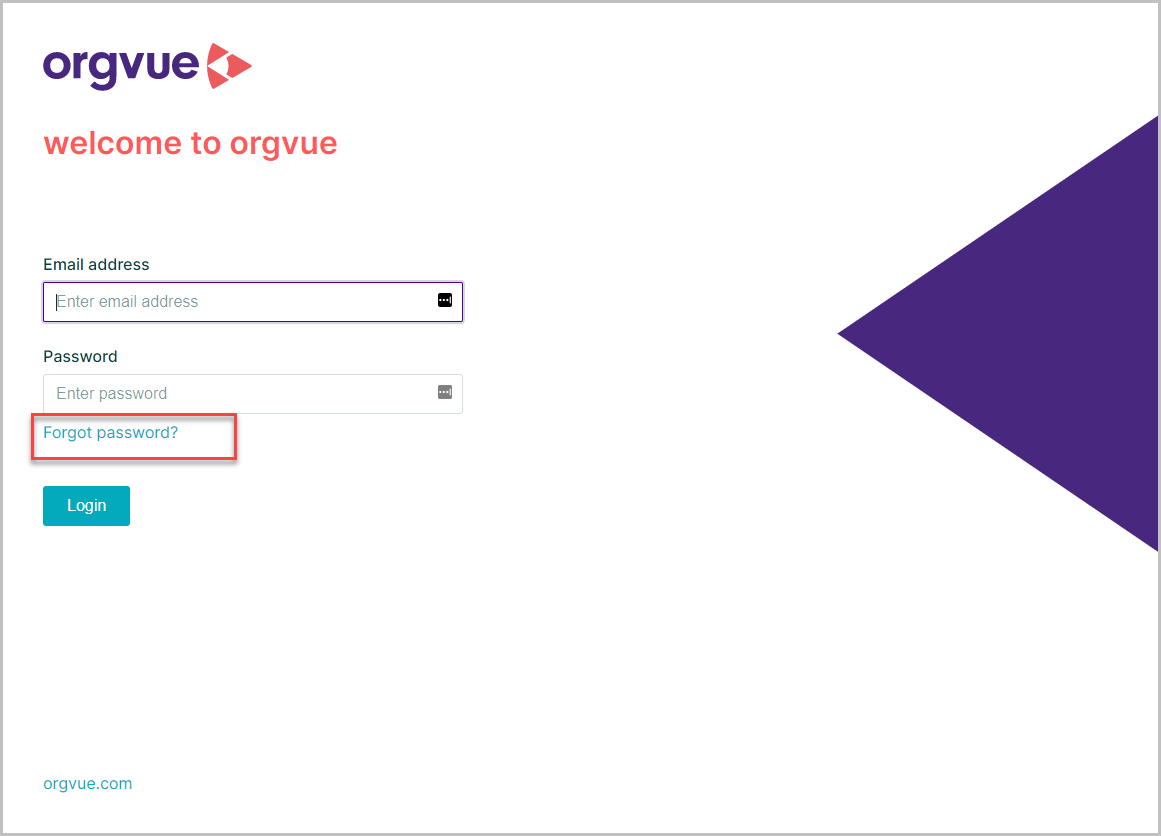
To open a screen where:
- your account will be shown
- enter the characters in the CAPTCHA images
- select the
Request Password Resetbutton to receive an email with a link to reset your password