Folders
admin only feature
Folders in Orgvue Workspace allow you to organise the files in your tenant
Admins can create and manage the contents of folders while users will be able to see the folders and their contents if they have access to the files via the required
Folders can contain datasets, views, drafts, packs and any lookups to create a complete project within a folder.
Files can be added to more than one folder if required
Switch on Folders
Folders in Orgvue workspace is an optional feature that you opt in to if you wish to use it
To opt in select the Switch on Folders button on the default landing page
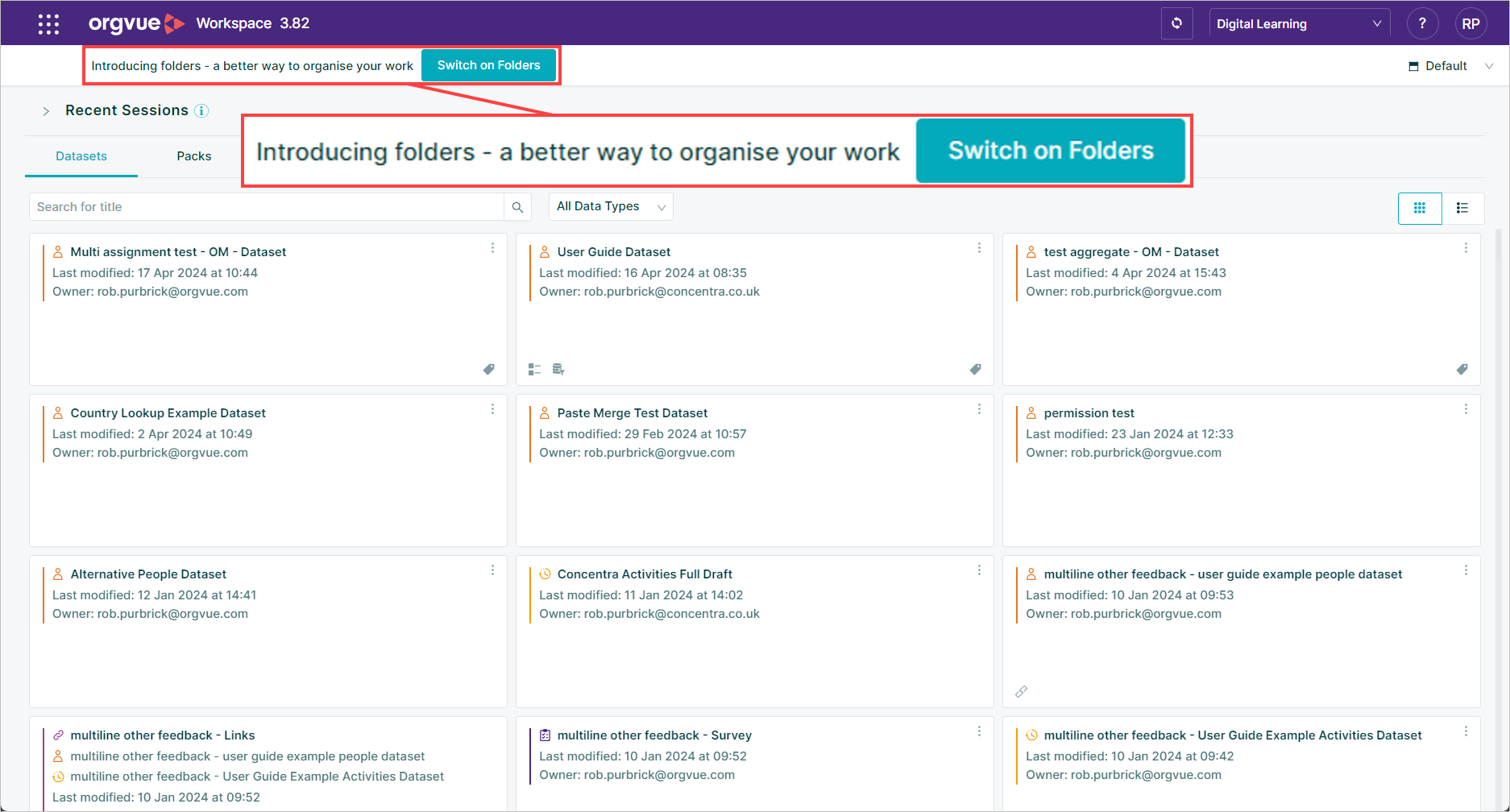
Each individual user must opt in to folders to create and manage them as an admin or view and use them as a user
Create a Folder
admin only
To create a new folder, once you have opted in:
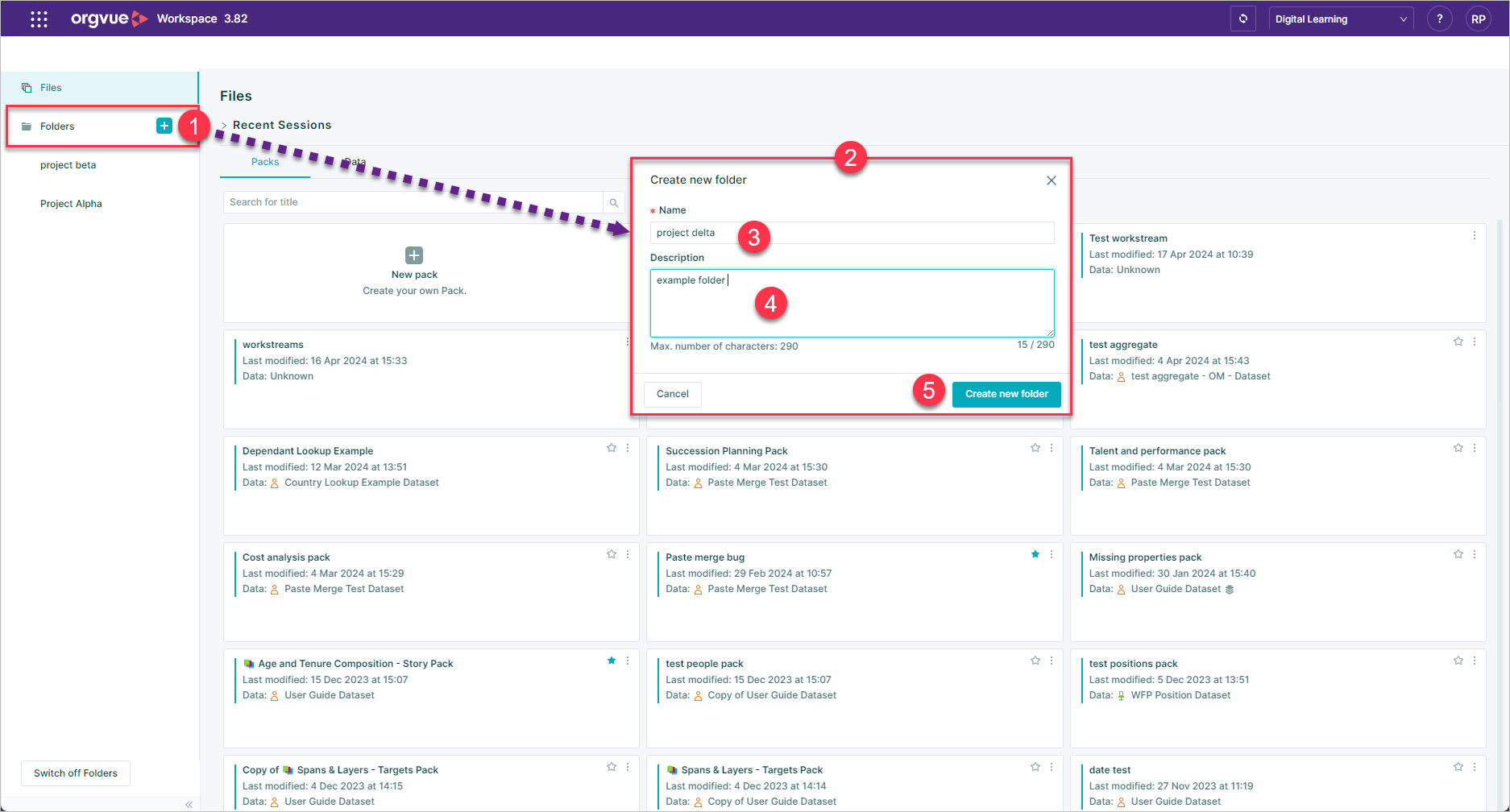
- Select the
Folder +button in left hand panel - This will open a modal window
- Enter a name for the folder
- Add a description for the folder contents
- Select
Create new folderbutton
Add Files to a Folder
admin only
To add a file to an empty folder:
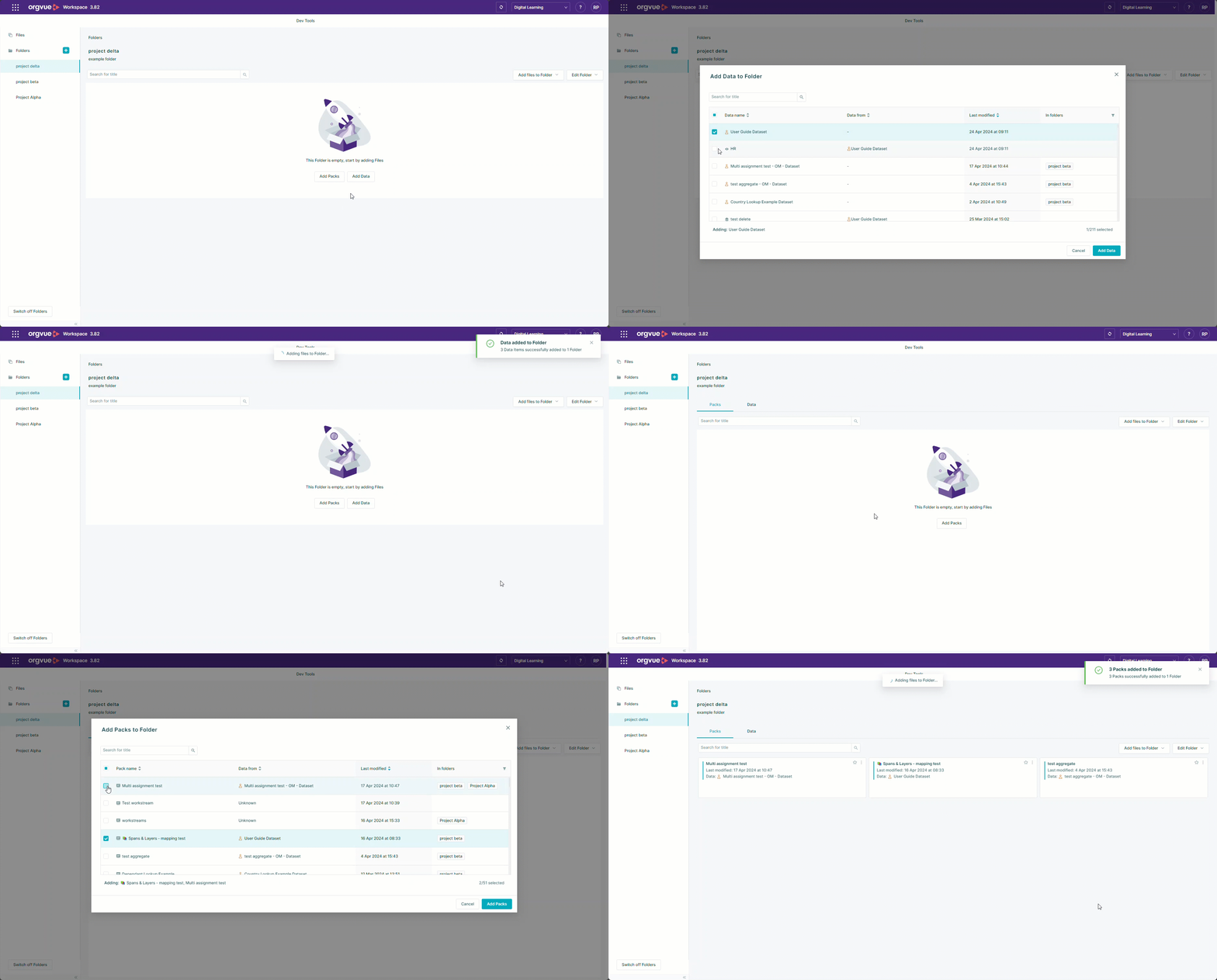
Select the Add Packs or Add Data button to open the selection window
Select the required data or packs and the add
To add a file to an exiting folder:
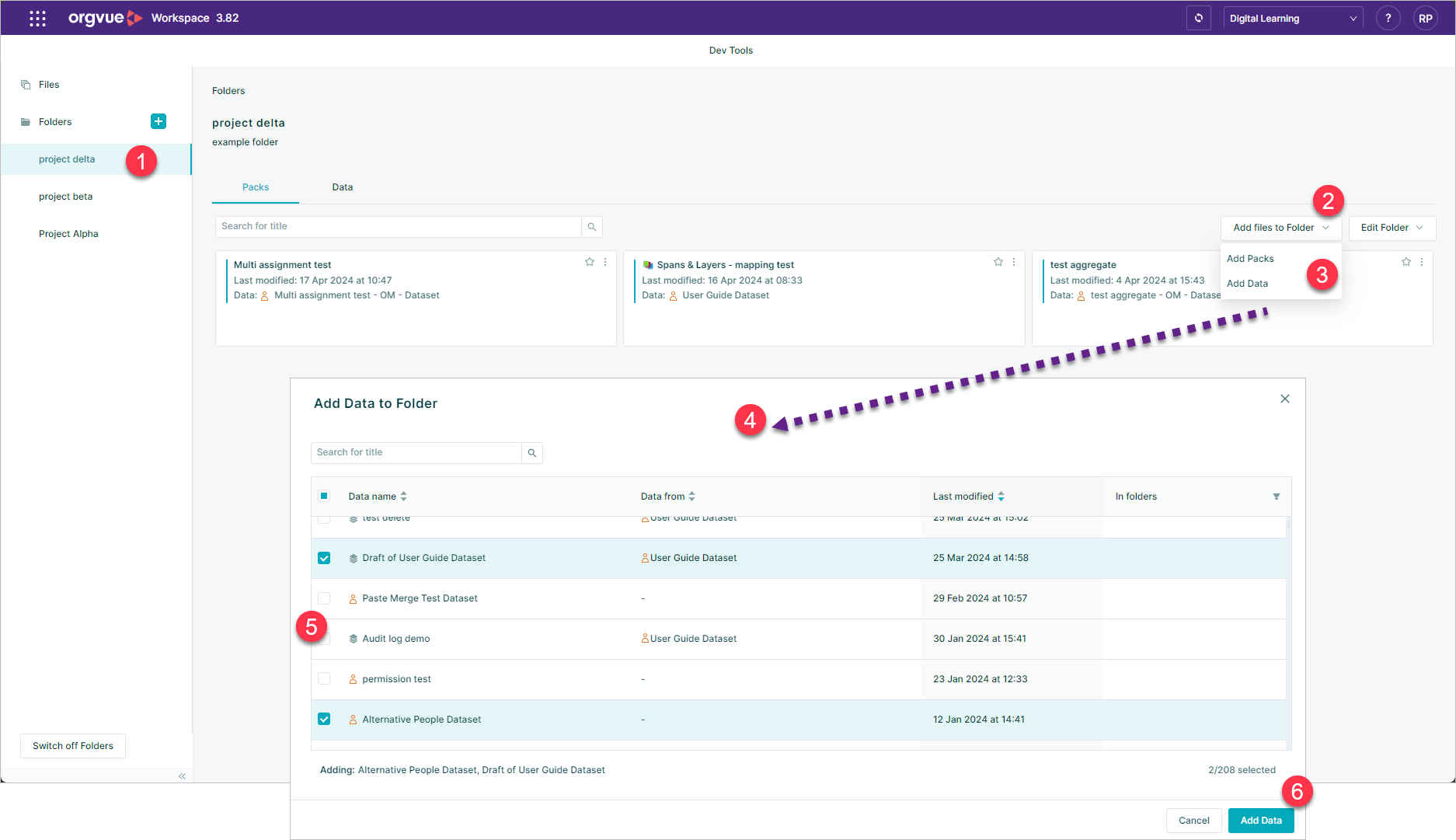
- Select the required folders on the side panel
- Select
Add files to folderto open the menu - Select either
Add PacksorAdd Data - This will open the add window displaying files to add
- Select the files to add
- Select the
Addbutton
It is possible to add a file to more than one folder. Any updates then saved to that file will be reflected in all folders
Adding views and drafts to a folder
admin only feature
View and Drafts are added to folders in the same way as any other files and will be shown in folders attached to the parent dataset that they are created from
To access these views and drafts in folders:
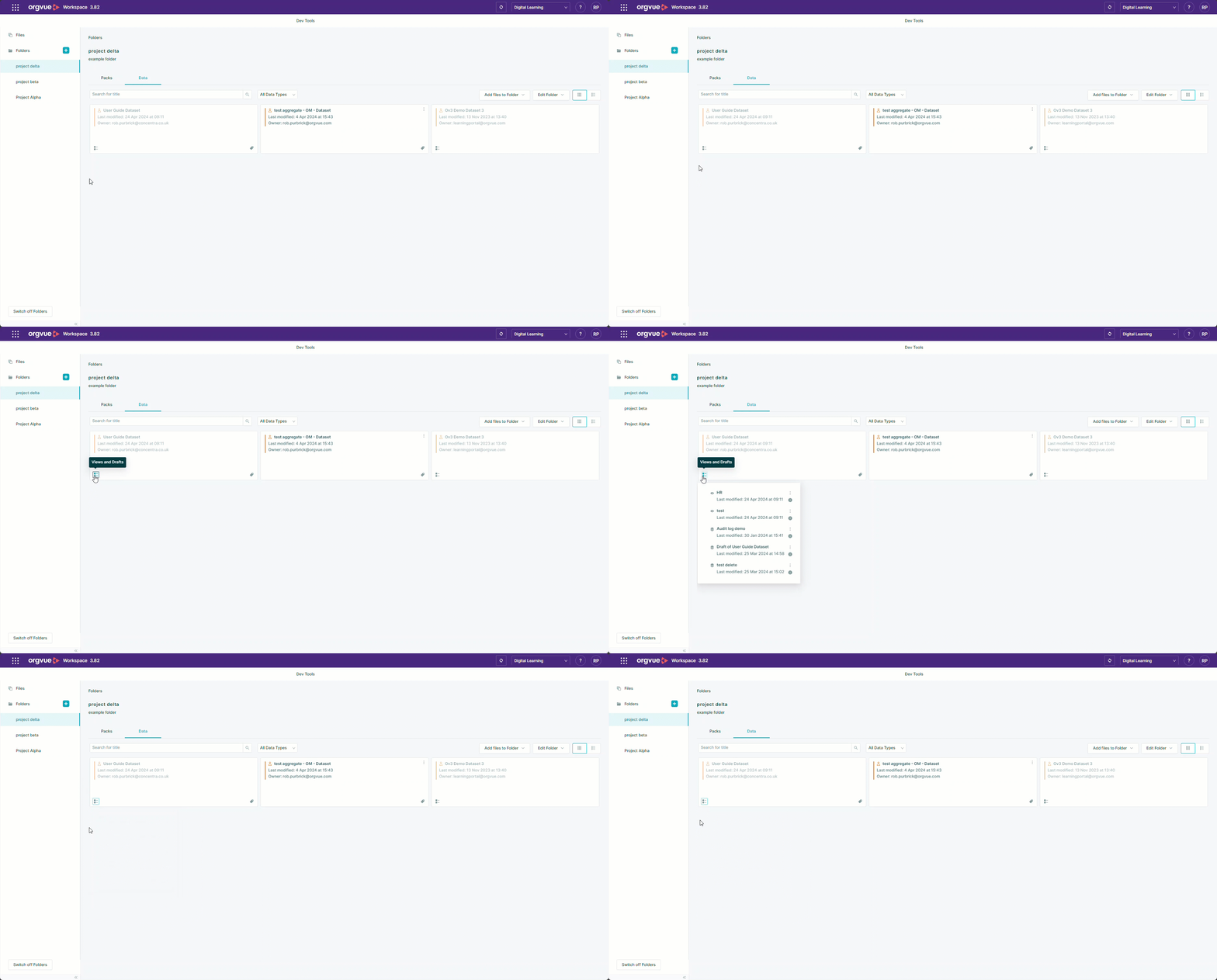
- Select the Views and Drafts button on the dataset
- To open the modal containing the views and drafts
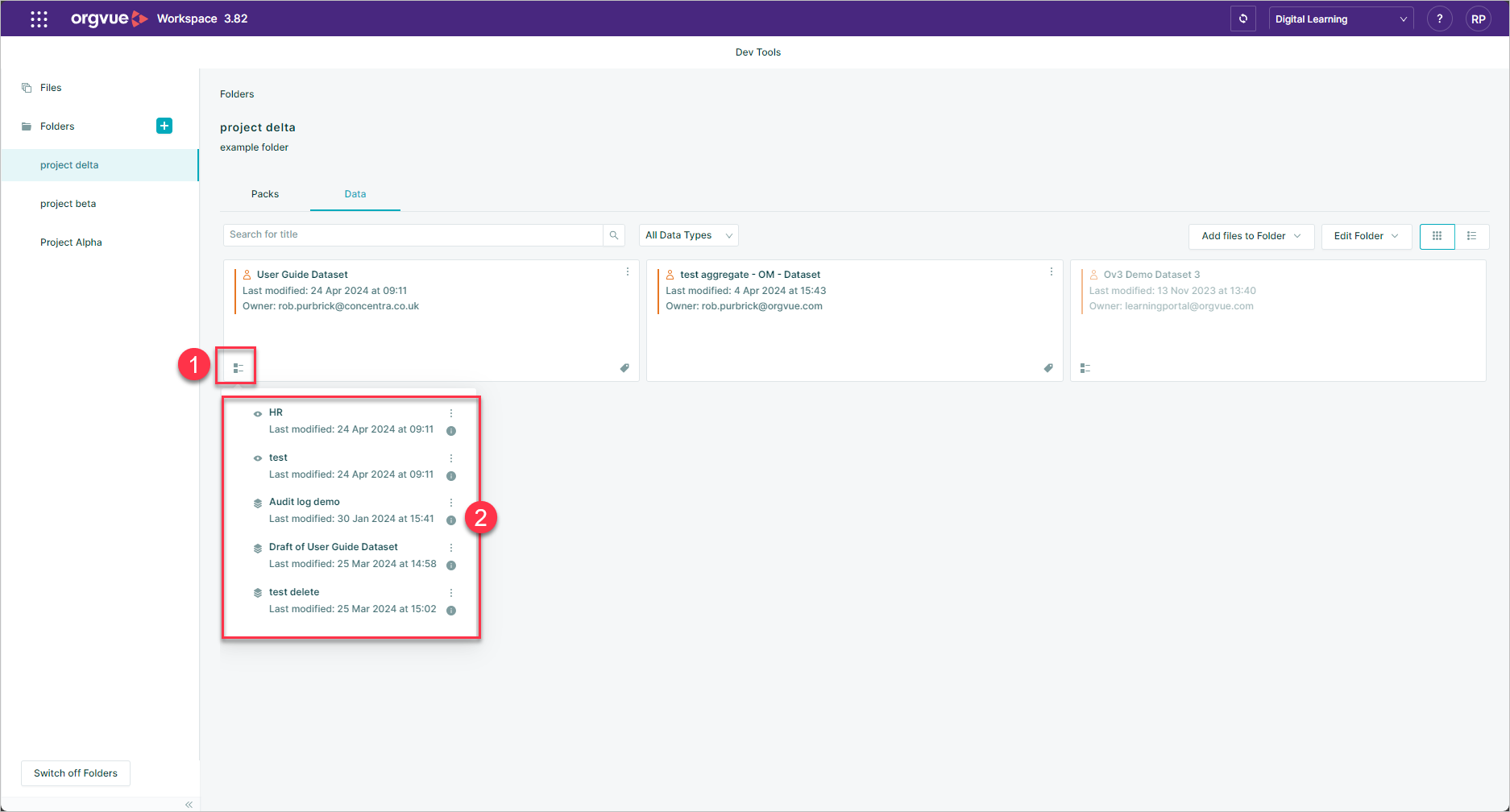
If the parent dataset has not been added to the folder then it will appear in folder greyed out but the views and drafts added to folder will still be accessible in the same way
Remove Files From a Folder
admin only feature
When removing any files from a folder the file is not deleted and will still be available for use within your tenant and any other folders it has been added to
To remove a file from a folder:
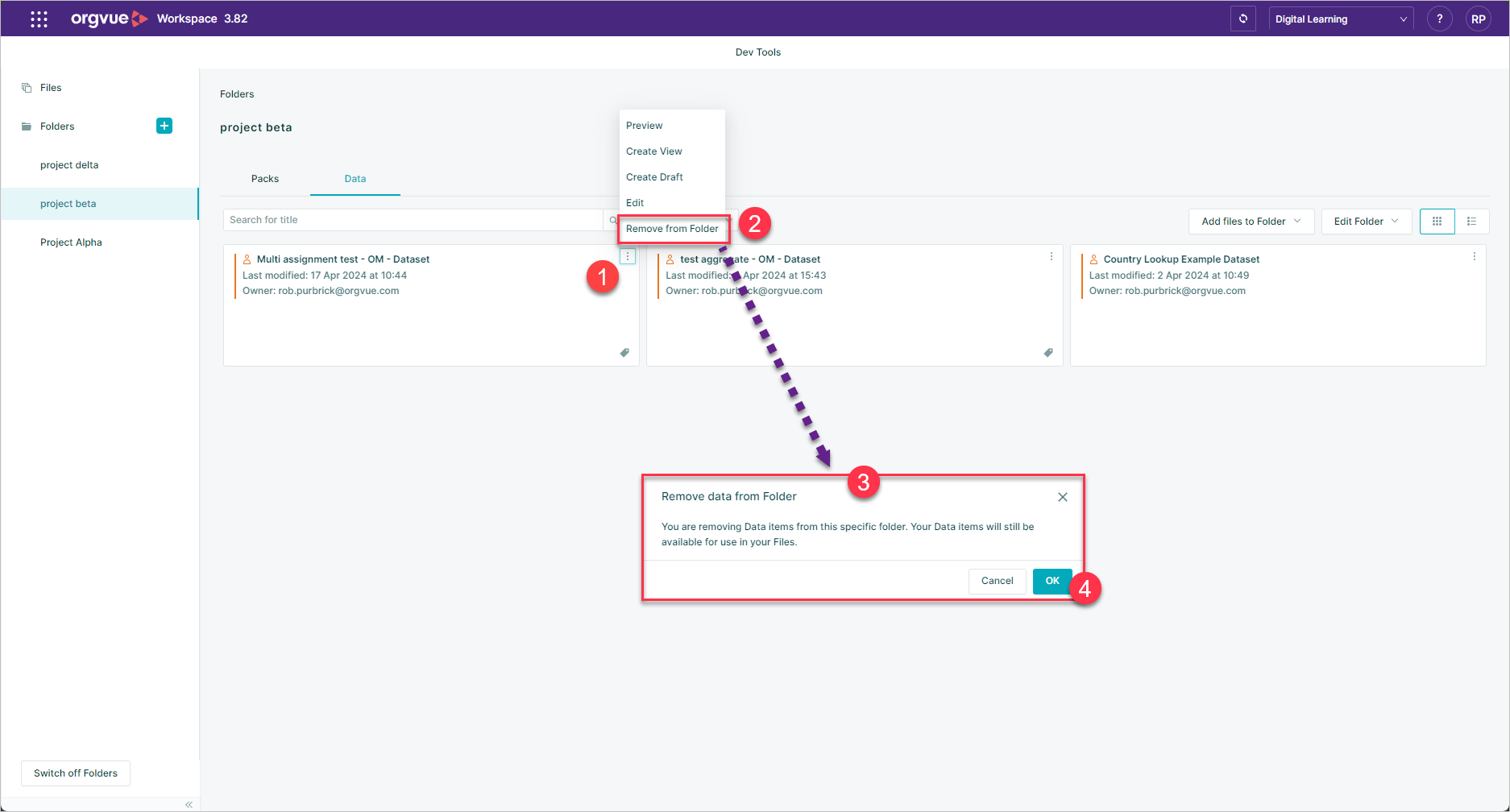
- Select the ellipses on the data or pack card
- Select
Remove from Folder - A confirmation modal will be displayed
- Select
OKto complete the removal
Delete folder
admin only feature
Deleting a folder will also remove all files from the folder but the files will still remain available for use within your tenant and any other folders they have been added to
To delete a folder:
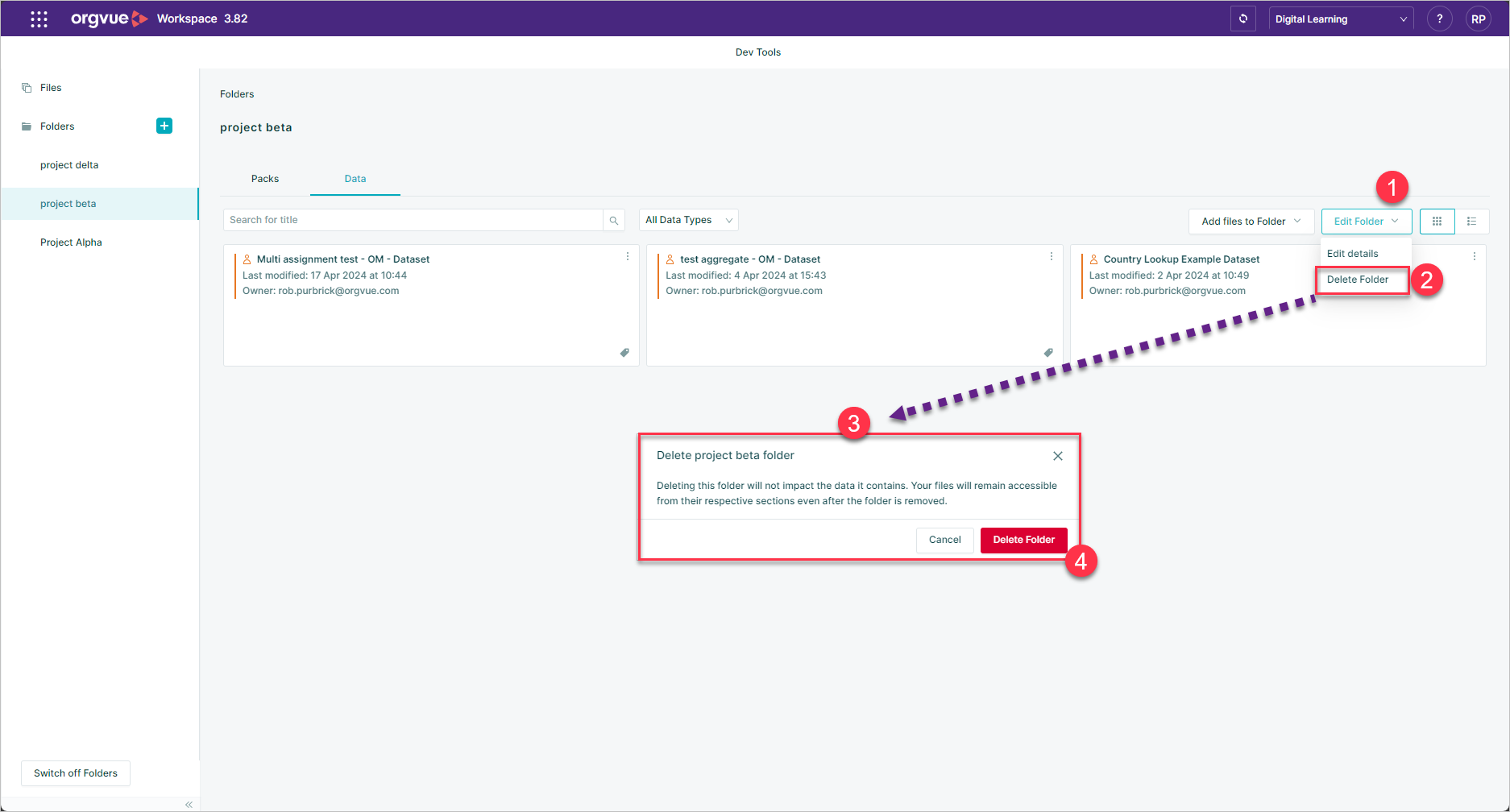
- Select the
Edit Foldermenu - Select
Delete Folder - A confirmation modal will be shown
- Select
Delete Folderto complete the deletion
Switch Off Folders
If you wish to switch off the folders function for your tenant simply select the Switch off Folders button
Switching off folders will not delete any folders previously created or affect any files in those folders for any other users