Toolbar
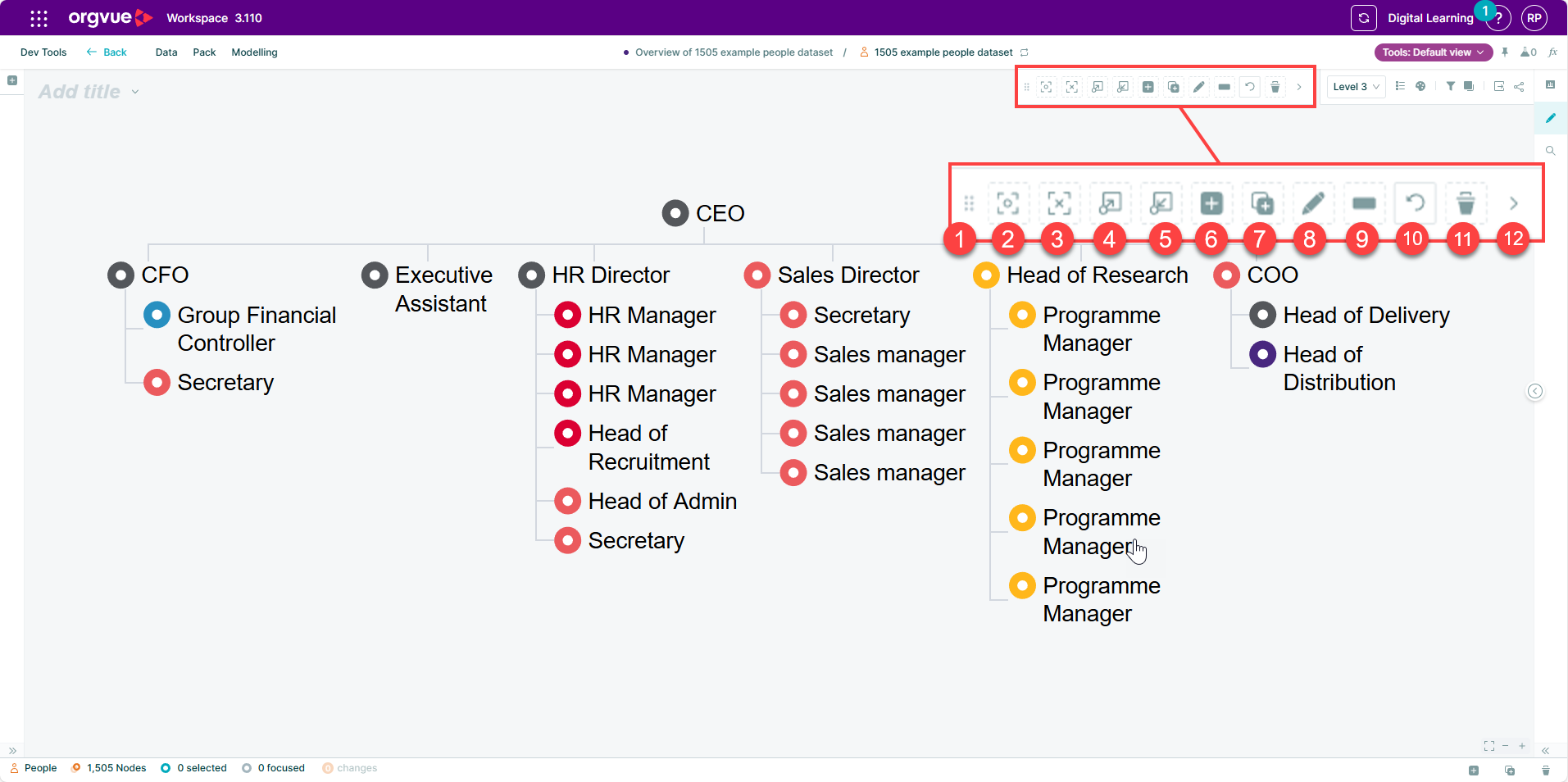
A toolbar is displayed at the top of any tree slide canvas which brings together a number of functions for interacting with nodes
Each of these functions can also be accessed via other methods
- Move Toolbar
- Focus
- Clear Focus
- Expand Next
- Collapse Last
- Create Node
- Clone Node
- Edit Node
- Orphan Node
- Revert Changes
- Delete Node
- Hide Toolbar
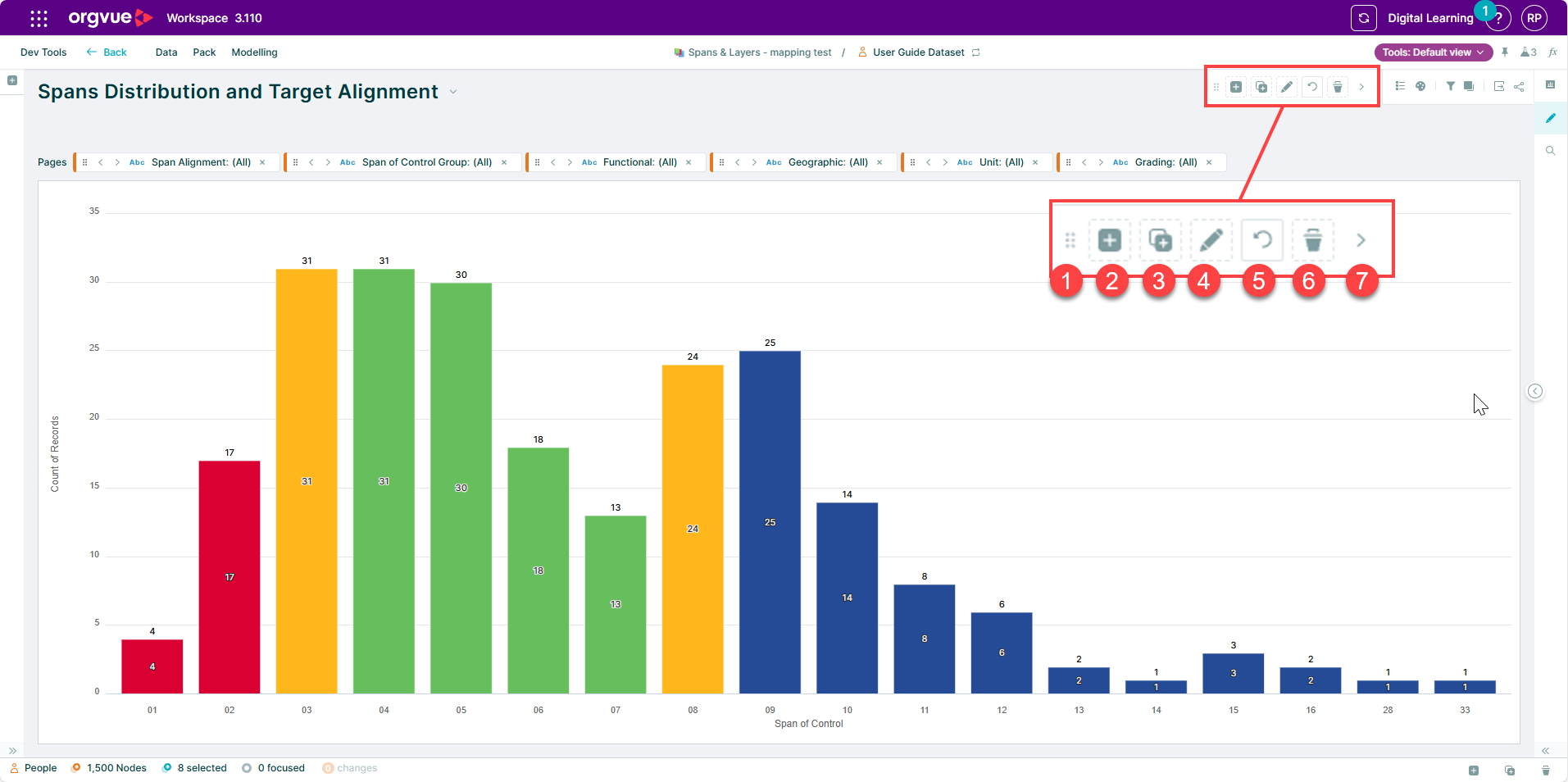
On a Bar Chart, Funnel Chart, or Crosstab a toolbar is also present with reduced buttons to allow you to:
Undock Toolbar
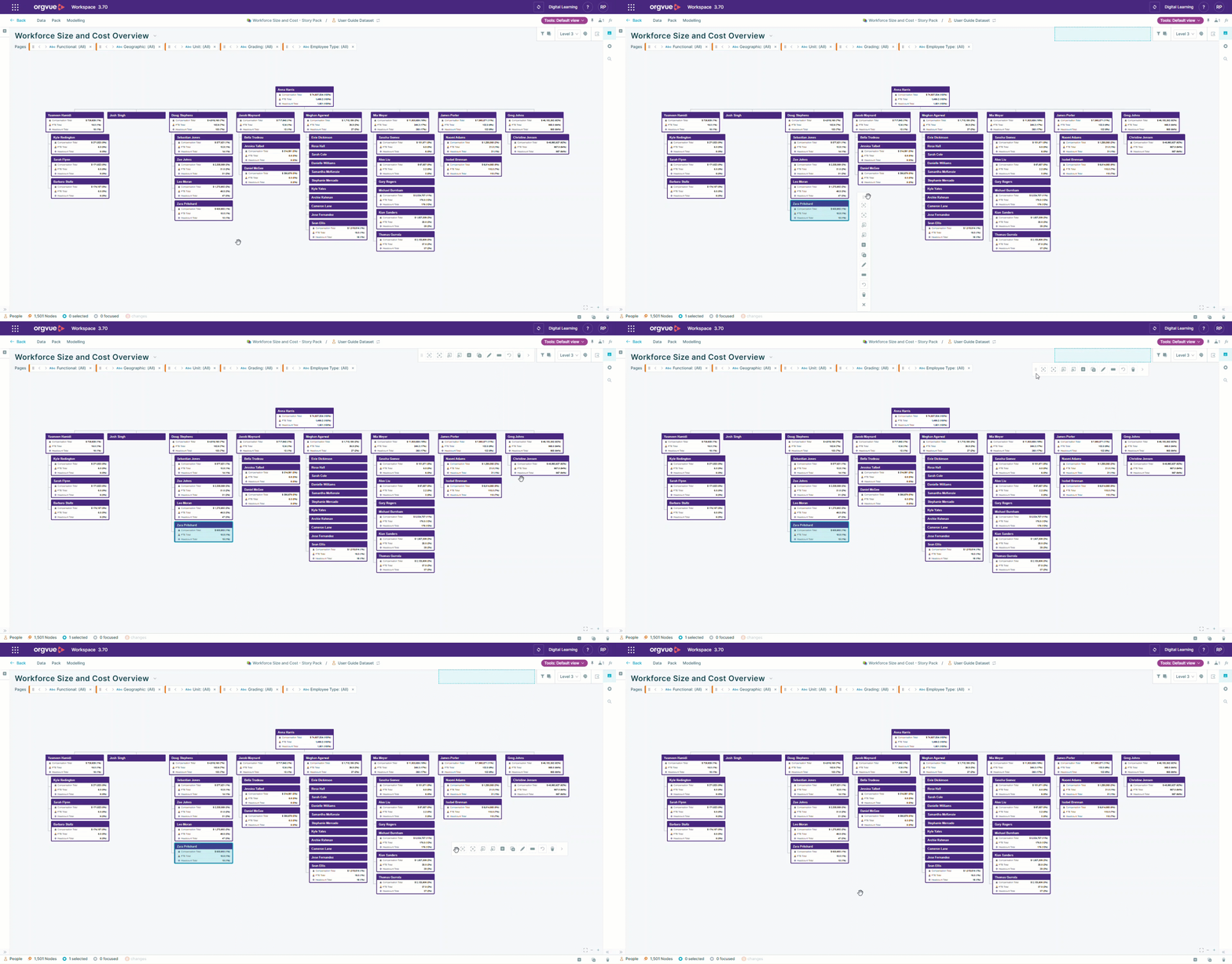
The Toolbar is docked to top of your canvas by default but can be undocked and moved onto the canvas if required, when finished use the move button to drag it to the highlighted area which is shown as soon as the Toolbar is moved
Move Toolbar
The toolbar may be dragged to any position on the canvas, it will retain this position until docked
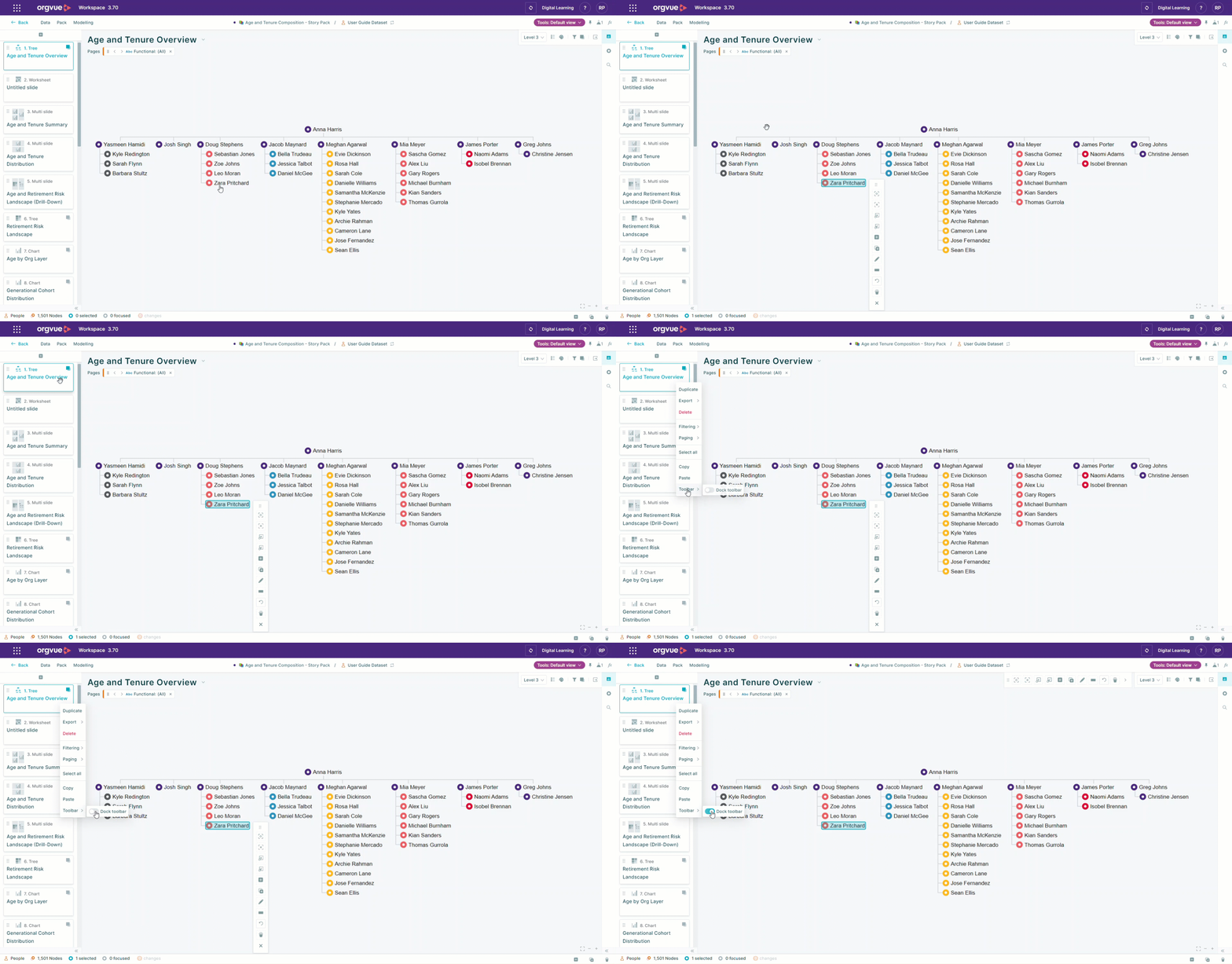
Toolbar Slide Menu Option
The toolbar docking status can be set for each slide using the switch on the slide menu
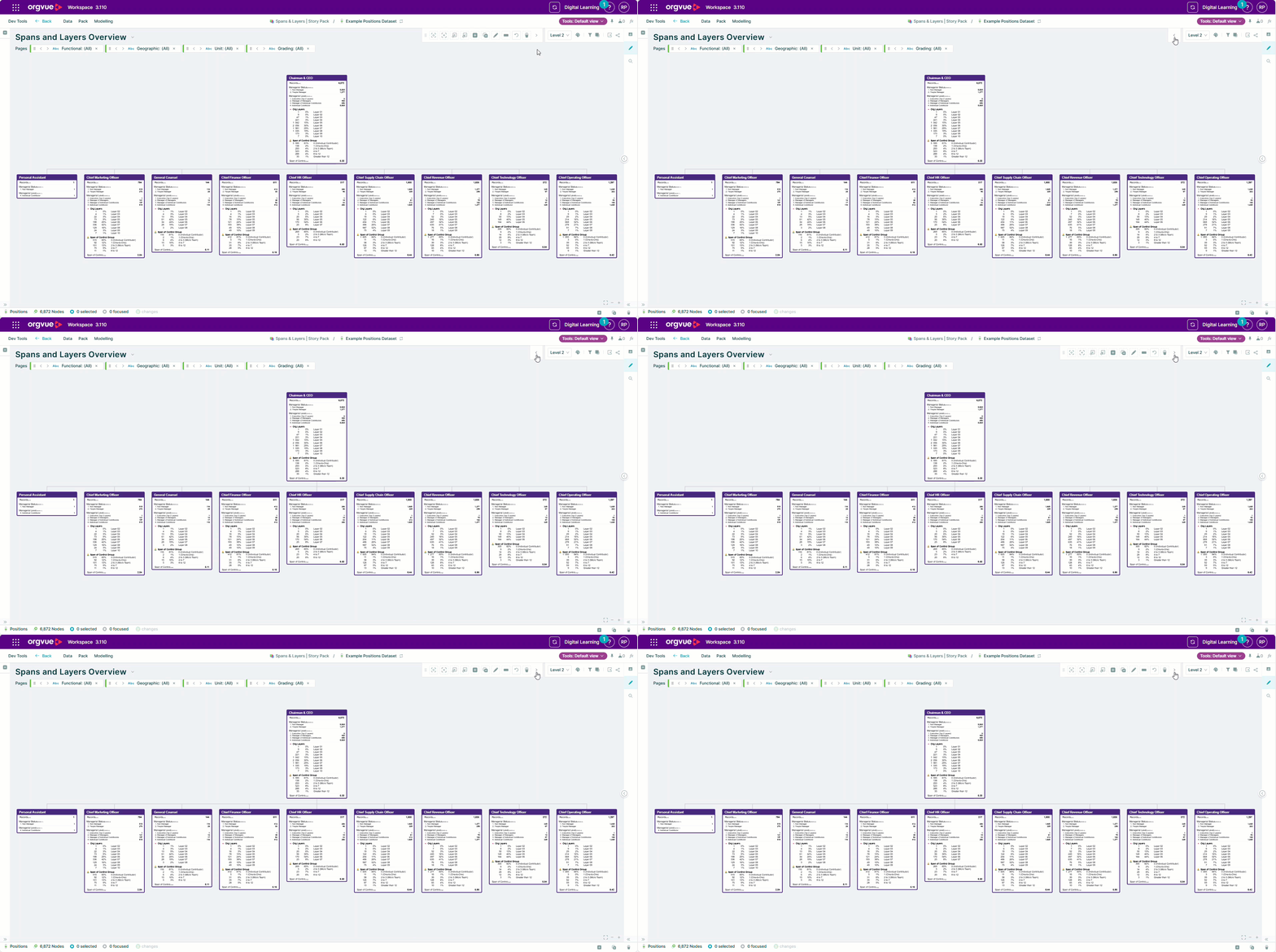
Hide Toolbar
Use the hide button to collapse the toolbar if required
Toolbar Drop Zones
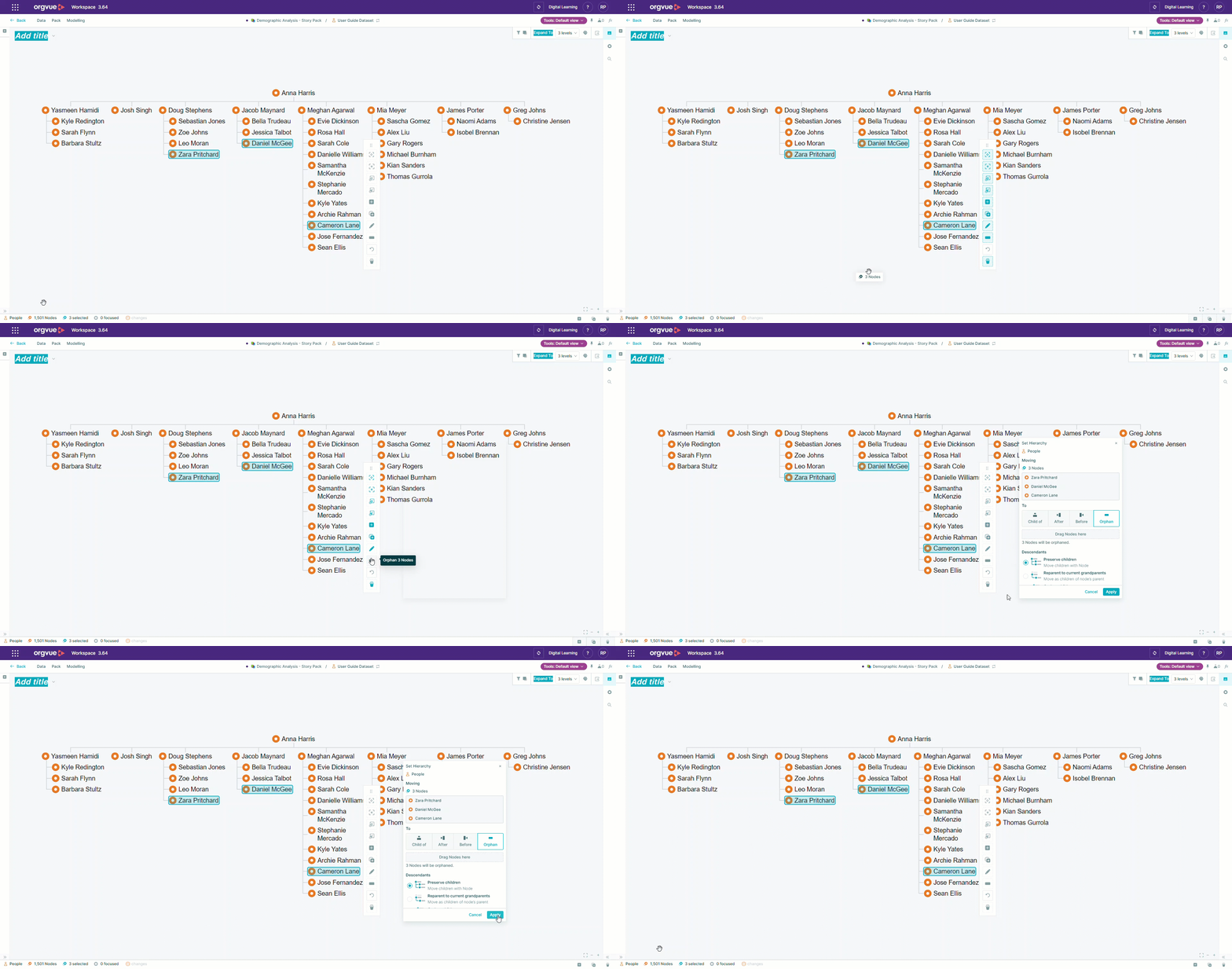
Each of the buttons on the toolbar are available as drop zone targets to drag node(s) onto
Dragging node(s) onto a drop zone will activate the relevant action