Pinboard
Collections that are created can be saved within the current pack and dataset combination for future use
Once created, pinboard collections will appear in property selection panels for Filtering, Paging and Colors
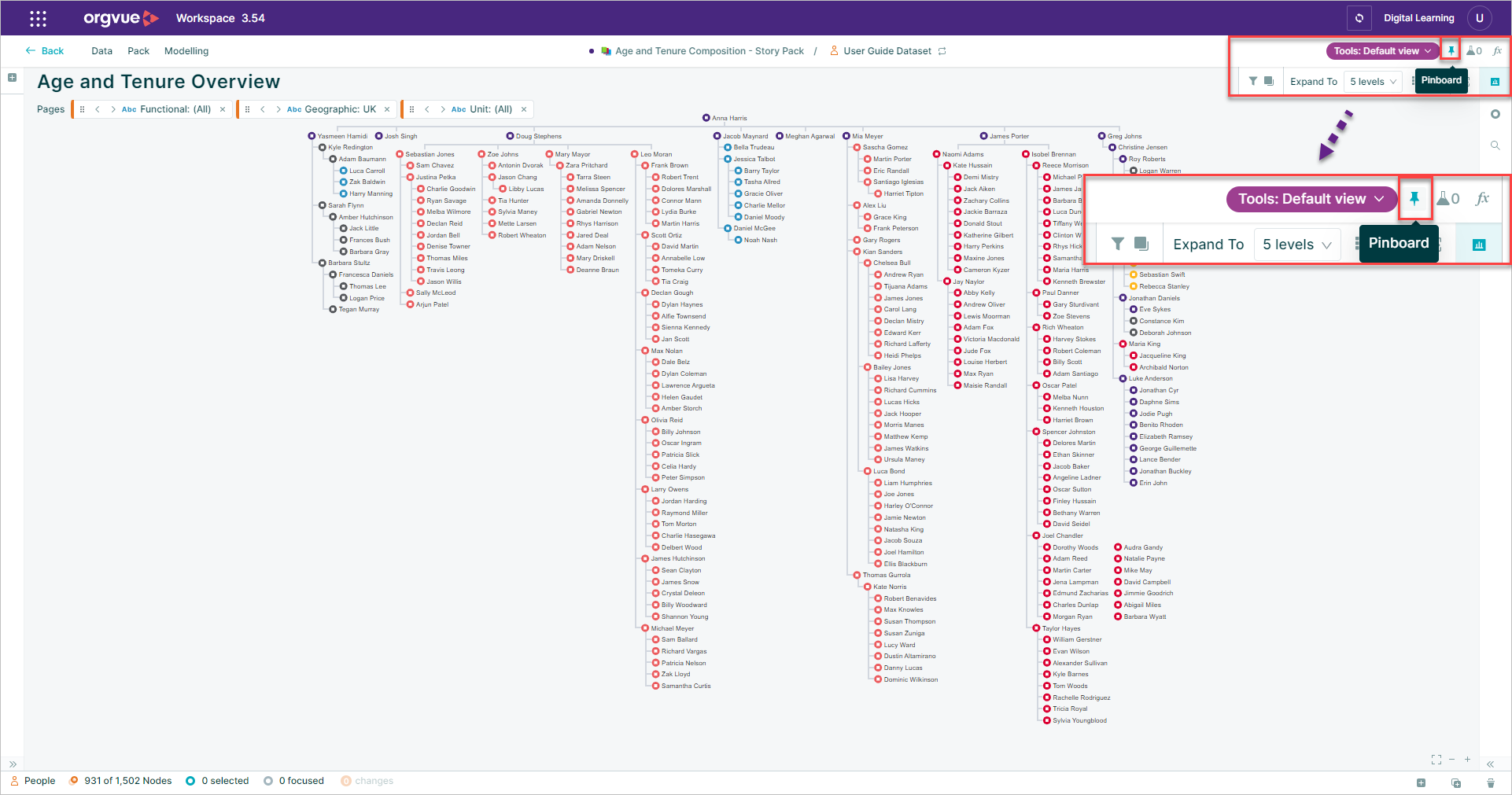
To open the Pinboard select the Pinboard Button
When modelling within a Draft it is not possible save new nodes created within the Draft to a Pinboard when you save the pack
Create Collection
To create a collection:
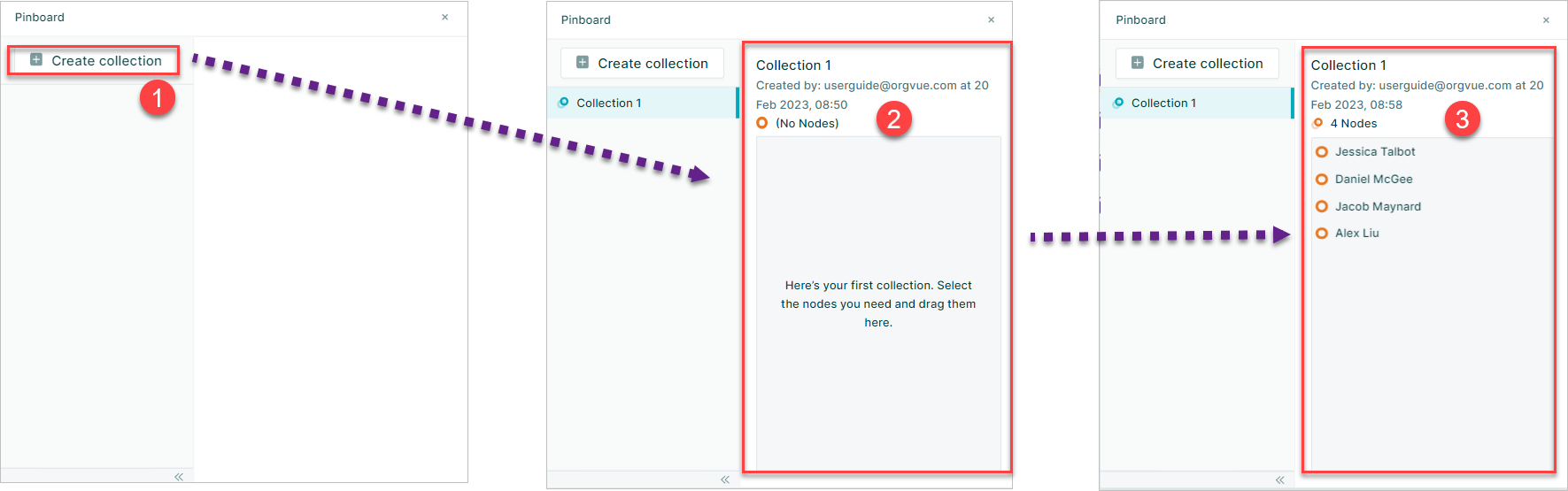
- Select the
Create Collectionbutton - This will create an empty collection ready to add nodes by dragging them onto pinboard
- Nodes added will then be displayed
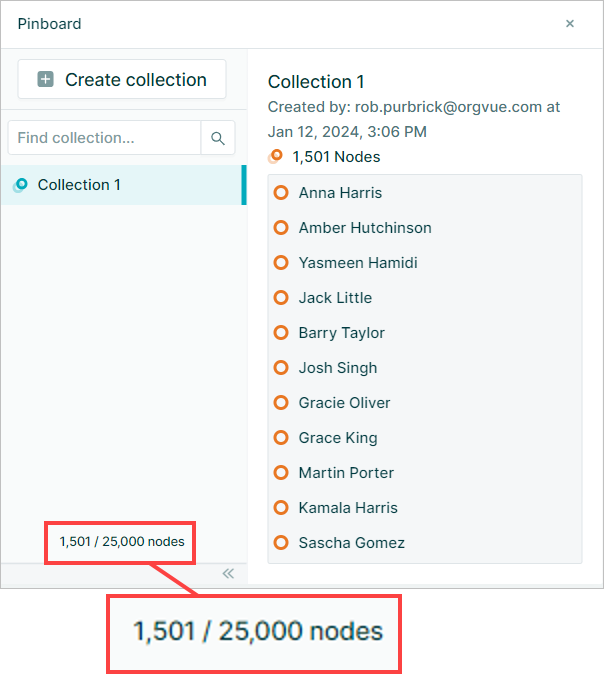
The Pinboard has a limit of 25000 nodes across all collections
Edit Collection
Nodes may be added to an existing collection by dragging them onto the pinboard
To remove a node from a collection use the X
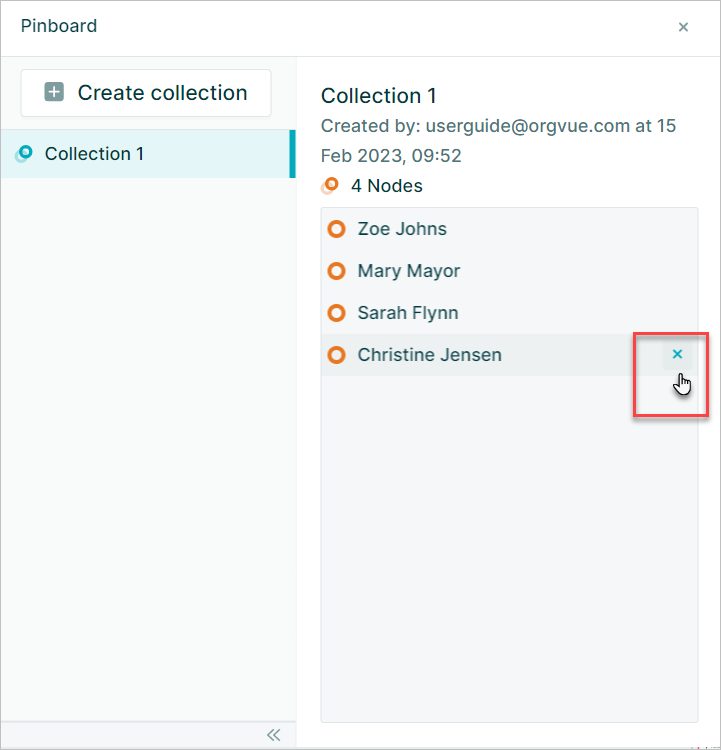
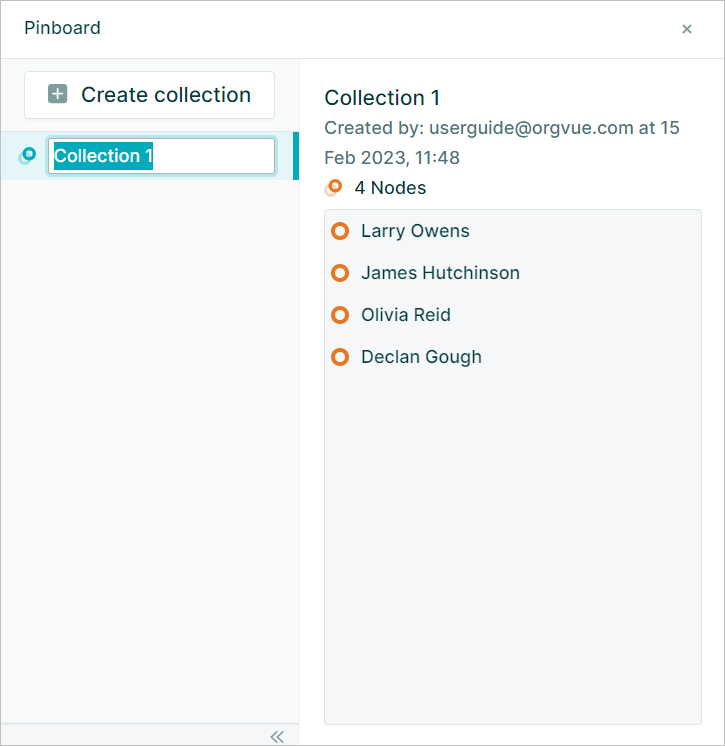
Collection names will initially be set as Collection 1, Collection 2 but may be changed by double-clicking the collection name to edit it
Duplicate Collection
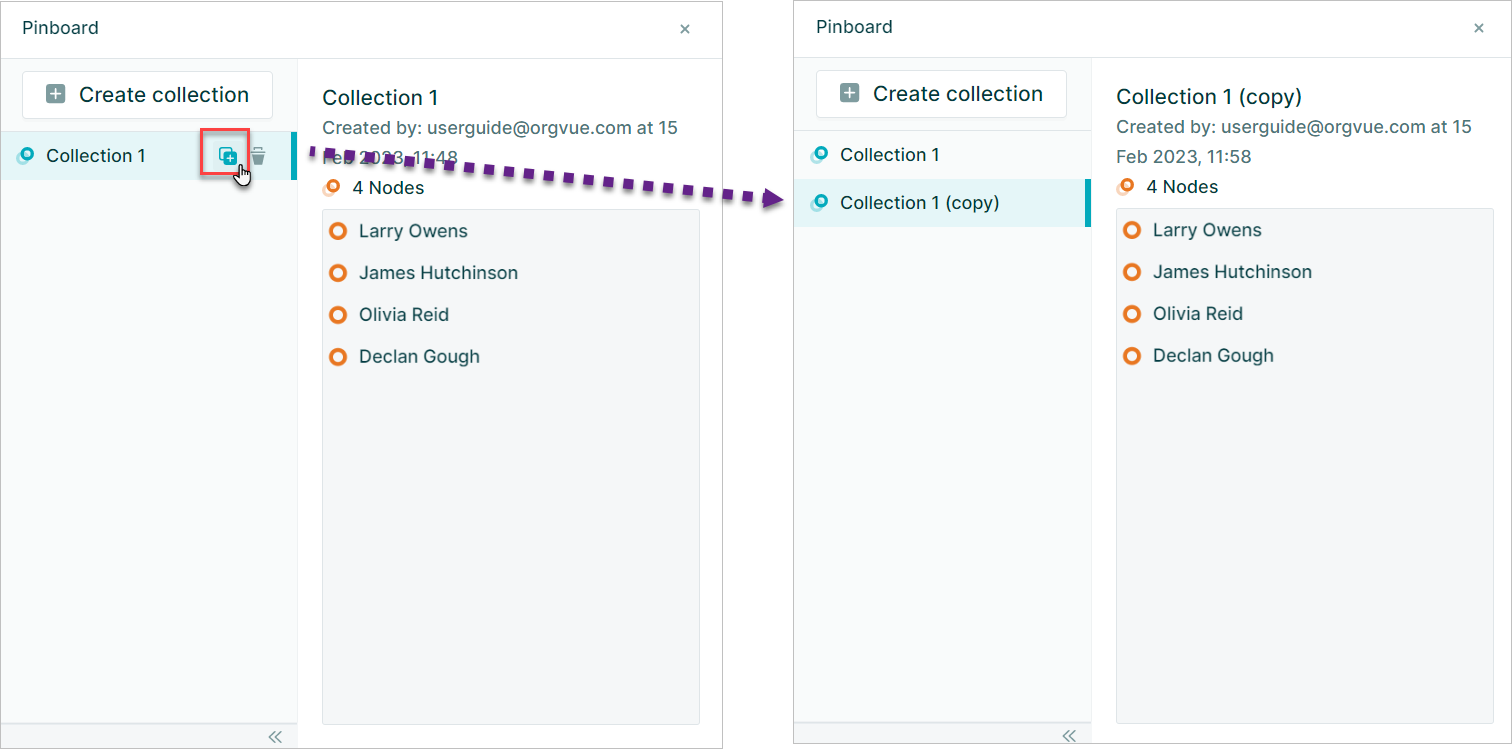
An existing collection can be duplicated using the Duplicate button
The collection will be duplicated with the name of the source collection and the suffix (copy)
Delete Collection
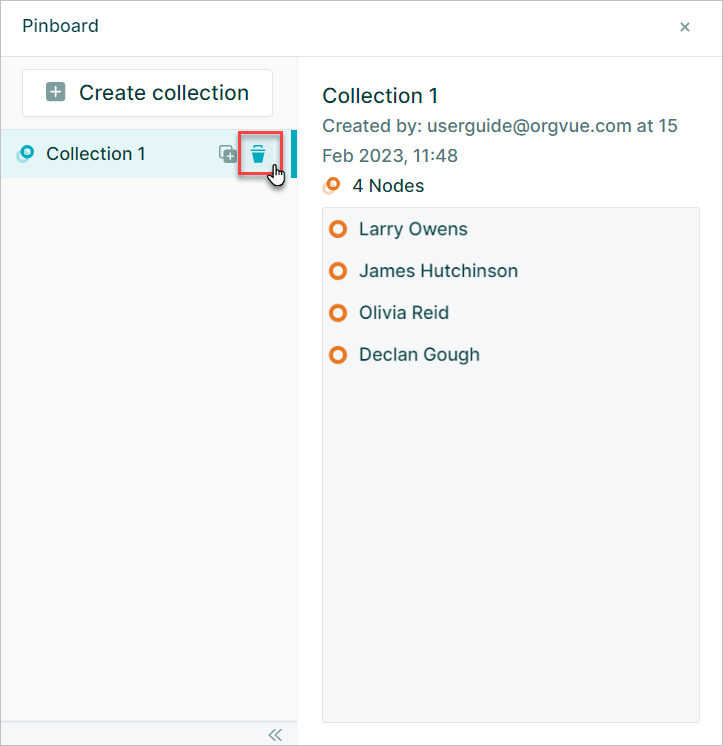
Any collection that is no longer required may be deleted using the Delete button
Save Collection
Collections are saved on the Pinboard within the Pack and Dataset combinations they are created in.
The creation of a collection on the pinboard will result in the Unsaved Changes Indicator being shown for the current pack in the Header Bar
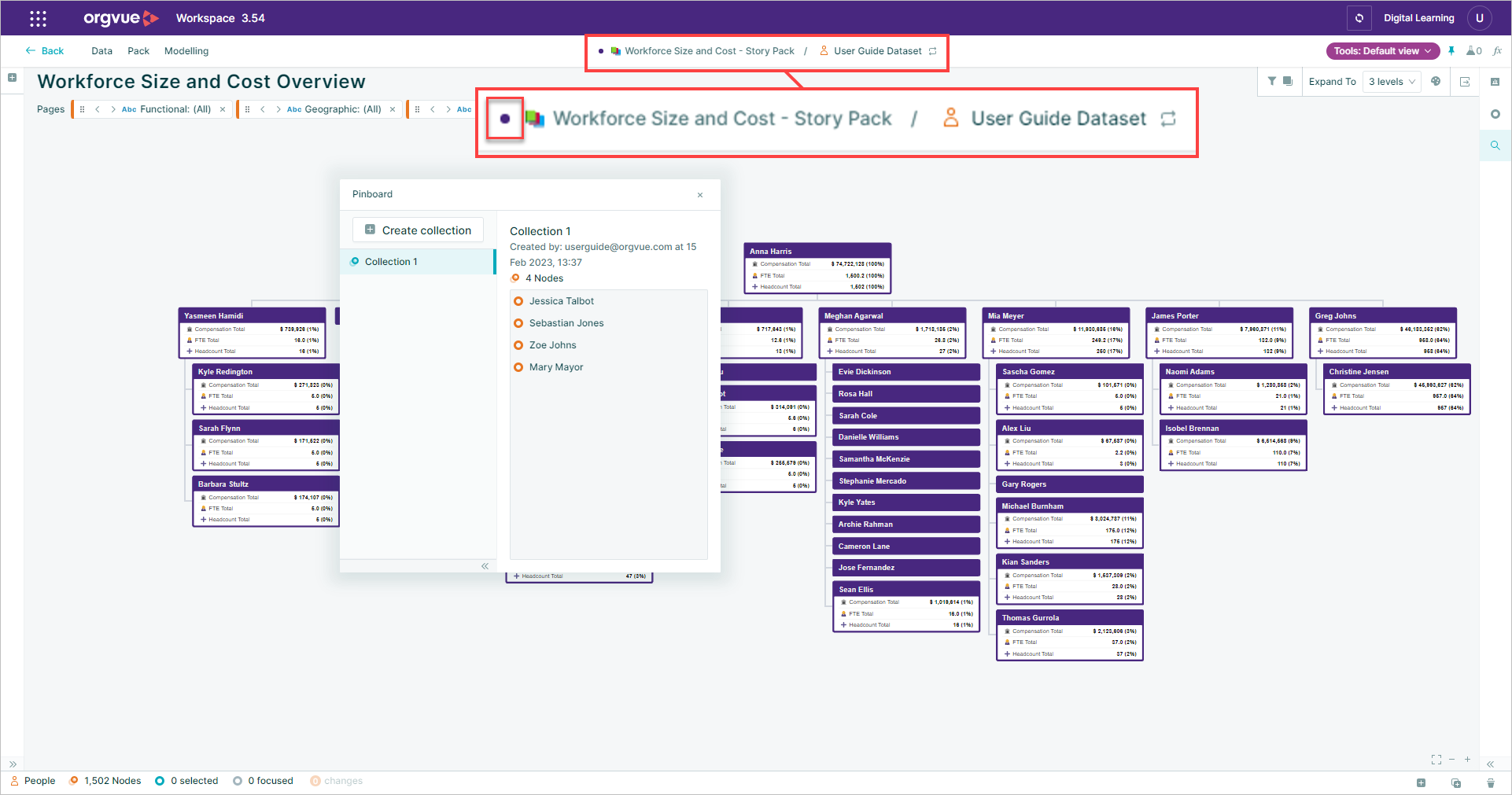
Saving the pack will also save the collections on the pinboard
Pinboard Property
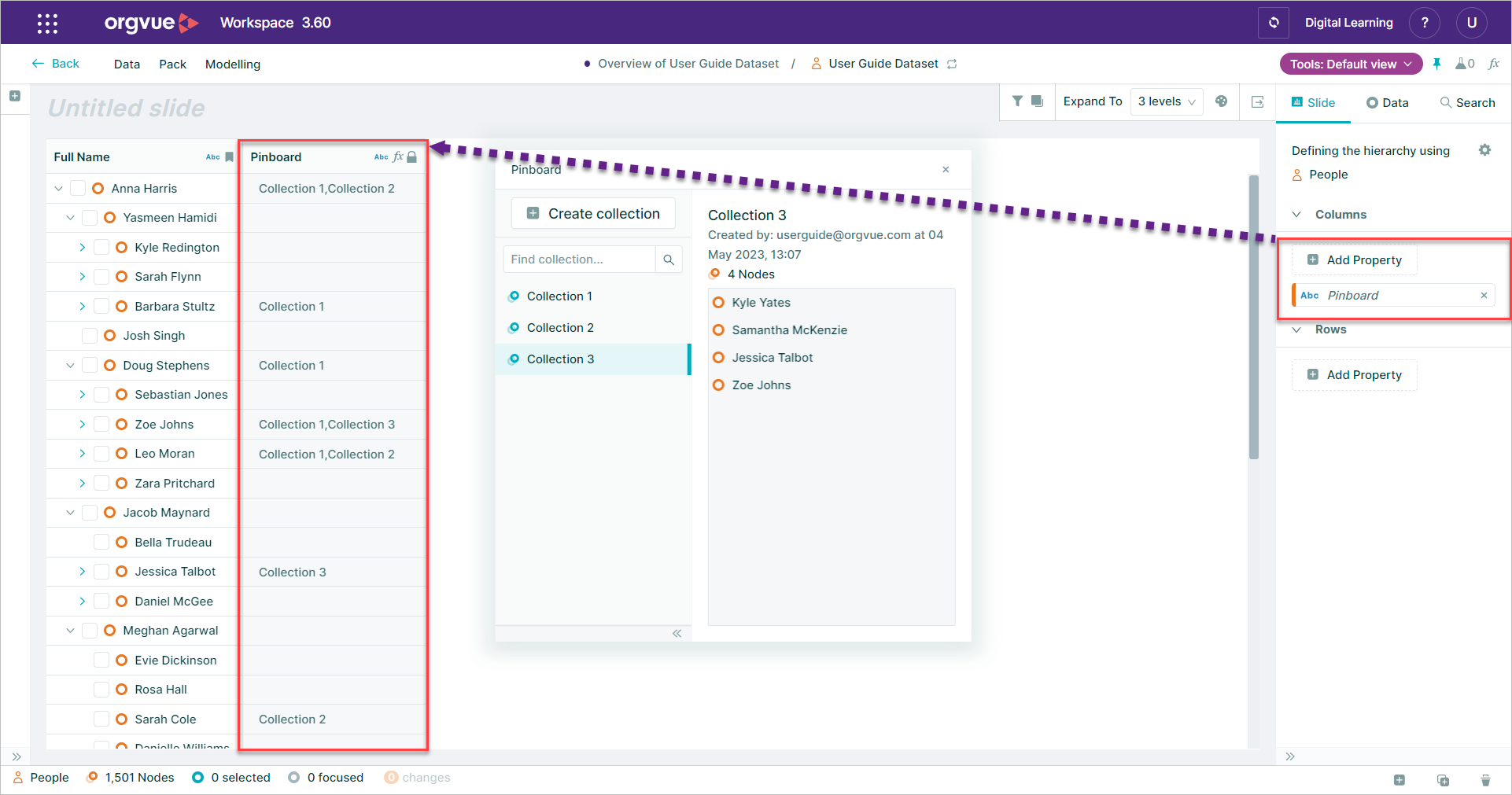
Pinboard will be available as a selectable property in all property panels
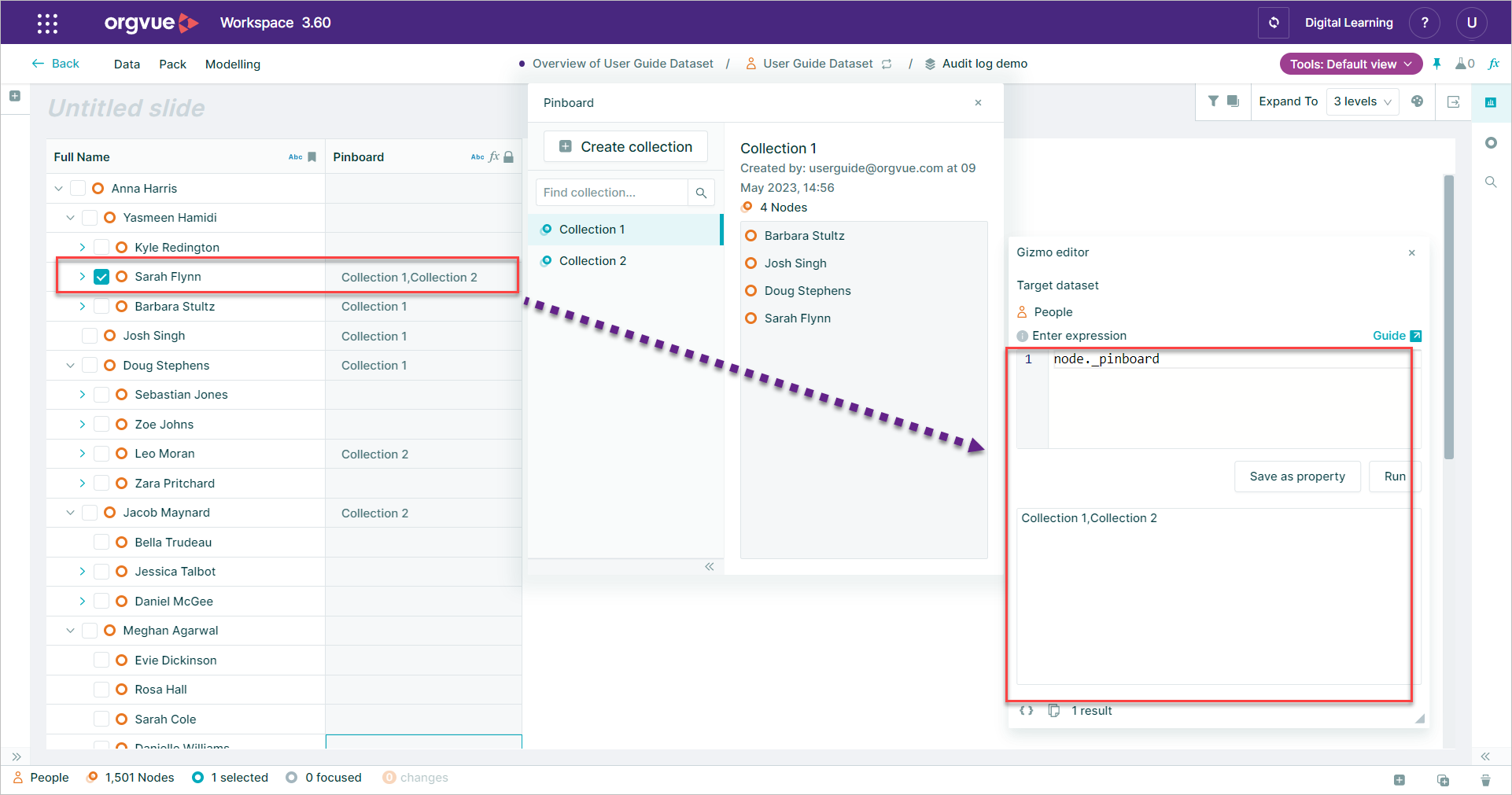
Adding the property to a slide will show which collections each node has been added to
Filter by Pinboard
Once a collection has been created on the Pinboard it may be selected in the filter property panel to filter the data visible on the current slide
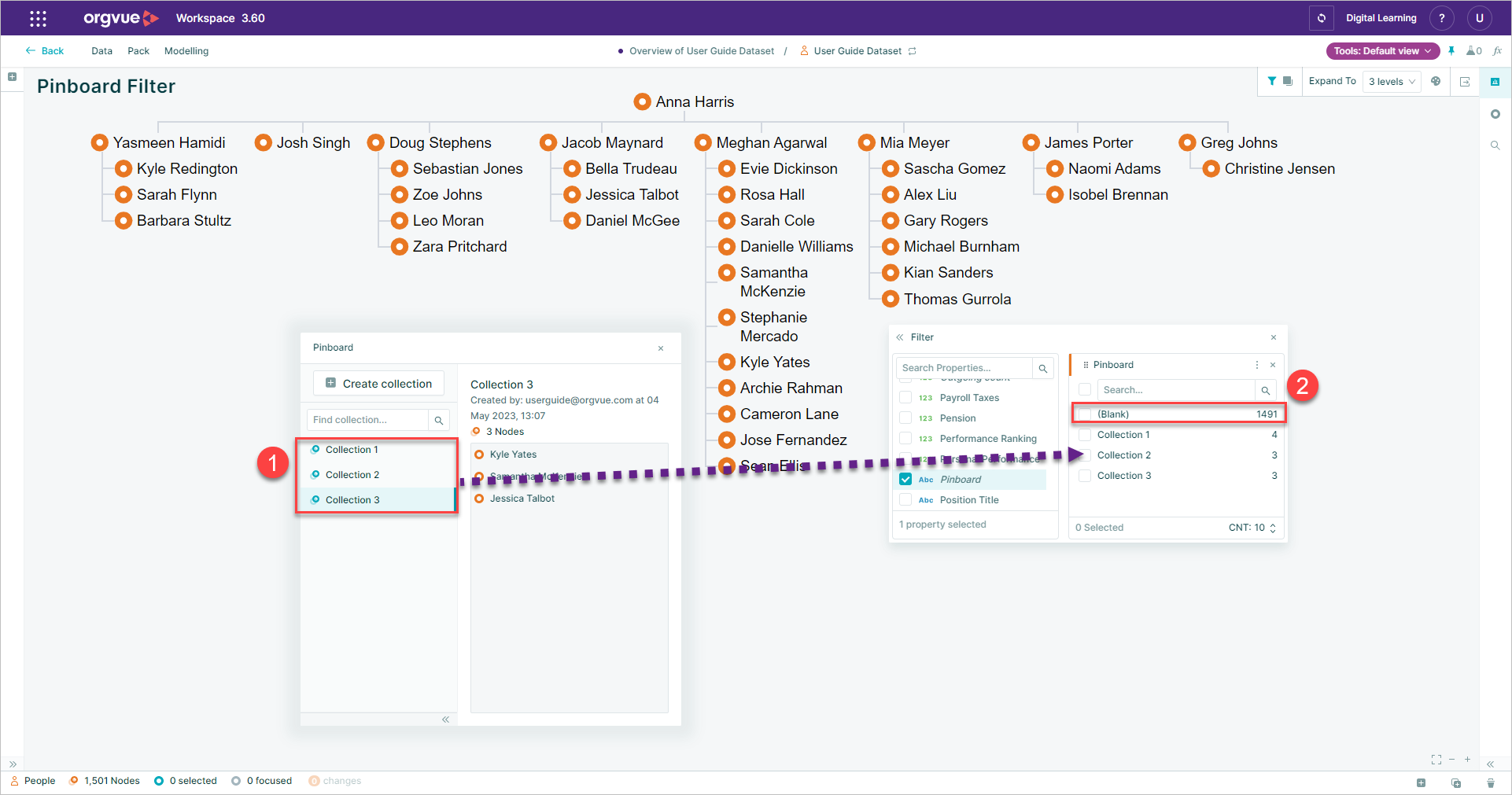
- Each collection on the Pinboard will appear as a selectable property bucket for the Pinboard property on the filter panel
- The
(Blank)option will also be available as a property bucket to enable selection of nodes that have not been added to any of the Pinboard collections
Paging by Pinboard
Created Pinboard collections may be used as Paging properties by:
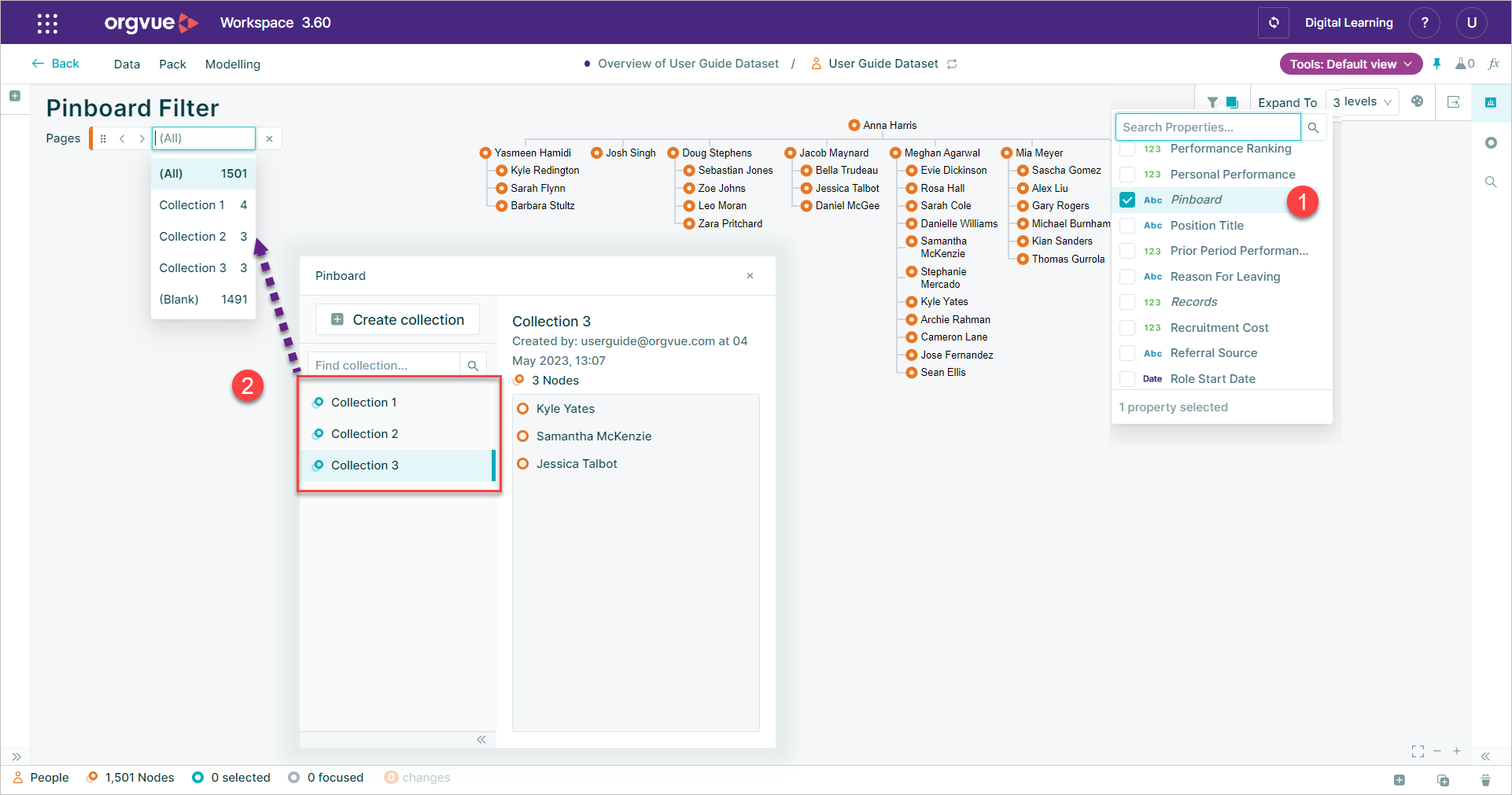
- Selecting
Pinboardas the Paging property will enable the slide to be paged by each node collection - Each collection will be selectable as a property in the paging dropdown
Pinboard in Gizmo Expressions
Created Pinboard collections are accessible via Gizmo expressions using the Generated Property _Pinboard
Add to Pinboard
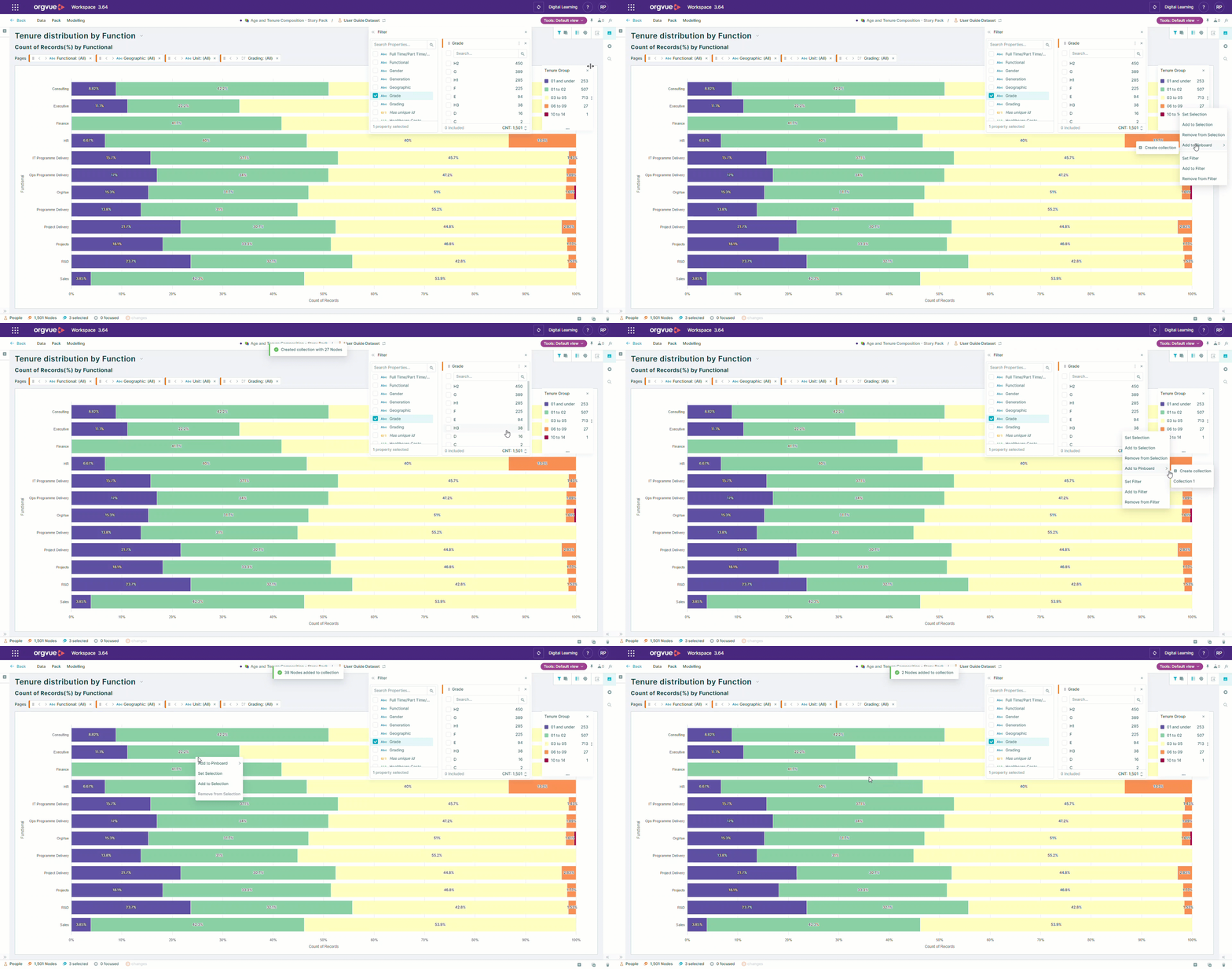
Right-clicking on property buckets on either the filter panel, color legend or chart segments will provide the option to Add to Pinboard with a sub menu to Create collection or select an existing collection if present