Paste Merge
In addition to updating datasets using it is also possible to update existing datasets or drafts using Paste Merge directly in Workspace from a spreadsheet such as Microsoft Excel
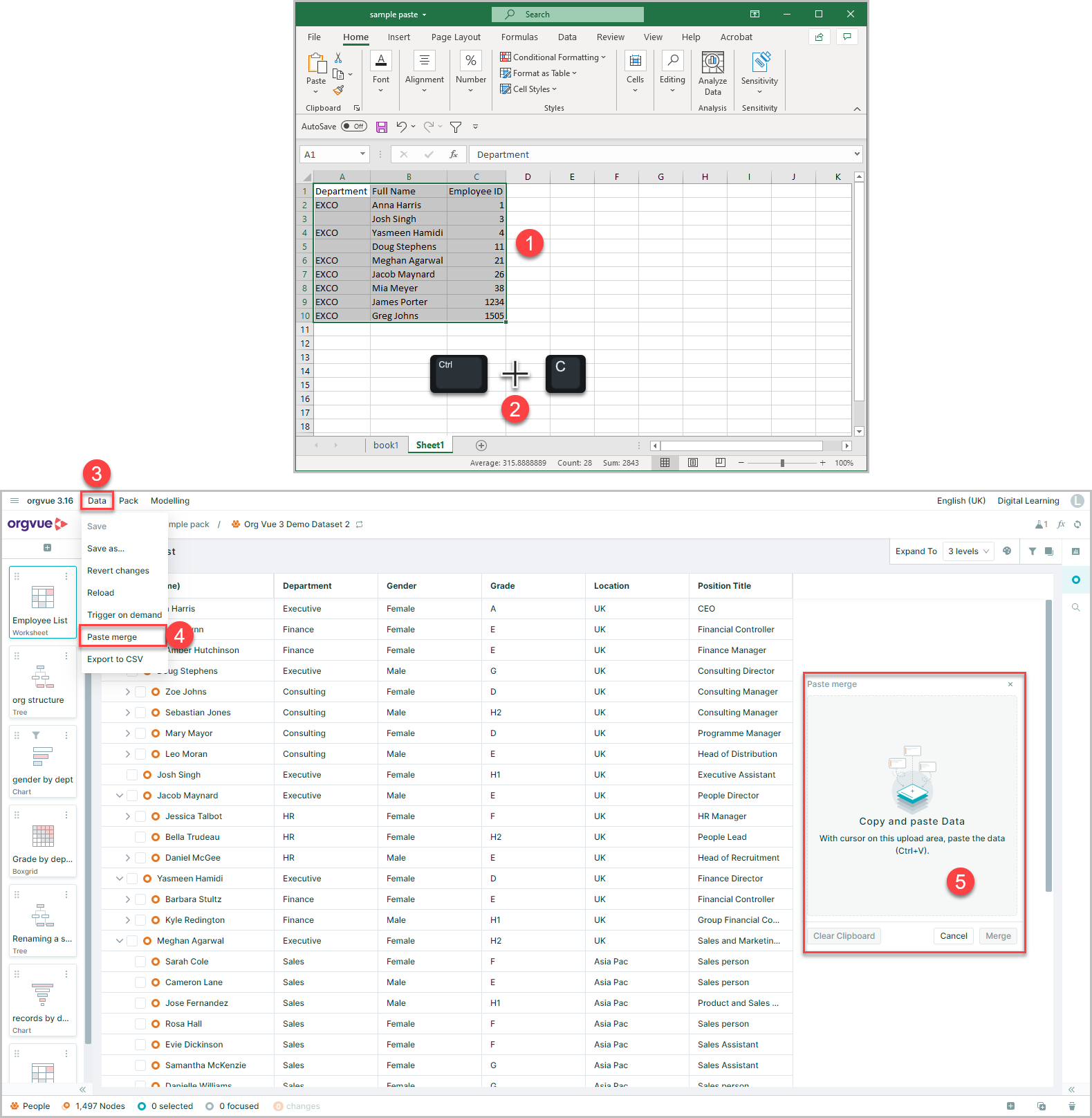
To start the paste merge process:
-
Select the data to be copied from the source spreadsheet
-
Copy the selected data from your spreadsheet software using the File menu options or via the keyboard shortcut (Ctrl + C on a PC or Cmd + C on a Mac)
-
Select
Dataon the Workspace Menu bar -
Select
Paste Mergefrom the menu -
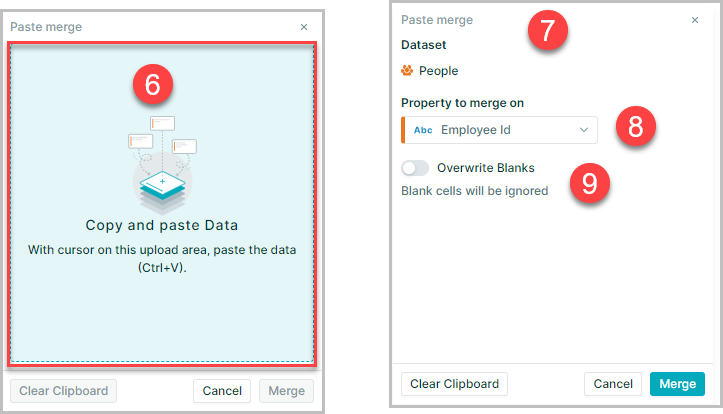
A Paste Merge upload window will open
-
Place cursor onto the upload area and paste the data using the keyboard shortcut Ctrl + V
-
The Paste Merge window will confirm the target Dataset type being merged to
-
It is possible to select the
Property to merge onfrom the dropdown listinfoThe Merge on option only appears if the data you paste doesn’t include the dataset’s autoID. If your pasted data includes autoID, Orgvue automatically uses it to merge the data.
-
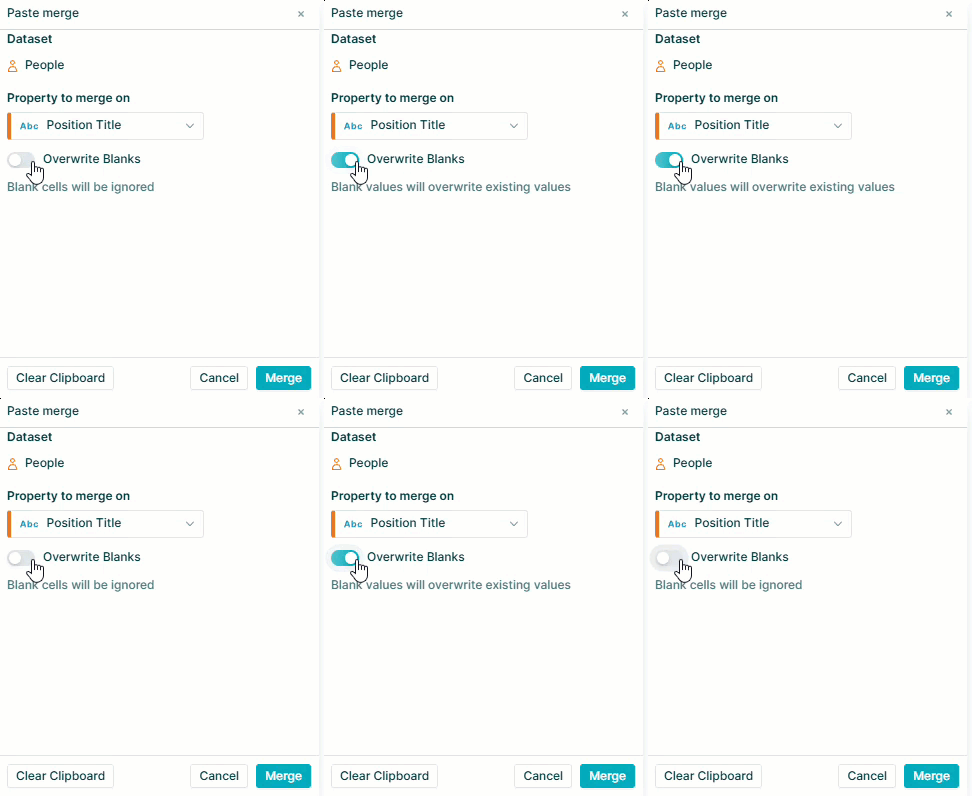
You can choose to Overwrite Blanks using the switch. If this is not selected, blank cells will be ignored in the uploaded data. When selected, Blank values will overwrite existing values in Orgvue
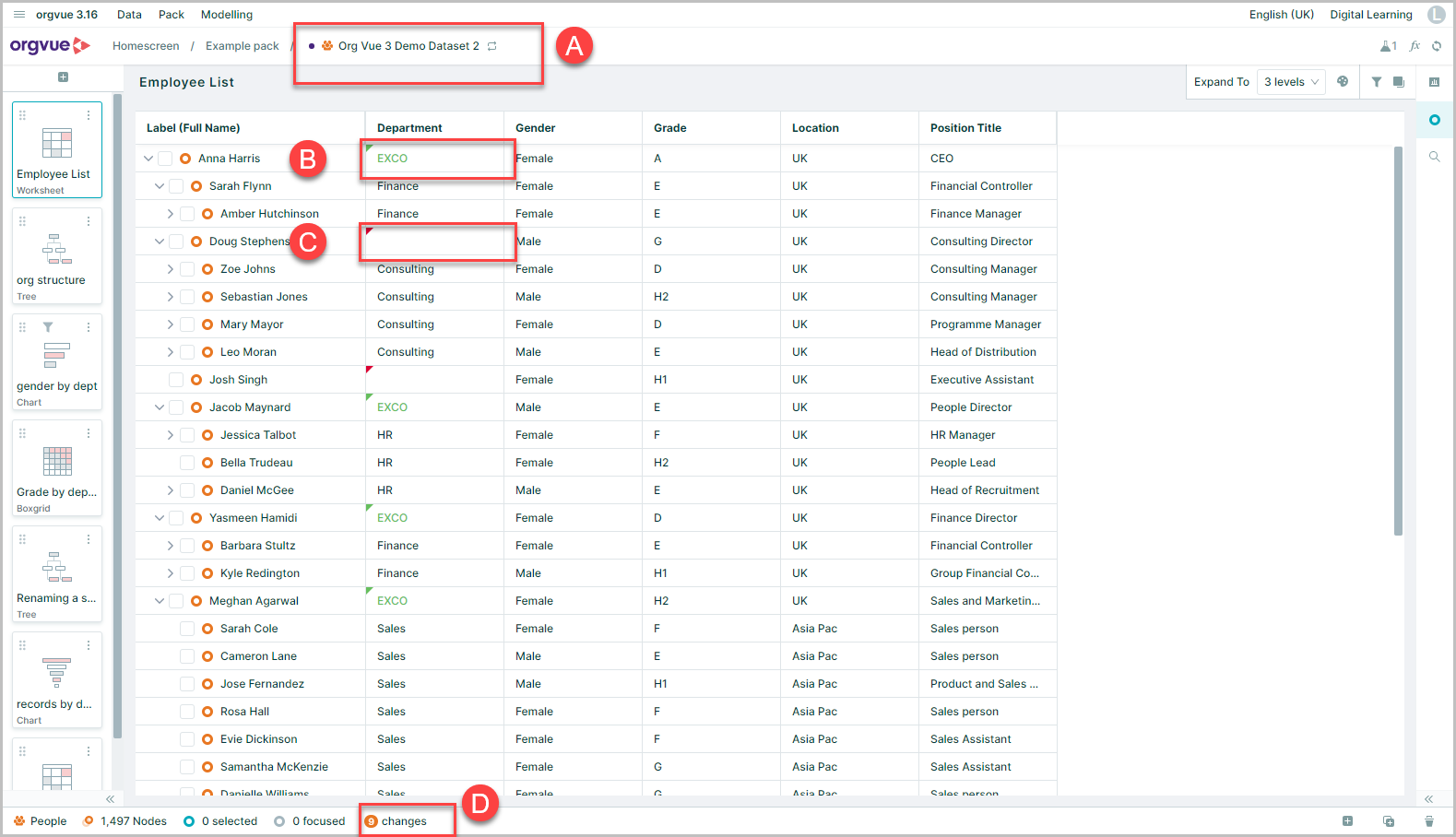
After pressing merge the changes will behave as though you had made them in Orgvue directly
- A. The Unsaved Changes Indicator will be displayed on the crumbtrail
- B. Any changes values will show on a worksheet slide in green
- C. Any deleted values as a result of the
Overwrite Blanksswitch will show with a red icon - D. The number of changes will show in the footer bar with the ability to Revert Node Changes
The changes made via the Paste Merge process can also be analyzed using the Changes Report Slide
Any pasted data not matching the correct format of the properties will be highlighted on the worksheet with a red underline
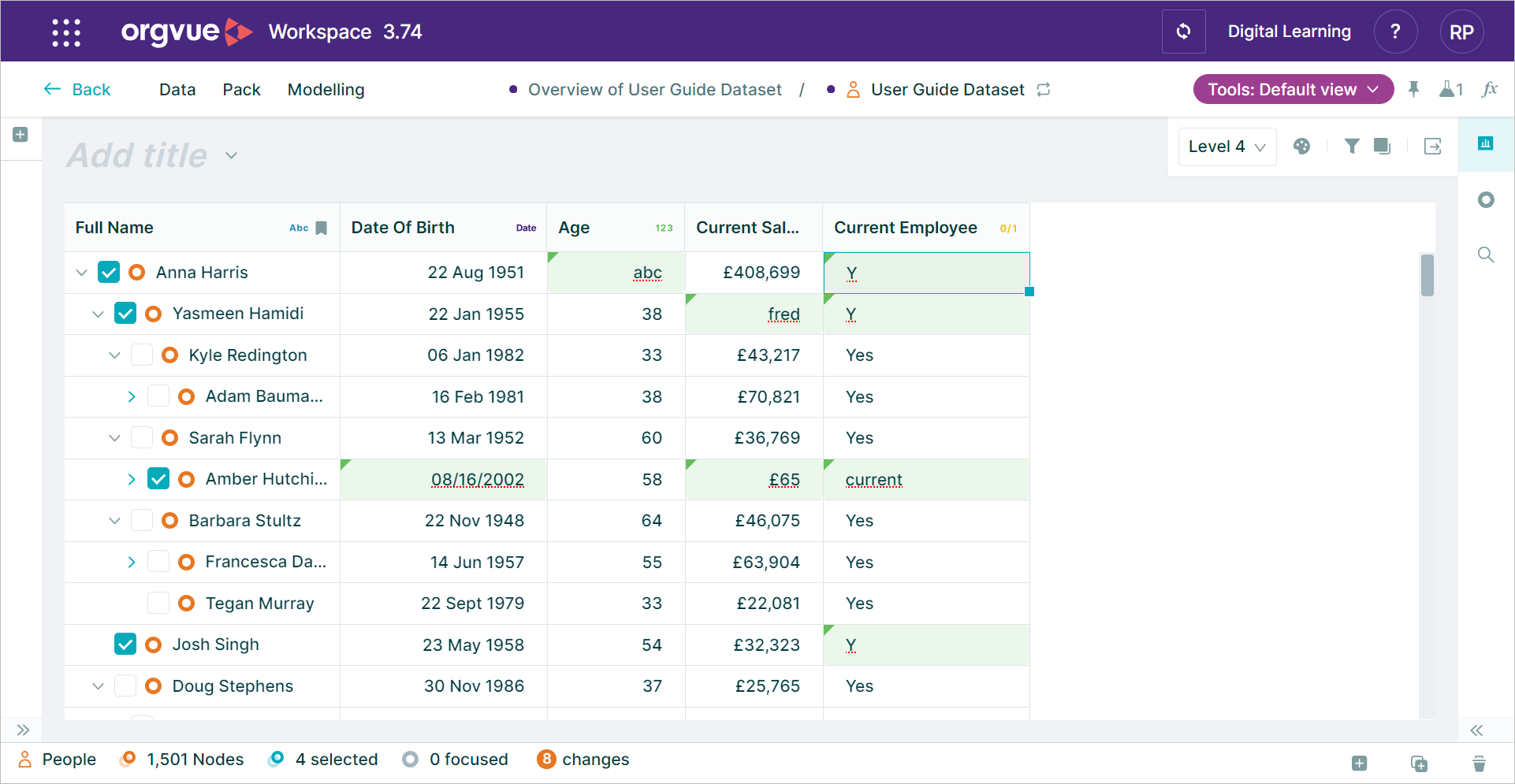
Click below to view a short video on how to bulk update values from a spreadsheet using the paste merge functionality

Merge rules
Dates
When paste merging data that includes dates, Orgvue will recognize the following date formats:
- ISO format (YYYY-MM-DD)
- US format (MM/DD/YYYY)
- UK format (DD/MM/YYYY)
Orgvue automatically detects which of the US/UK date formats to use based upon the user's locale as reported by the browser
Adding new properties
Paste Merge in Workspace will only update values in existing properties, you cannot create a new property using this method
To add a new property follow the steps detailed in
Overwrite Blanks
This option is available when paste merging data and allows you to decide how any blank cells in your source data are treated by Orgvue
With the Overwrite Blanks switch left in the off position, any blank cells in the source spreadsheet will be ignored and original values preserved
Toggling the switch to the on position will result in any blank cells in the source data spreadsheet overwriting any existing values in Orgvue
Links datasets
Paste merging in Workspace does not support the updating of Links datasets. The functionality in settings should be use instead
Matching properties
Workspace will allow you to merge on a property using either the Property Key or Display Name
For example the property containing the unique ID of your Nodes may have the Property Key: unique_id but the Display Name: Position Number
Workspace will recognize and merge on either
This applies to any property you are merging on or any target properties you are updating
Fuzzy matching
Workspace will try its best to match a property and will ignore the formatting of the column headers that you paste in
For example if you paste in the column header DeP_art ment Workspace will match this to the property with the Display Name Department