Export Canvas Content
The Export Canvas Content button appears on all slide types
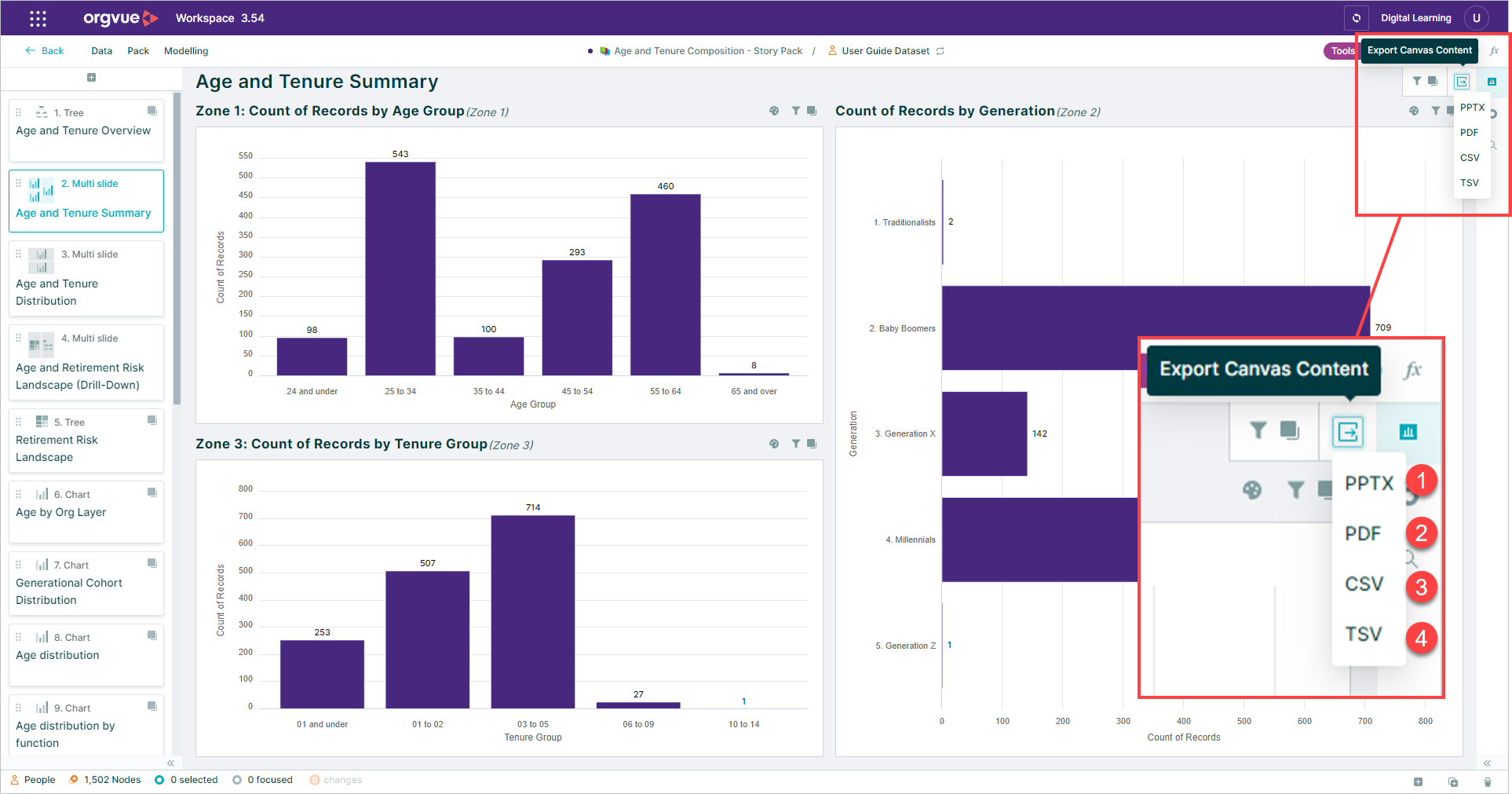
Selecting the Export Canvas Content button will present options to export as either:
- PowerPoint (PPTX)
- Portable Document Format (PDF)
- Comma Separated Value (CSV)
- Tab Separated Value (TSV)
Export Canvas to PowerPoint
This option is available for all slide types
For following slides the export to PowerPoint will contain objects that are editable within PowerPoint
- Tree See Export Tree Slide to PowerPoint for specific tree slide options
- Crosstab
- Bar Chart
- Funnel Chart
- Line Chart
For all other slide types Orgvue will export a non-editable image of the detail visible on the canvas
To view a video on editing slides in PowerPoint click the thumbnail to open the video in a new browser tab

The export window provides the following options
If your exported slides include one of more tree slides then additional layout options are presented within the export modal. See Export Tree Slide to PowerPoint for details
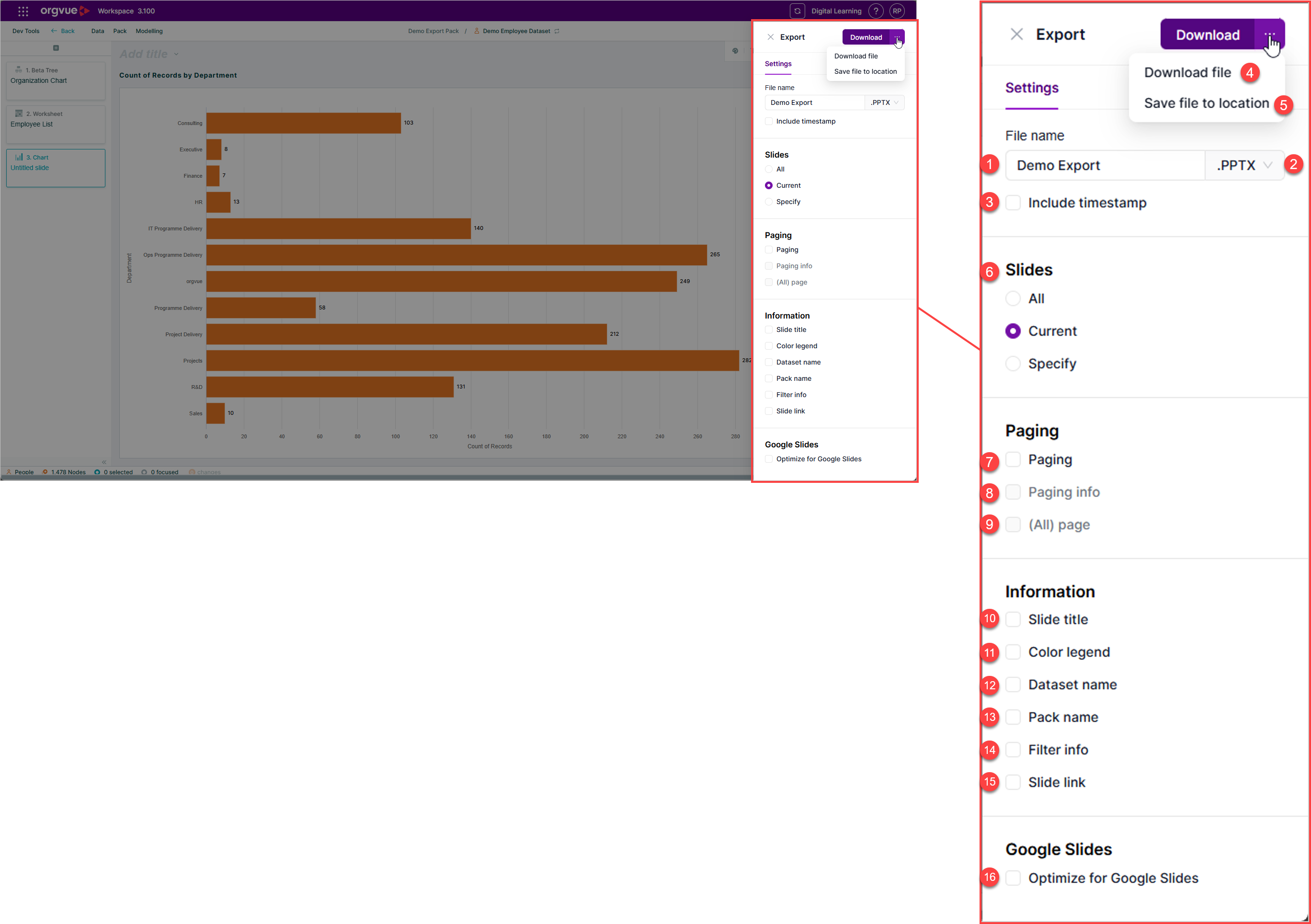
- File Name for PowerPoint export
- File type selector:
pptx,pdf,csvortsv - Checkbox option to include timestamp in filename
- Download button
- Save File to Location
- Slides: Export
All,Currentor Specify slides only - Paging: Where paging is used on slide selecting this checkbox will export a slide per page option
- Paging Information: select checkbox to include on PowerPoint slide
- (All) page: Where paging is used on slide selecting this checkbox will export a slide will all paged properties
- Slide Title: select checkbox to include on PowerPoint slide
- Color legend: select checkbox to include on PowerPoint slide
- Dataset name: select checkbox to include on PowerPoint slide
- Pack Name: select checkbox to include on PowerPoint slide
- Filter information: select checkbox to include on PowerPoint slide
- Slide Link: Checkbox to include clickable hyperlink on exported slide. This URL will appear in each slide and when clicked will take you directly to the corresponding slide in Orgvue
- optimize for Google Slides: When exporting PowerPoint file into Google Slides Tree Slides remain fully editable
To view a video on Paging options click the thumbnail to open the video in a new browser tab

Export Tree Slide to Powerpoint
When exporting a pack containing one or more Tree slides to PowerPoint additional controls are available to preview the tree slide and adjust the layout settings to minimize reformatting in PowerPoint if required
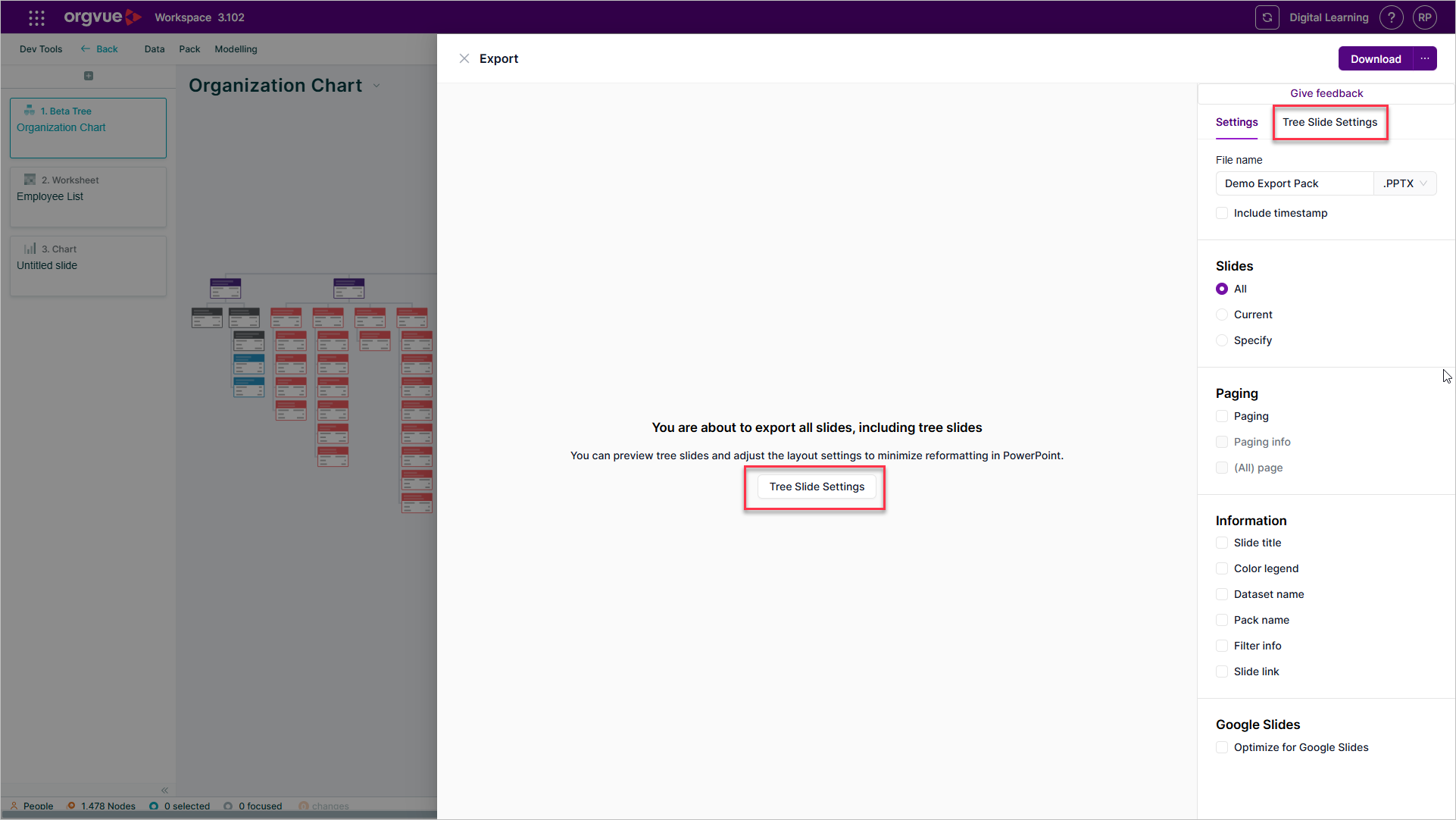
Select either of the Tree Slide Settings buttons to view the controls
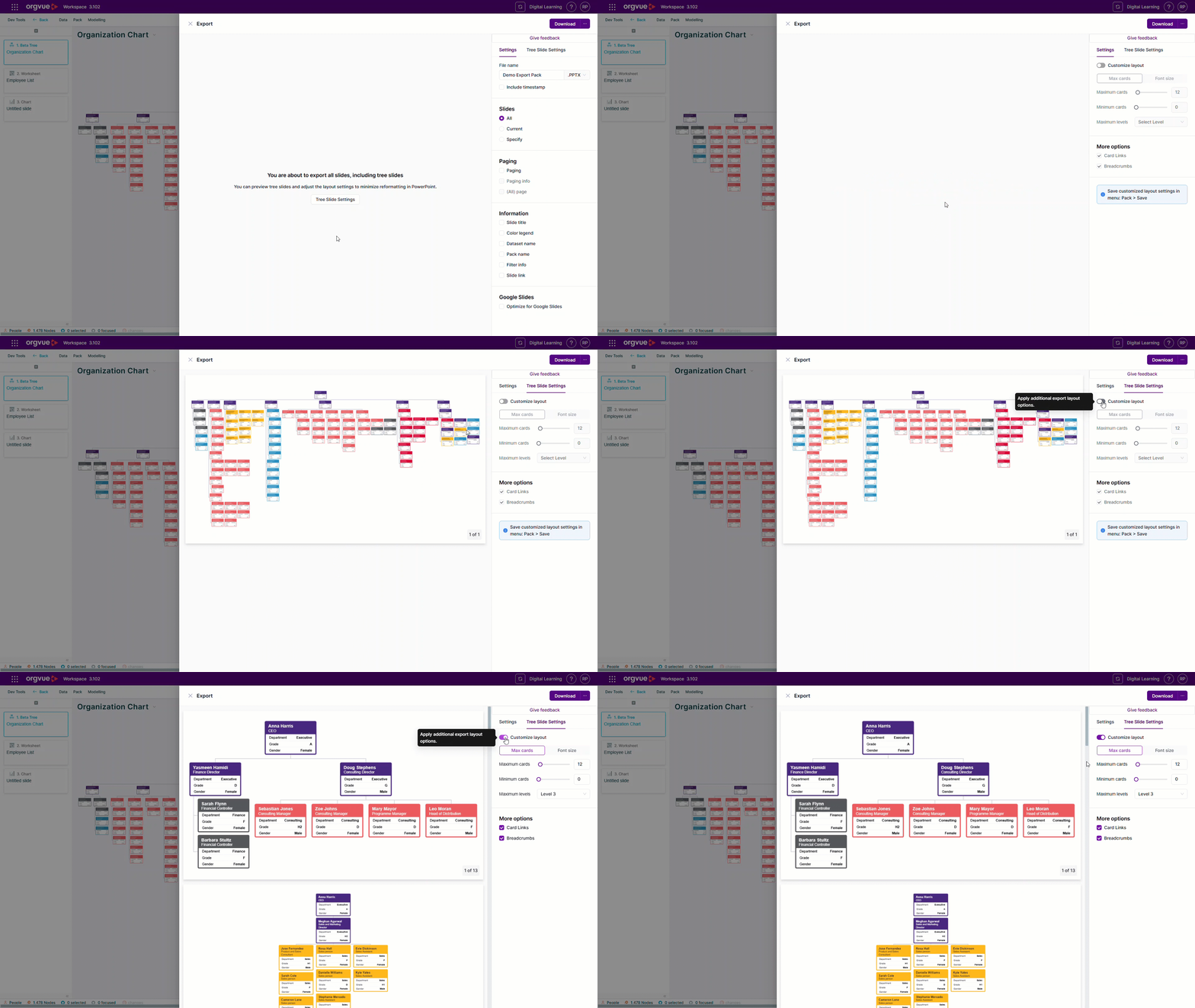
The controls, when active, allow customization either based on Max / Min cards per slide or by setting Font Size on Summary Cards
To view a video demonstrating the use of export customization along with the subtree property click the thumbnail to open the video in a new browser tab

Max Cards
When customizing your tree slide exports using the Max cards setting the following options are shown:
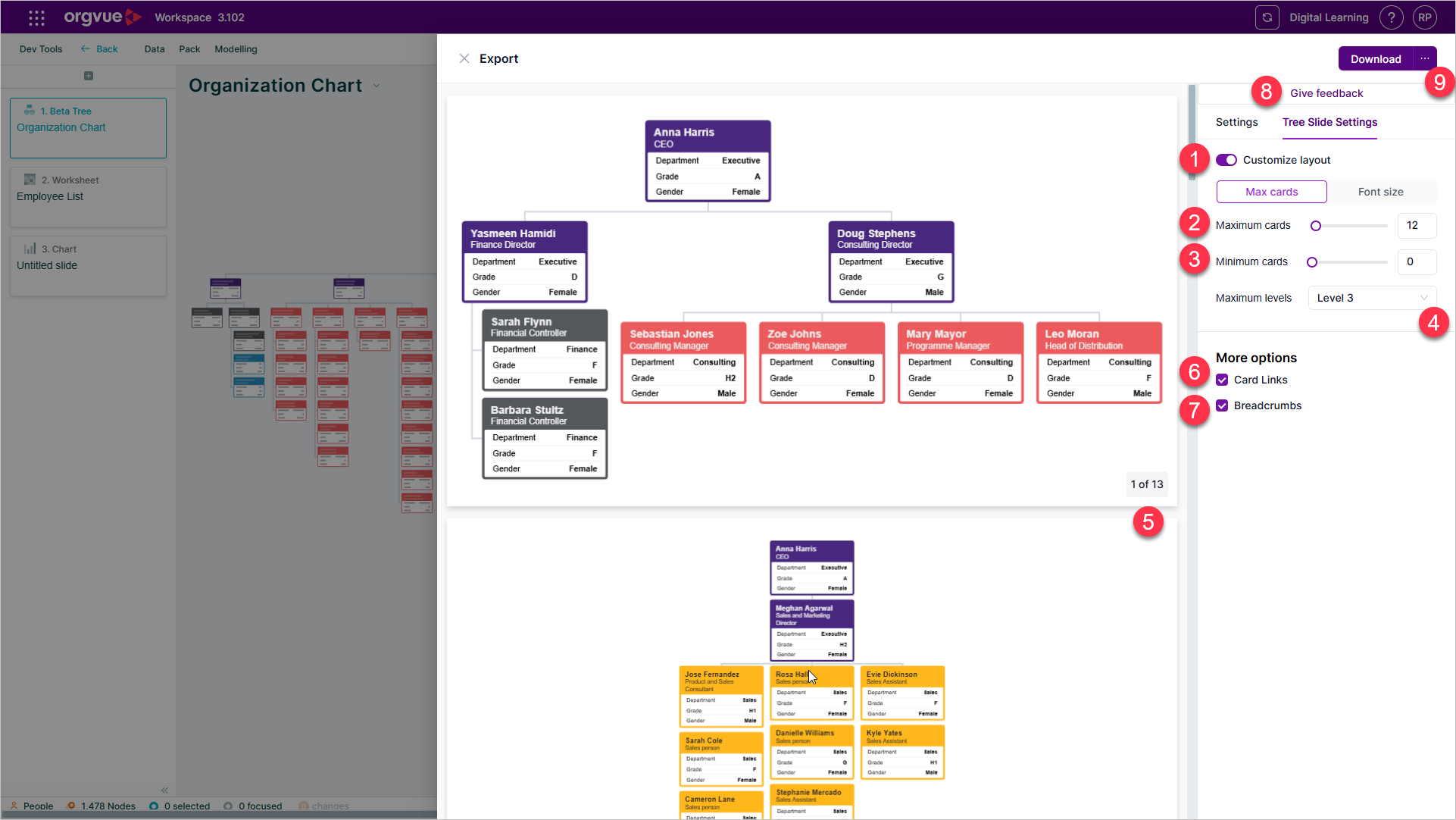
- Toggle Switch to enable layout customization
- Maximum cards: Set the maximum number of cards per slide, automatically splitting cards across slides.
- Minimum cards: Exclude slides with fewer cards than the set minimum.
- Maximum levels: Set the maximum number of levels per slide
- Export Preview: View a preview of your export based on your settings including the estimated number of slides in your export
- Card Links: Add clickable links to summary cards
- Breadcrumbs: Include the hierarchy information for each slide.
- Give feedback: Tell us how you feel about the new export controls
- Download: Download export with selected settings
Font size
When customizing your tree slide exports using the Font size setting the following options are shown:
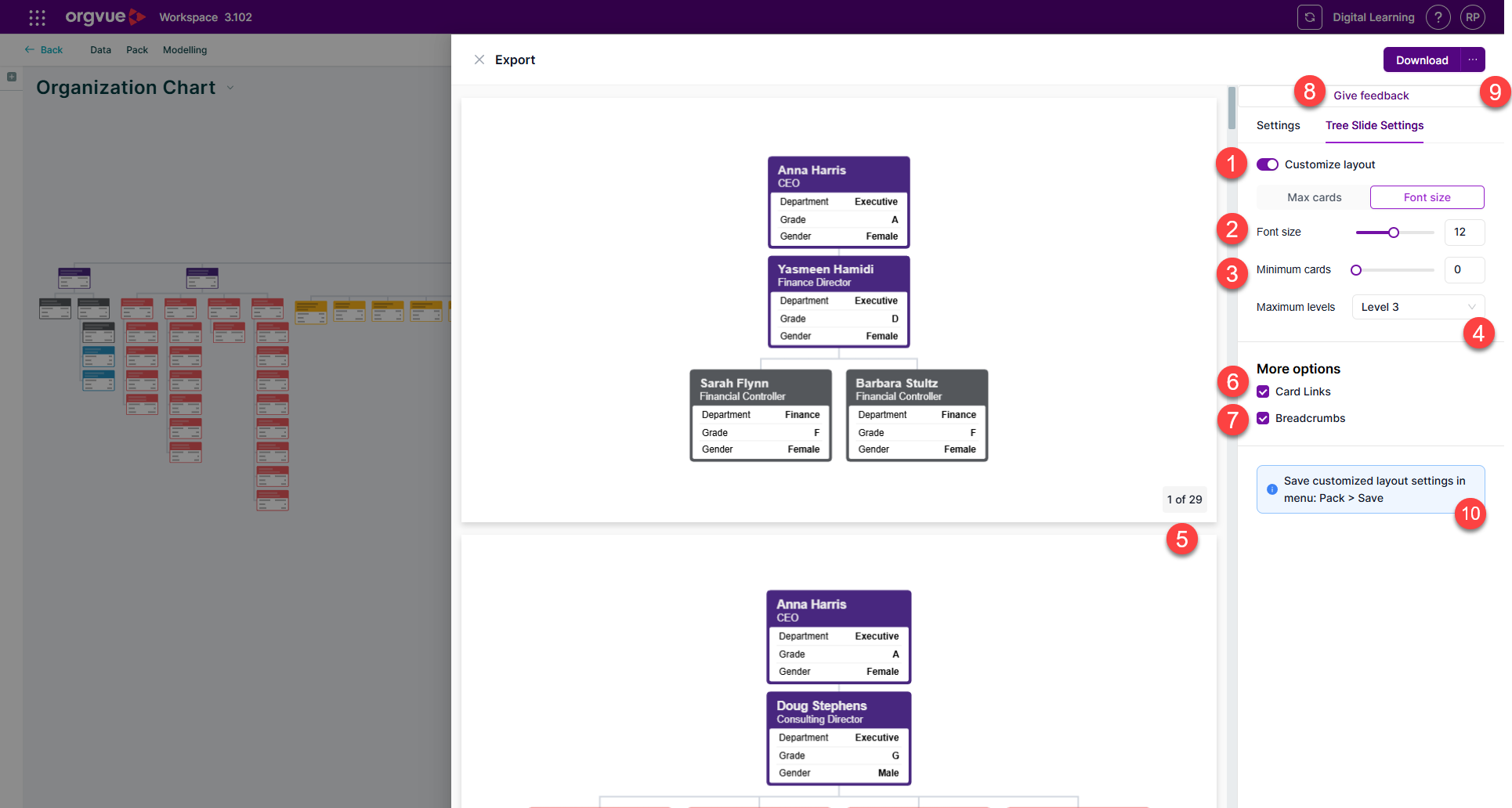
- Toggle Switch to enable layout customization
- Font Size: Set the Summary card title font size.
- Minimum cards: Exclude slides with fewer cards than the set minimum.
- Maximum levels: Set the maximum number of levels per slide
- Export Preview: View a preview of your export based on your settings including the estimated number of slides in your export
- Card Links: Add clickable links to summary cards
- Breadcrumbs: Include the hierarchy information for each slide.
- Give feedback: Tell us how you feel about the new export controls
- Download: Download export with selected settings
Export Destination Folder
When exporting a slide or pack, selecting the Download button will save the export to your PC download folder automatically
If you would prefer to save your exports to an alternative location select the Save a file to location option to open the save as window and select your destination folder
Orgvue will remember your folder choice when you next use Save a file to location which is useful if you wish to save exports to a Sharepoint or Google Drive folder for sharing within a team
To choose a save as location:
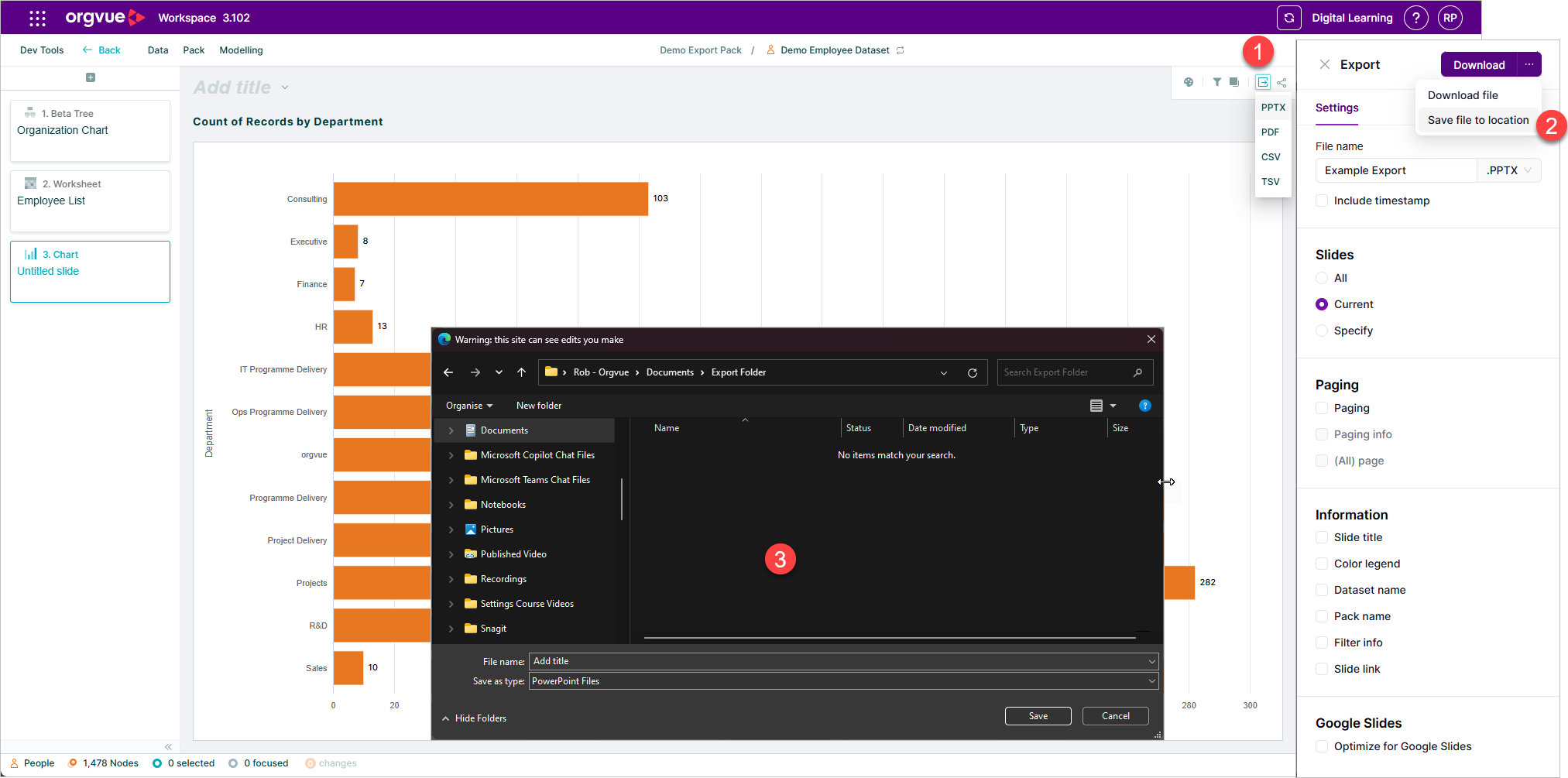
- Select the
Export Canvasbutton and select the required options for your export - Select the
Save asbutton on the export window - Use the Save as window to select your preferred download destination folder
Export selected slides to PowerPoint
To export only specific slides from a pack:
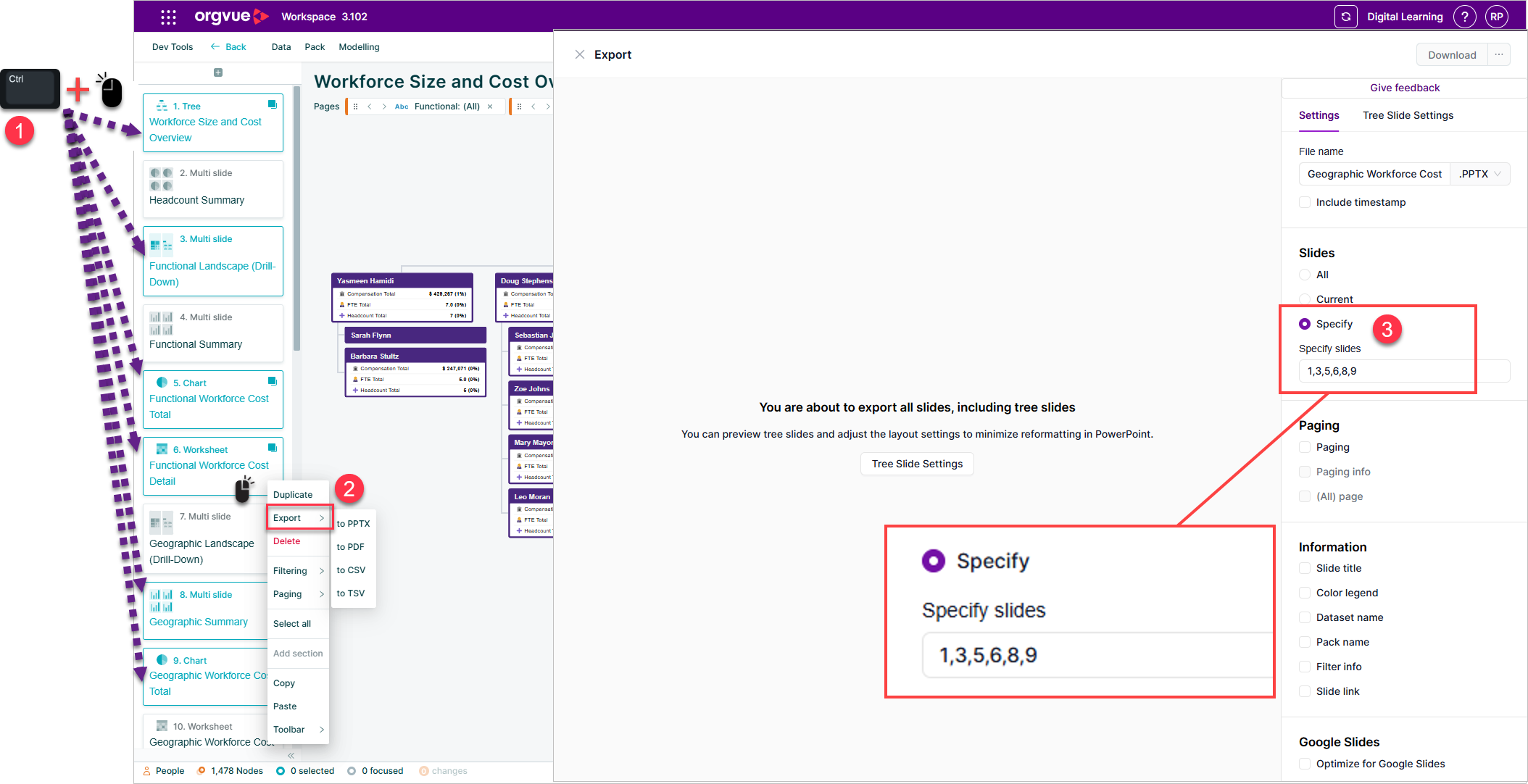
- Select required slides
- Right click to open menu and select
Export - The export modal will be displayed with the
Specifyoption selected and the slide numbers pre-populated
Export Canvas to PDF
Available for all slide types
The export window provides the following options
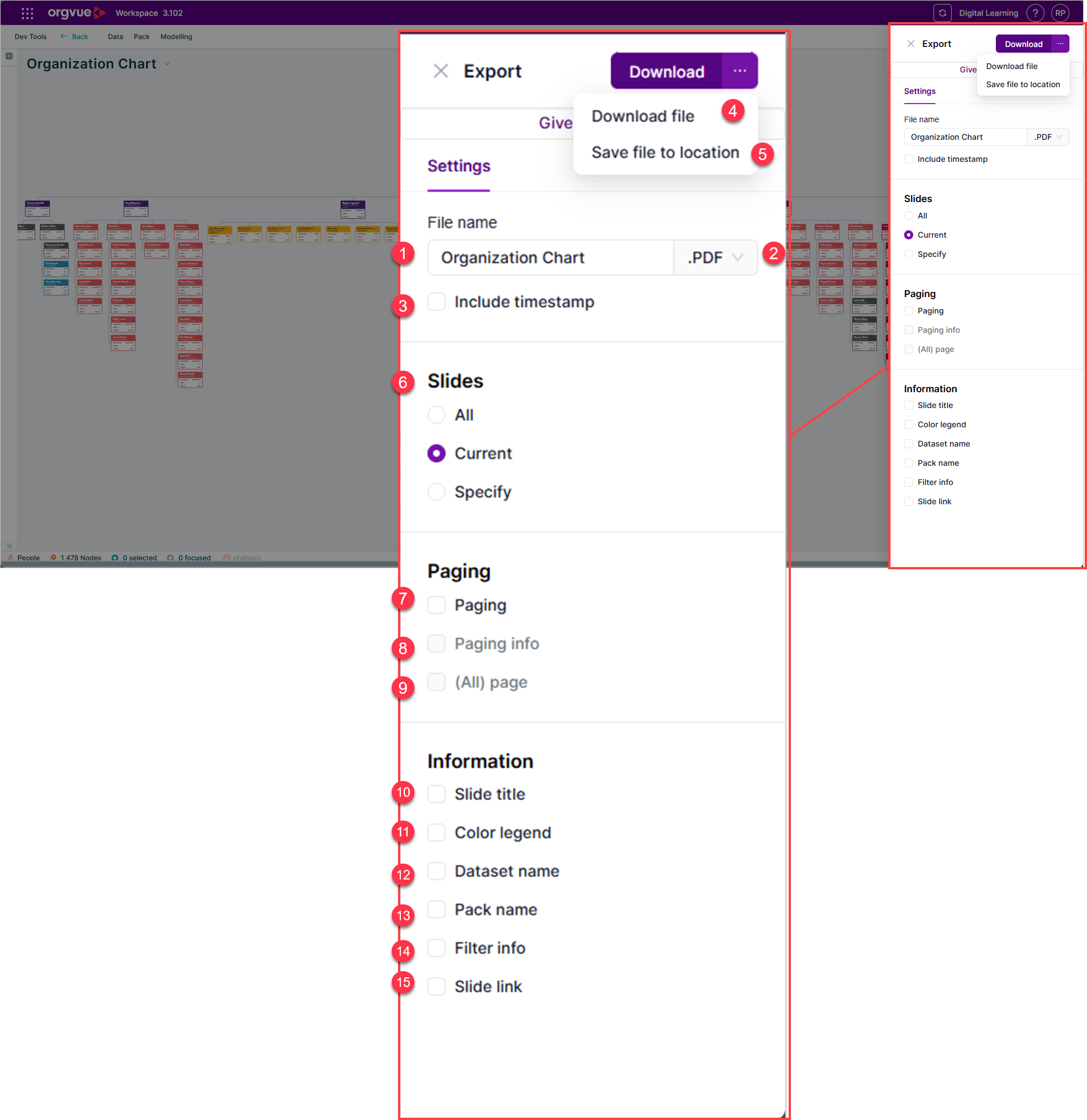
- File Name for PDF export
- File type selector:
pdf,pptx,csvortsv - Checkbox option to include timestamp in filename
- Download button
- Save File to Location
- Slides: Export
All,Currentor Specify slides only - Paging: Where paging is used on slide selecting this checkbox will export a slide per page option
- Paging Information: select checkbox to include on PowerPoint slide
- (All) page: Where paging is used on slide selecting this checkbox will export a slide will all paged properties
- Slide Title: select checkbox to include on PowerPoint slide
- Color legend: select checkbox to include on PowerPoint slide
- Dataset name: select checkbox to include on PowerPoint slide
- Pack Name: select checkbox to include on PowerPoint slide
- Filter information: select checkbox to include on PowerPoint slide
- Slide Link: Checkbox to include clickable hyperlink on exported slide. This URL will appear in each slide and when clicked will take you directly to the corresponding slide in Orgvue
Export Current Slide Data to CSV
Only available for:
This option will export to CSV the data shown on the current slide with rows and columns exported in the same order as they are visible on the canvas
The export window provides the following options
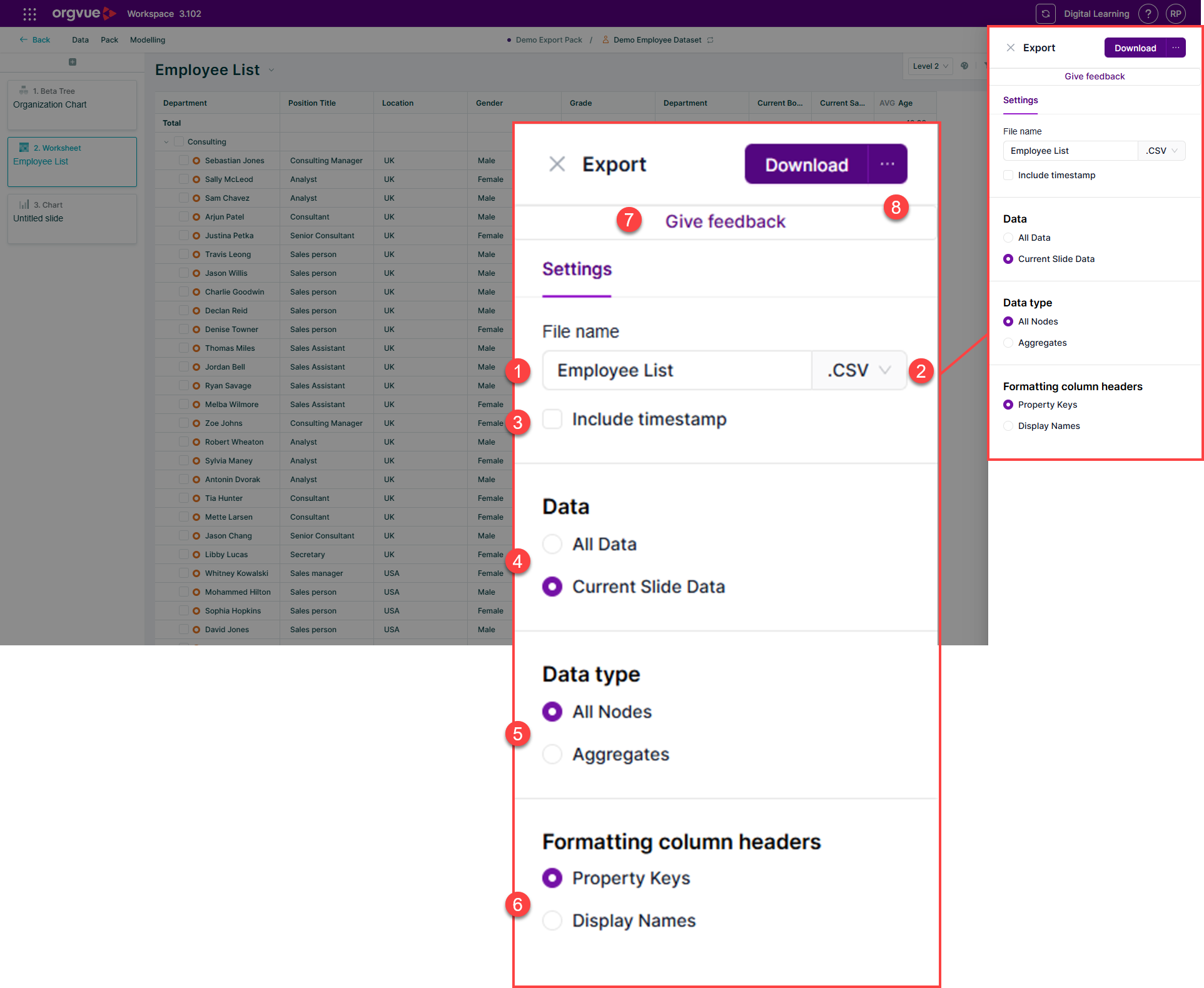
- File Name for .csv export
- File type selector:
pptx,pdf,csvortsv - Checkbox option to include timestamp in filename
- Data: Export All Data or
Current slide dataonly - Data type: Select to export
Nodelevel data orAggregatevalues - Formatting Columns Headers: Select to use
Property keysorDisplay namesas columns headers in your exported file - Give feedback: Tell us how you feel about the new export controls
- Download: Download export with selected settings
If the data option is set export All Data then the csv export will switch to the full dataset export instead of the data on canvas
Export Canvas to TSV
Only available for:
This option will export as tab separated value (TSV) the data shown on the canvas with rows and columns exported in the same order as they are visible on the canvas
The export window provides the following options
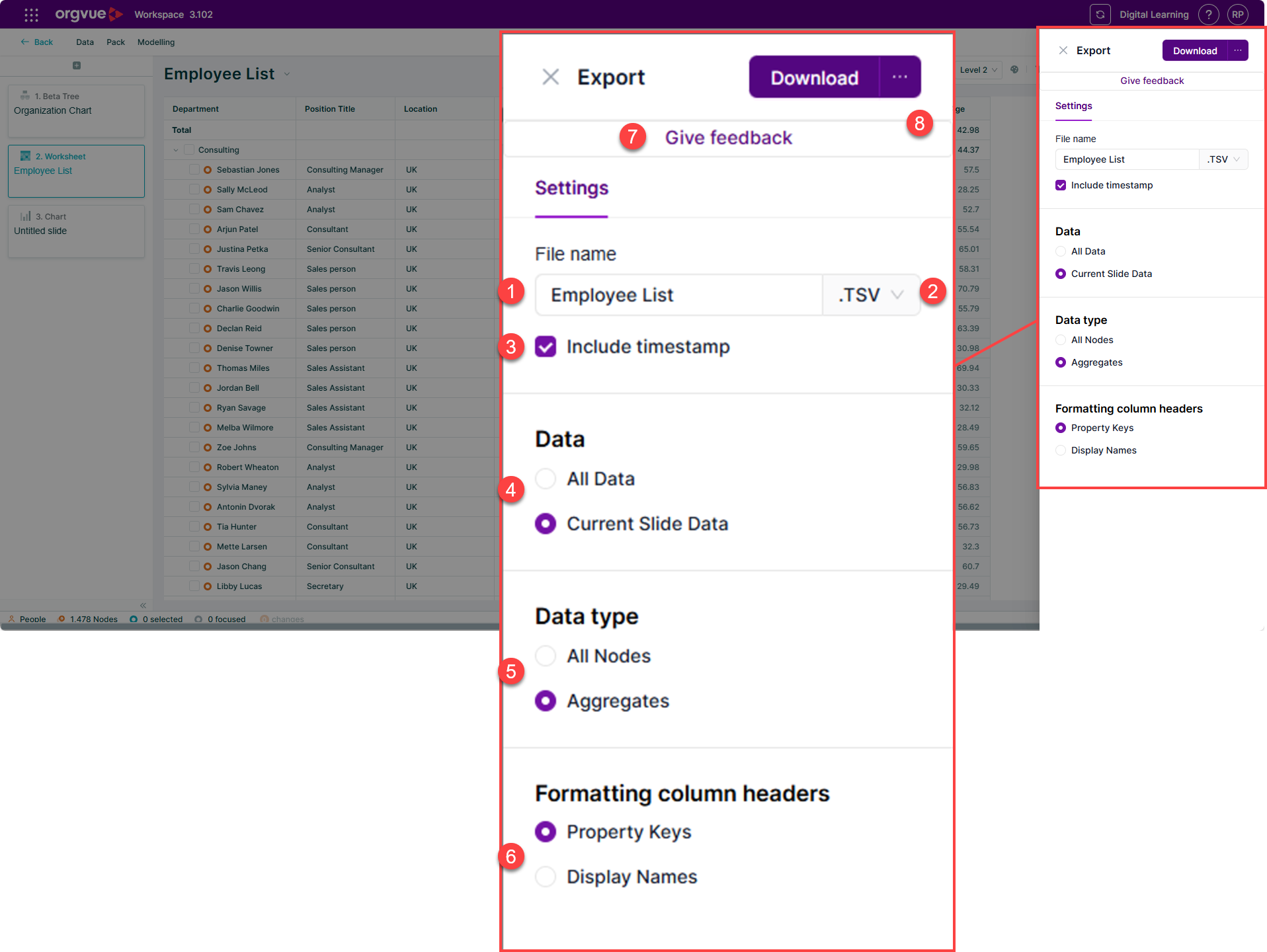
- File Name for .tsv export
- File type selector:
pptx,pdf,csvortsv - Checkbox option to include timestamp in filename
- Data: Export All Data or
Current slide dataonly - Data type: Select to export
Nodelevel data orAggregatevalues - Formatting Columns Headers: Select to use
Property keysorDisplay namesas columns headers in your exported file - Give feedback: Tell us how you feel about the new export controls
- Download: Download export with selected settings
Export All Data to CSV or TSV
When exporting your canvas to either CSV or TSV there is the option to export all slides in the pack.
The resulting output is a single CSV or TSV sheet containing either all nodes and properties in the dataset or a combination of selected nodes and properties
The export panel contains the following options:
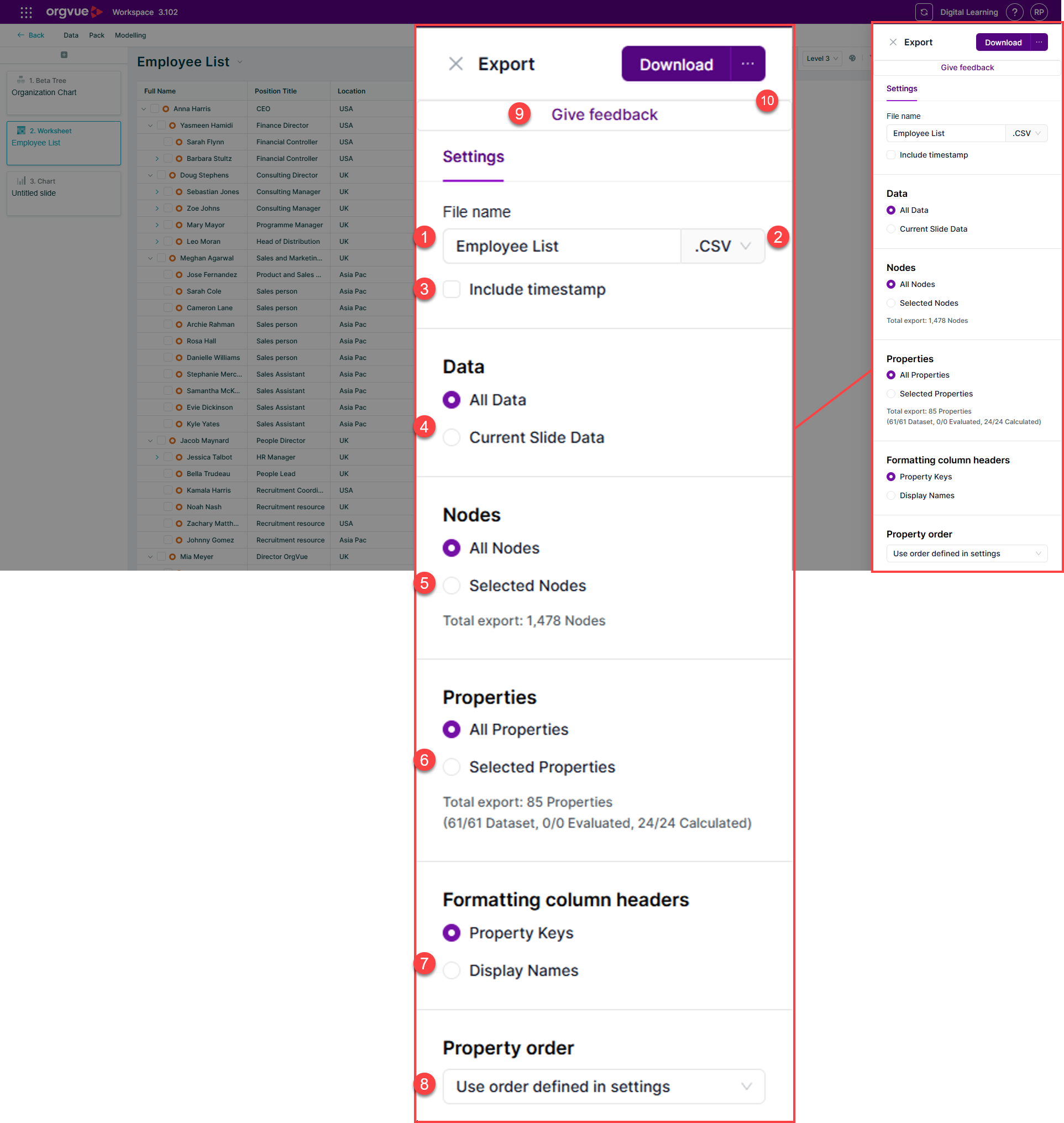
- File Name for .csv export
- File type selector:
csvortsv - Checkbox option to include timestamp in filename
- Data: Export
All Dataor Current Slide Data only - Nodes: Select
All NodesorSelected Nodes. See Selecting Nodes for details on the various methods available to select nodes in Orgvue - Properties: Choose to export
All Propertiesin your dataset orSelected Propertiesonly. See the Editing Nodes section for details on how to select properties - Formatting Columns Headers: Select to use
Property keysorDisplay namesas columns headers in your exported file - Property order: Set the order of properties in your export. Select from
Use order defined in settings,Alphabetically (A-Z)orAlphabetically (Z-A) - Give feedback: Tell us how you feel about the new export controls
- Download: Download export with selected settings
Export Multi Slide Zone
Each zone within a multi slide can be exported independently as a single slide by:
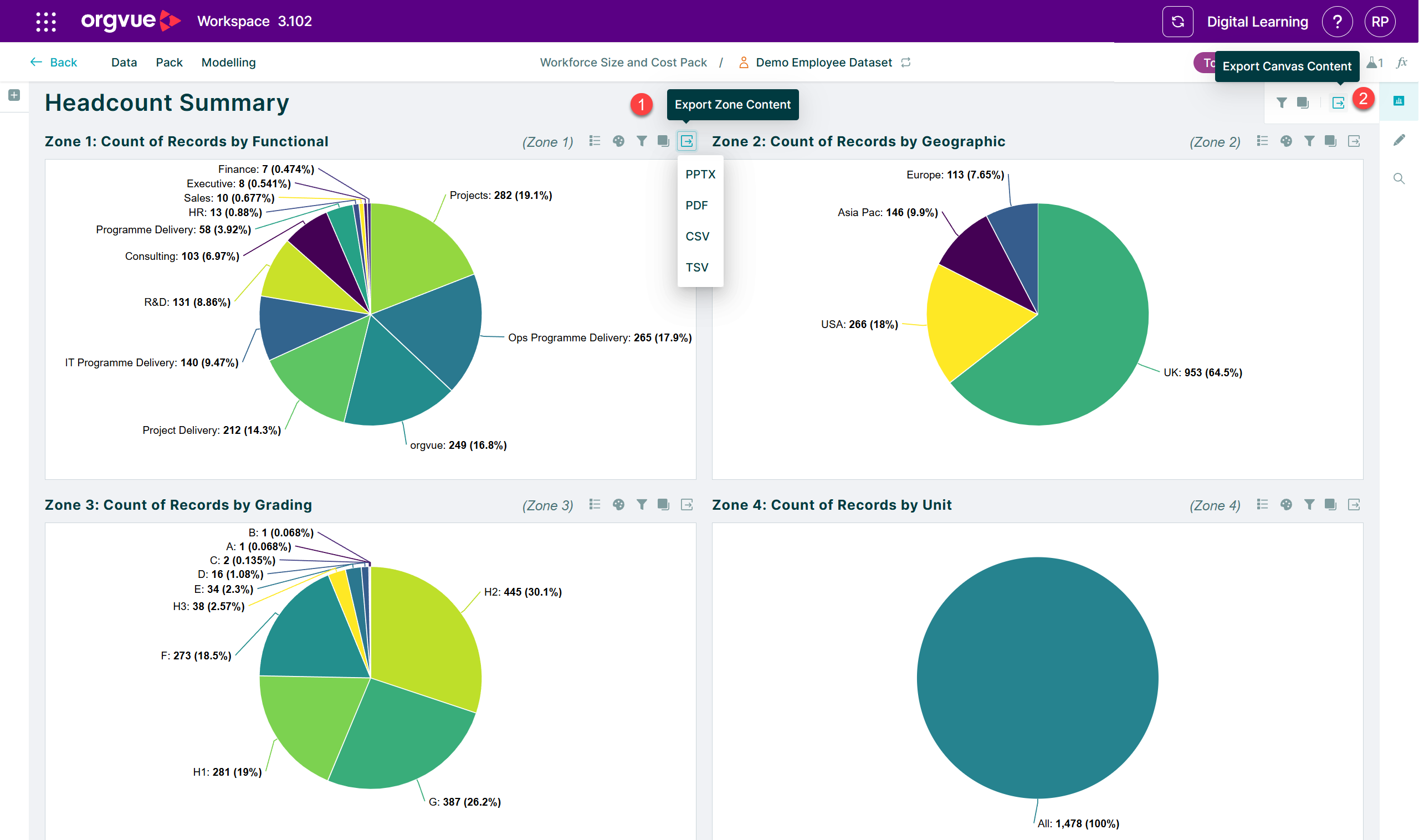
- Selecting the export button on the respective zone and choosing the export format
- The export option for the combined multi slide will export all zones as a combined slide