Organization Modelling Workflow
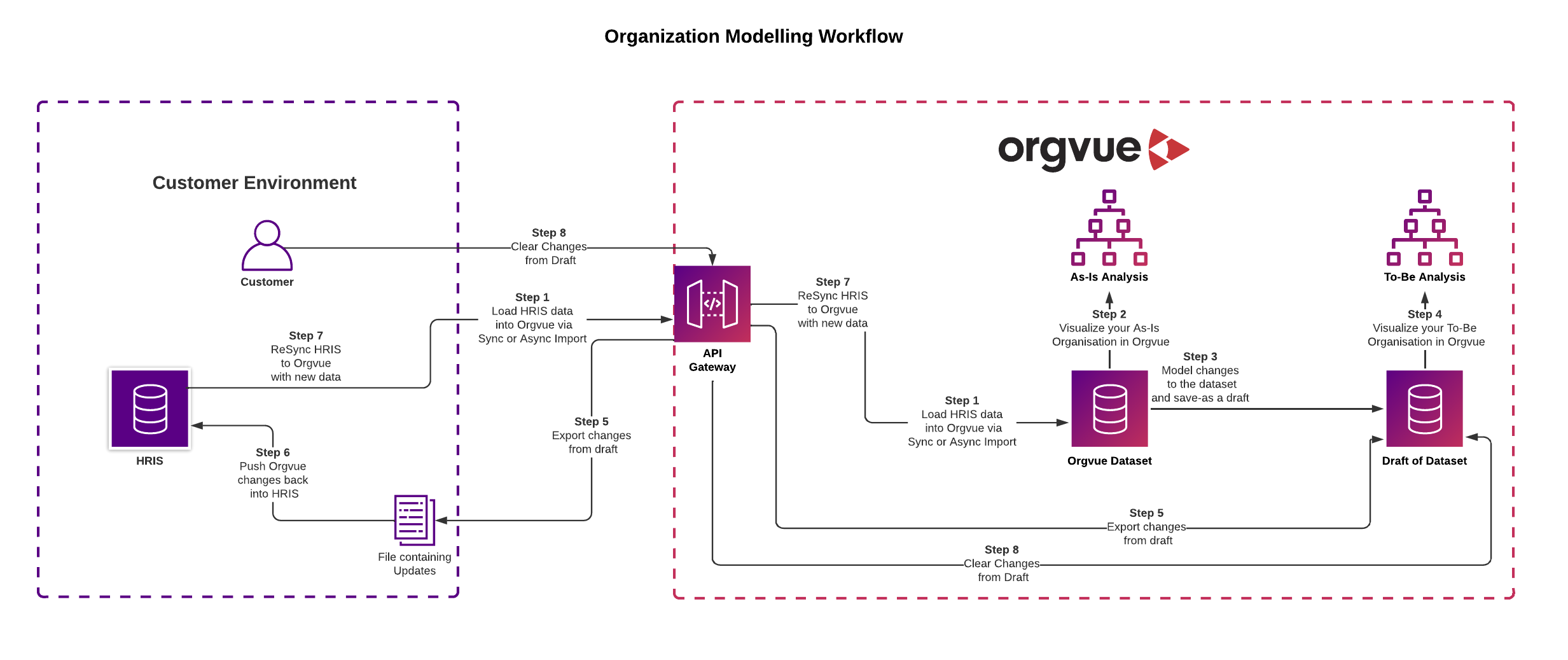
This recipe will guide you through the Organization Modelling Workflow using drafts allowing you to:
- Import your data from your source HRIS to Orgvue
- Visualize and analyze your As-Is organization in Orgvue
- Model changes to the As-Is organization and save the changes as a Draft in Orgvue
- Visualize and analyze your To-Be organization in Orgvue
- Export the modelled changes from the Draft via the API
- Import the changes back into the source HRIS
- Re-sync updated HRIS to Orgvue
- Clear the changes from the Draft
- Continue to repeat steps 2 to 8 for further modelling iterations
Flowchart
Prerequisites to integrating
- You will need access to an Orgvue tenant and the permission to use tokens for that API user (See User Management in Settings for more information)
- Dataset created in Orgvue
- All properties pre-configured in the dataset
- Draft created
- Authentication Token created and stored
- Base URL
- via tenant listing page
- Dataset ID via or the "List datasets" endpoint
- Draft ID via the "List drafts" endpoint
1. Import your data from your source HRIS to Orgvue
Import the data from your source HR Information System into your Orgvue dataset using the Asynchronous Import Integration recipe
2. Visualize and analyze your As-Is organization
Using the power of Orgvue, visualize and analyze the size and complexity of your current As-Is organization using one of the many supplied
3. Model changes in a draft
Plan and model potential organizational scenarios in Orgvue without amending the baseline data using a
4. Visualize and analyze your To-Be organization
See the impact of the modelled changes by visualizing and analyzing the To-Be organization in Orgvue
Repeat steps 3 & 4 as required to achieve a set of approved changes that you wish to apply to your HR system
5. Export the Draft Changes via the API
Using the POST: https://{baseUrl}/api/v1/{tenantId}/drafts/actions API to export a list of item actions from the Draft to the specified result location URL
The JSON Payload for the request has the following format
{
  "layers": [
    {
      "draftId": "36A1E02D-DC20-61C5-A11F-DD85440C652C",
      "layerKey": "default"
    }
  ]
}
The result location will be an Orgvue generated secure file
Defining an optional Callback URL in the payload will enable the API to notify you when processing is complete
6. Import changes back to the source HRIS
Transform the exported changes into a changes import file in the correct format for your source HRIS
Import and apply those changes to reflect the modelled To-Be organization in your HR Information System
7. Resync Orgvue from your HRIS
Update your baseline Orgvue dataset to analyze your new As-Is organization using the same Asynchronous Import Integration process from step 1
8. Clear the Draft
Exporting the draft does not clear its contents. So now that you have applied the changes to your HRIS and re-synced the Orgvue Dataset it is time to clear the previous changes from the draft so that it can be used again for further modelling
To clear the contents of a Draft use POST: https://{baseUrl}/api/v1/{tenantId}/drafts/clear
The format for the Clear Draft JSON payload is
{
  "layers": [
    {
      "draftId": "36A1E02D-DC20-61C5-A11F-DD85440C652C",
      "layerKey": "default"
    }
  ]
}
9. Repeat steps 2 to 8
Repeating steps 2 to 8 will deliver a continuous Organization Modelling workflow