Linked Dataset Import Integration
Orgvue enables the linking of two datasets of different types by a links dataset
This guide will walk you through the steps required to integrate your HRIS data to a linked dataset configuration in Orgvue
The links between the datasets may be a one to one relationship such as people to positions where a position is occupied by a single person and each person occupies only one position
Or a many-to-many links' relationship such as people to activities where one person may conduct multiple activities and each activity may be conducted by multiple people
This guide will detail the import integration for the most common linked dataset scenario, People to Positions
This recipe will update the 3 datasets
- People Dataset
- Positions Dataset
- People to Positions Links Dataset
It is important to update the People and Positions datasets before the Links dataset to ensure only valid links are present in the data
Flowcharts
The flowcharts show the process using the the two alternative methods for updating the Links dataset
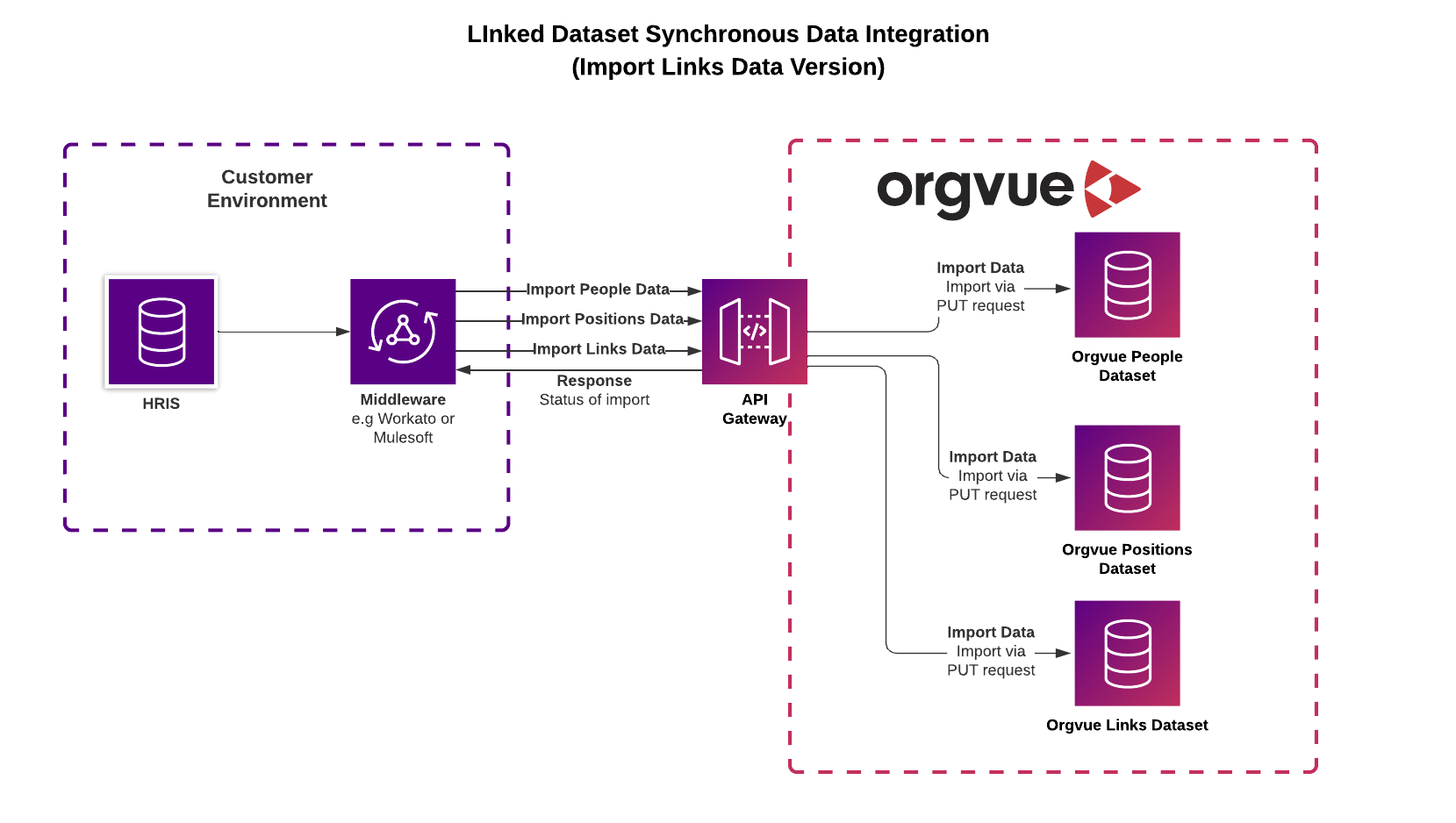
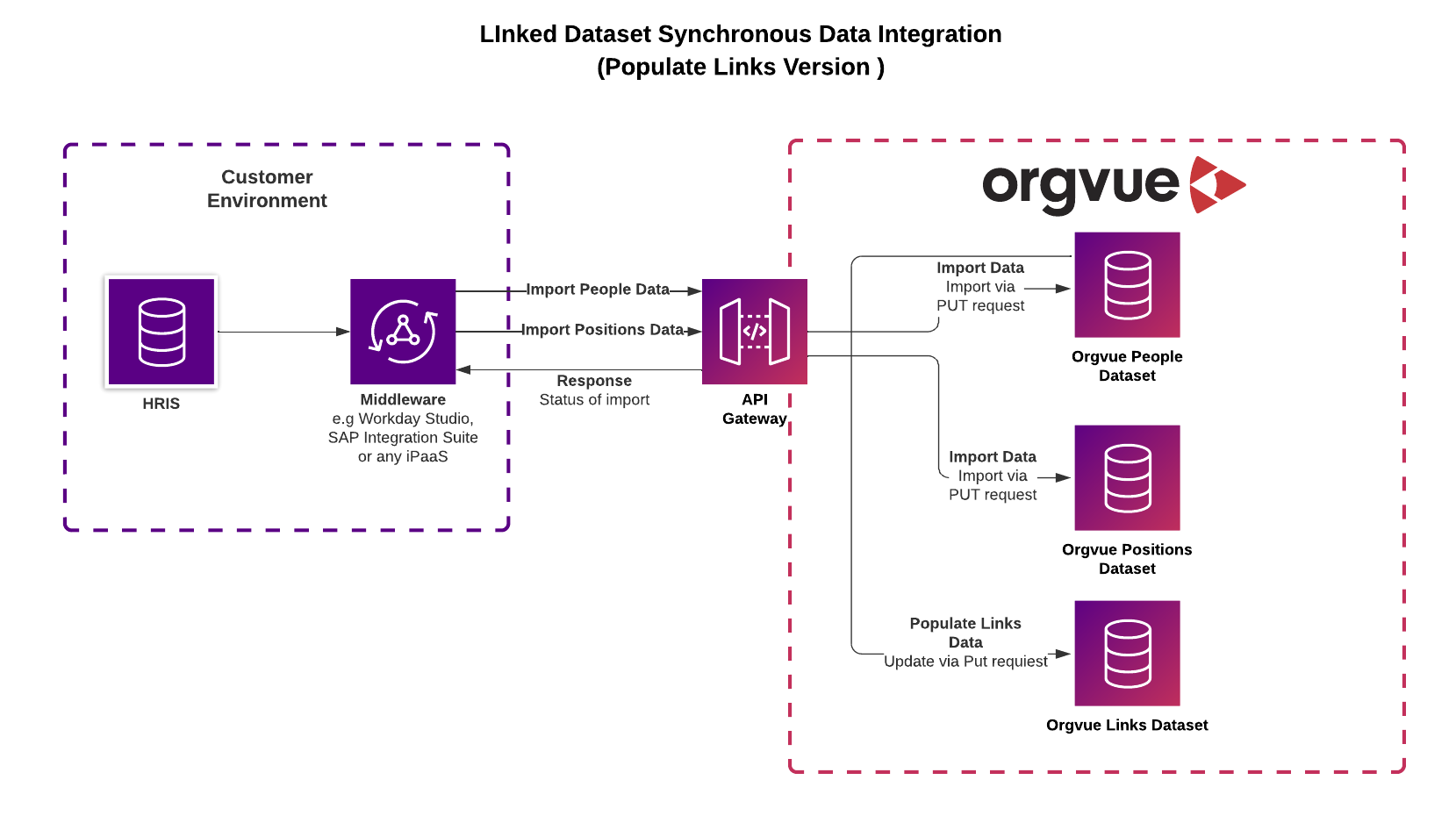
1. Generate an API Token
Orgvue API requires a JWT in order for you to authenticate into Orgvue which can be obtained from the Tokens page. Token must be captured at time of creation and cannot be re-surfaced in the interface at a later date
2. Obtain your Base URL, Tenant ID, & Dataset ID
In order to integrate into Orgvue you will require the Base URL along with your Tenant ID and the 3 relevant Dataset IDs that can be found at the following addresses
3. HTTP Header
Set the Content-Type header: application/json; charset=UTF-8
4. HTTP Header
Set the Authorization header, passing the API Token generated in step 1: Bearer {APIToken}
5. Define the query base URL for People Dataset
Using the Tenant ID and Dataset ID for the People dataset, build the API URL required
https://{baseUrl}/api/v1/{tenantId}/datasets/{datasetId}/items
6. Query String for People Dataset
Define the Date Format of your data from the following options YYYY-MM-DD , DD/MM/YYYY, or MM/DD/YYYY
https://{baseUrl}/api/v1/{tenantId}/datasets/{datasetId}/items?dateFormat=YYYY-MM-DD
Define your key: When sending Updates (merge data) or Delete requests to Orgvue you will need to provide a key in the payload so that Orgvue can identify the node that you wish to action
- No key provided: Orgvue’s
_idwill be used as the unique identifier - AutoID provided:
autoId=truethe key provided is the autoId that has been preconfigured in Orgvue and will be used to merge data or identify nodes to be deleted
https://{baseUrl}/api/v1/{tenantId}/datasets/{datasetId}/items?dateFormat=YYYY-MM-DD&autoId=true
7. Example JSON Payload People Dataset
Define what to Create or Update: If you want to create a new node or update an existing node use the _action with the possible options of "create", "update", or "createOrUpdate"
For more detailed information on the actions and their expected behavior please see the API reference
Define what you want to Delete: If you wish to Delete an existing node in Orgvue you can choose the _action of "delete" which will remove the identified row
The JSON Payload below has employee_id set as the autoId of the People dataset
[
  {
    "_action": "create",
    "employee_id: "6713527",
    "fullName": "John Smith",
    "startDate": "2023-01-16"
  },
  {
    "_action": "update",
    "employee_id: "3101881",
    "salary": 65000
  },
  {
    "_action": "delete",
    "employee_id: "4831275",
  }
]
8. Define the query base URL for Positions Dataset
Using the Tenant ID and Dataset ID, build the API URL required
https://{baseUrl}/api/v1/{tenantId}/datasets/{datasetId}/items
9. Query String
Define your key for the Positions Dataset
- No key provided: Orgvue’s
_idwill be used as the unique identifier - AutoID provided:
autoId=truethe key provided is the autoId that has been preconfigured in Orgvue and will be used to merge data or identify nodes to be deleted
https://{baseUrl}/api/v1/{tenantId}/datasets/{datasetId}/items?&autoId=true
10. Example JSON Payload Positions Dataset
Define what to Create or Update: If you want to create a new node or update an existing node use the _action with the possible options of "create", "update", or "createOrUpdate"
For more detailed information on the actions and their expected behavior please see the API reference
Define what you want to Delete: If you wish to Delete an existing node in Orgvue you can choose the _action of "delete" which will remove the identified row
The JSON Payload below has position_id set as the autoId of the Position dataset
[
  {
    "_action": "create",
    "position_id: "P4557",
    "Position Title": "Software Engineer",
    "Grade": "E"
  },
  {
    "_action": "update",
    "position_id: "P1747",
    "Grade": "C"
  },
  {
    "_action": "delete",
    "employee_id: "4831275",
  }
]
11. Choose Endpoint to use for updating Links dataset
Links datasets have a specific format and must contain the default propeties along with any additional properties that have been added
See Importing data > Links for further details
Any create update or delete action must include:
from_idto_idallocation(Update and create actions)
It is most common to create a separate file to update the Links dataset via the Links Sync Import endpoint
However if either the People or Position datasets contain the properties that will be used to provide values for the from_id, to_id and allocation within a single dataset then the Populate Links endpoint can be used to extract the values for the single dataset and populate the Links
See Importing Data > Populate Links Endpoint for more details
12. Implicit delete
When updating a links dataset it is best practice to replace all existing links
This ensures that no stale links remain to affect data integrity
The use of the query parameter implicitDelete=true will delete any existing links not included in the payload
https://{baseUrl}/api/v1/{tenantId}/links/{linksDatasetId}/items?implicitDelete=true
13. Example JSON Payload Links Sync Import
All actions in the JSON payload when using the Links Sync Import endpoint to replace all links in a dataset should be set as either createOrReplace, if only default properties are present or createOrUpdate if additional properties have been added to the default links dataset properties
Combined with the implictDelete=true query parameter this removes the need to identify which links are new and those that already exist as all links are replaced via the upload
[
  {
    "_action": "createOrReplace",
    "from_id": "p_01234",
    "to_id": "pos_a123",
    "allocation": 1
  },
  {
    "_action": "createOrReplace",
    "from_id": "p_01269",
    "to_id": "pos_a120",
    "allocation": 0.5
  },
  {
    "_action": "createOrReplace",
    "from_id": "p_01270",
    "to_id": "pos_a191",
    "allocation": 1
  }
]
14. JSON Payload Populate Links Dataset
If either your People or Positions dataset contains the vaules for the from_id, to_id and allocation property of the links dataset, you can use this endpoint to extract the relevant data and automate the uploading of nodes to that links dataset.
The values must be contained within a single dataset and the Populate Links Endpoint will create or replace all nodes in the links dataset
The request body contains the following unique requirements:
sourceDatasetId this is the Id of the single dataset that contains the values to be uploaded for the default links properties from_id, to_id and allocation
The Populate Links Endpoint will automatically use the autoId of this dataset as either the from_id or to_id of the Links Dataset
targetDatasetAutoId is the property key in the single dataset to be used as either the from_id or to_id of the Links Dataset
Based on the setup of the links dataset e.g. People linked to Positions or Positions linked to People, the correct orientation of from_id and to_id will be automatically derived by the endpoint
allocationId is the property key in the single dataset to be used as the allocation property in the Link dataset, typically this would be FTE in a People to Positions Link
{
  "sourceDatasetId": "6586F21B-AD4D-4D06-A309-712AF47184A2",
  "targetDatasetAutoId": "positionsId",
  "allocationId": "fte",
  "resultLocation": {
    "method": "PUT",
    "url": "https://example.com"
  },
  "callback": {
    "method": "GET",
    "urlTemplate": "https://yoururl.com?status={{jobStatus}}&traceId={{traceId}}&tenantId={{tenantId}}"
  }
}