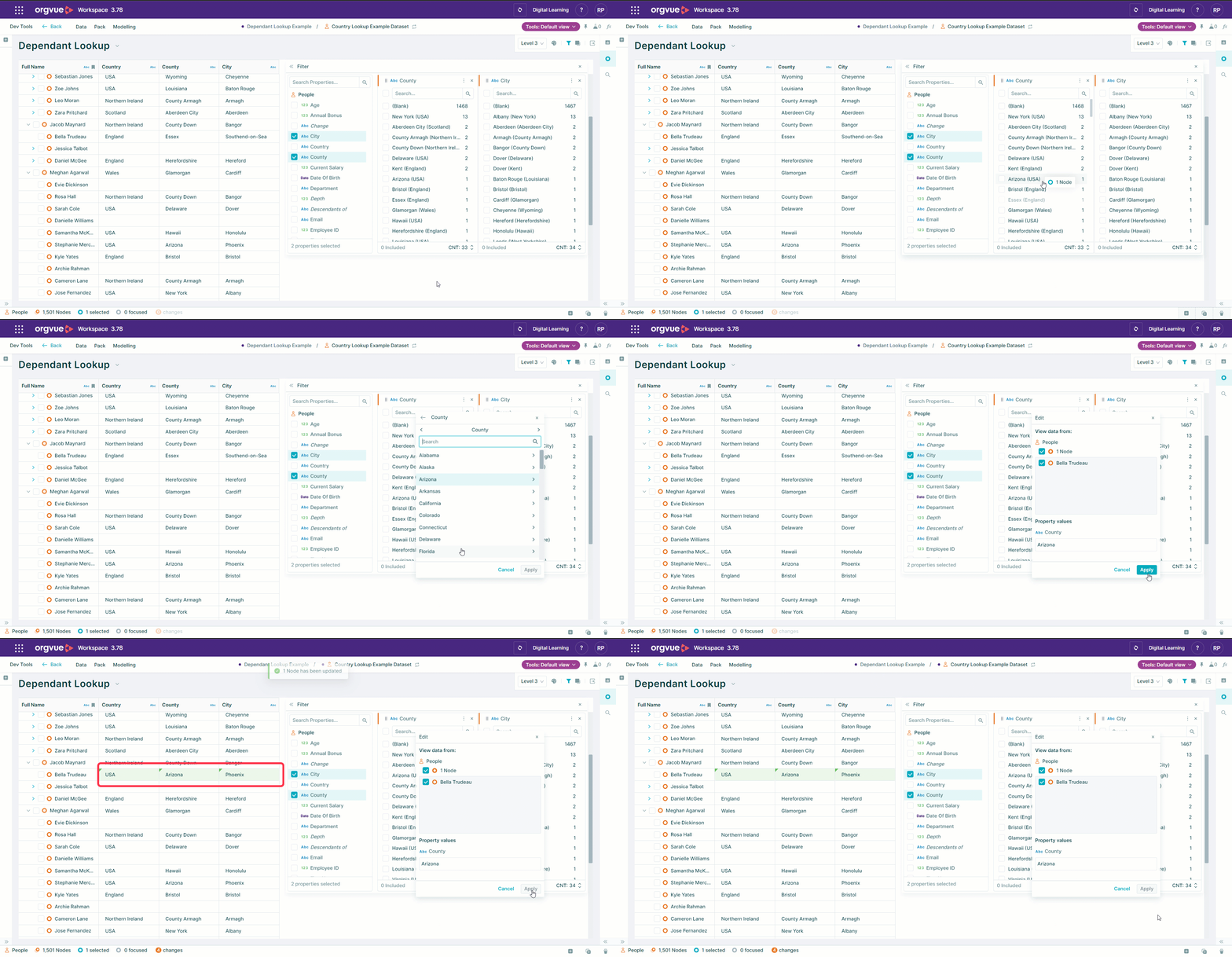
Dependent Lookup
Create dropdown selection boxes where the options presented in the dropdown are based on the option selected in another dropdown
An example application could be a location table with countries, states or counties, cities and currencies
Selecting a country from the first dropdown would then restrict the cities presented in the next dropdown to only those in the selected country
Loading a dependent lookup dataset
The data to be loaded should contain an Id property with a unique identifier for each row and the properties loaded in order of dependence
Ensure that your table does not contain any blank cells in dependent levels
Example Dataset
| id | region | country | county | city |
|---|---|---|---|---|
| 1 | EMEA | Scotland | Aberdeen City | Aberdeen |
| 2 | EMEA | Northern Ireland | County Down | Bangor |
| 3 | EMEA | Wales | Gwynedd | Bangor |
| 4 | EMEA | England | Somerset | Bath |
| 5 | EMEA | England | West Midlands | Birmingham |
| 6 | AMER | USA | Alabama | Montgomery |
| 7 | AMER | USA | Alaska | Juneau |
| 8 | AMER | USA | Arizona | Phoenix |
Creating a dependent lookup requires the lookup dataset to be loaded via with the following details
Edit Details Screen
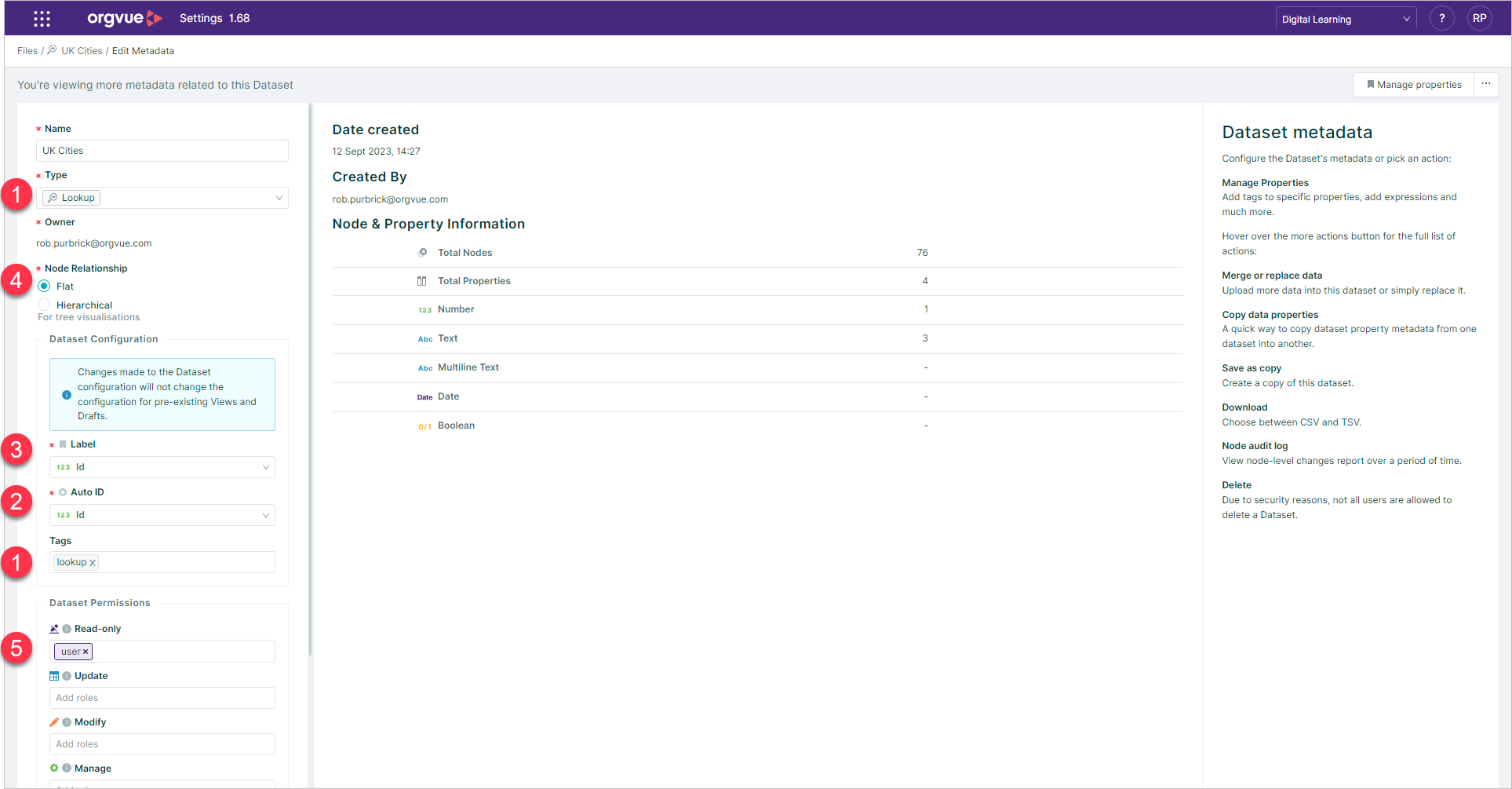
- Dataset type should be either be set to
Lookupor if another dataset type is selected then it should be taggedlookup - The lookup dataset must contain a unique identifier property for each row in the dataset, in addition to properties that will be used as dropdowns, this identifier property must be selected as the
auto IDwhen loading the dataset - The label property may be set to any property in the lookup dataset as it will not be used in this process
- Node relationship should be set to
Flat - Enable any users to access dependent lookups within main dataset by applying at least
Read Onlypermission
Configure Properties Screen
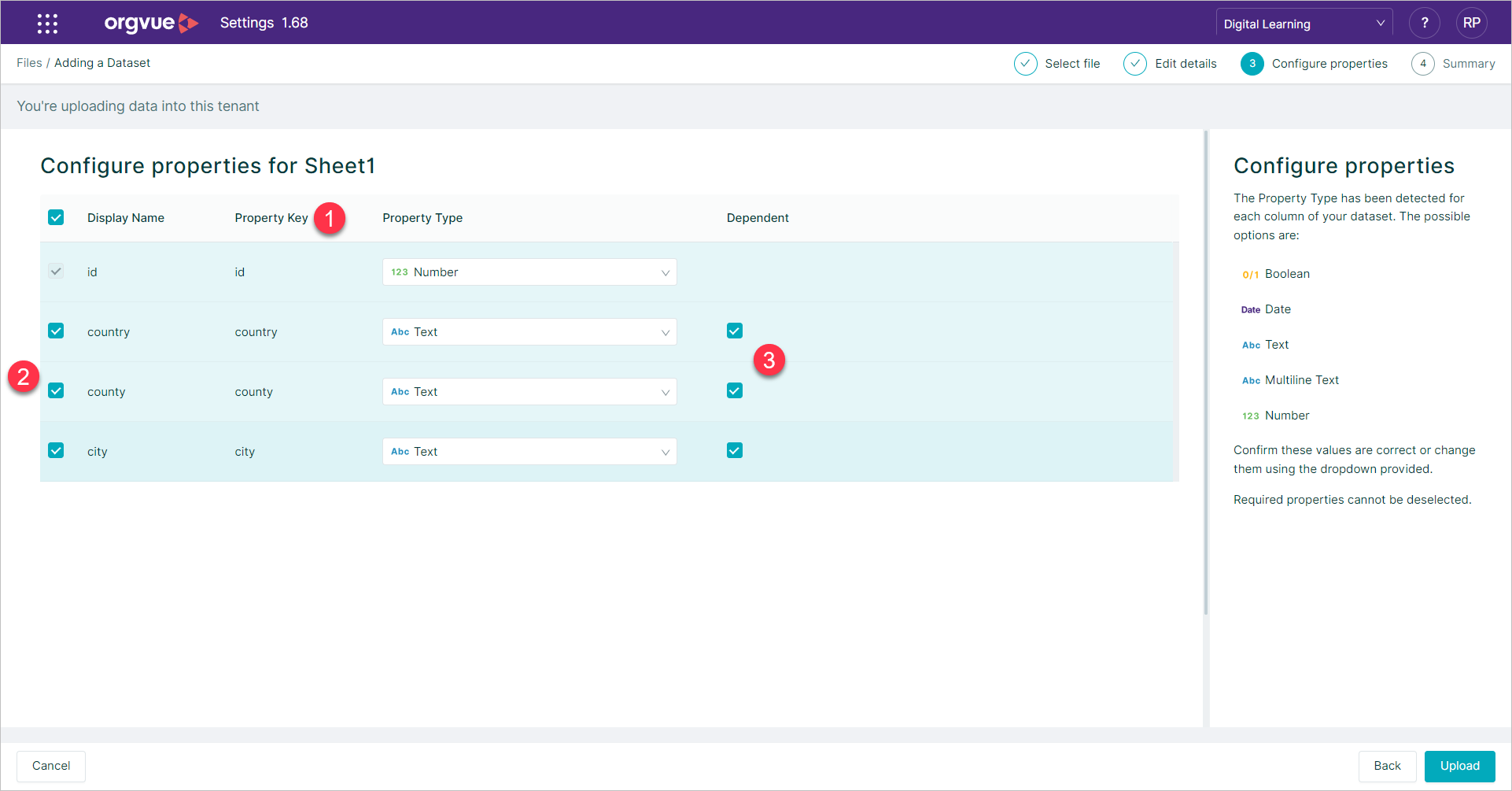
- When configuring properties for the lookup, there are no specific property key requirements for the
auto IDproperty however all lookup dataset property keys must be an exact match for property keys in the dataset that will reference them - Properties should be loaded in descending order of levels e.g. Region, Country , County then City
- Properties to be used as lookups should be checked as
Dependent
Setting Up A Dependent Lookup
To make the dependent lookup values loaded in the lookup dataset available for use with the target dataset e.g. PEOPLE or POSITIONS the lookup relationship needs to be set up via the property manager of the target dataset
To do this open the property manager for the target dataset either in Workspace Property Manager or
The target dataset must contain an empty text property that can be linked to the Lookup dataset id property.
This property will be set as Read Only as part of the setup process and property values will be populated once selections are made from the dependent lookups
The target dataset must also contain the properties that are going to be used with the Dependent Lookup. e.g. Region, Country , County and City
While the setup process will allow the use of any property key and display name for the empty property it is recommended to use lookupid or similar to help identify this property as being used for the dependent lookup process in the future
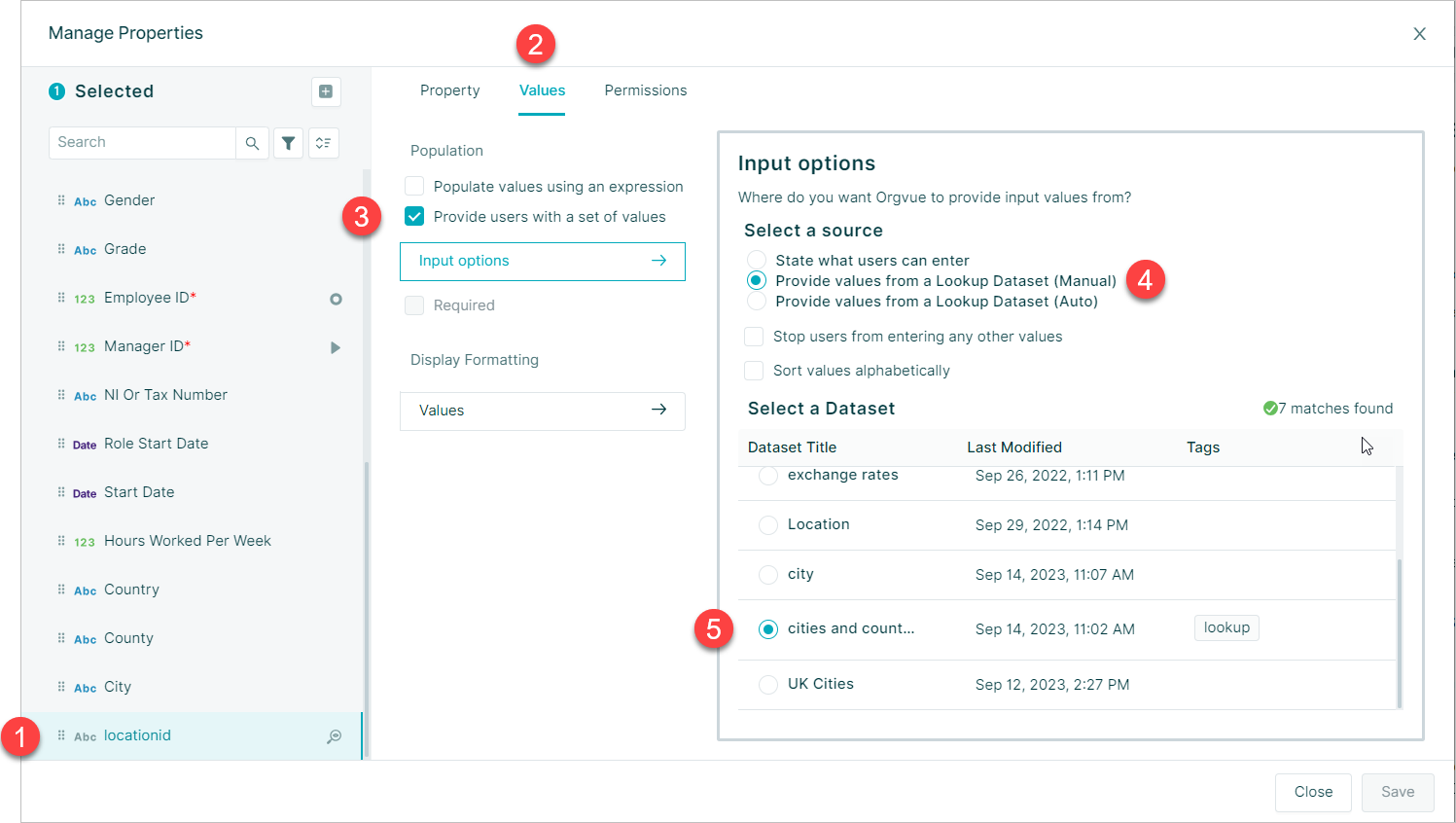
- Select the empty property to be linked to the lookup
- Select the
Valuestab - Select the
Provide users with a set of valuesoption - Select
Provide values from a Lookup Dataset (Manual)the Auto option may be selected if the Lookup Dataset name matches the selected Property Key - If using the Manual option select the Lookup Dataset from the list
- Select
Saveto complete the lookup
Orgvue will then match the remaining dependent property keys from the Lookup dataset to the corresponding property keys in the target dataset to complete the setup process
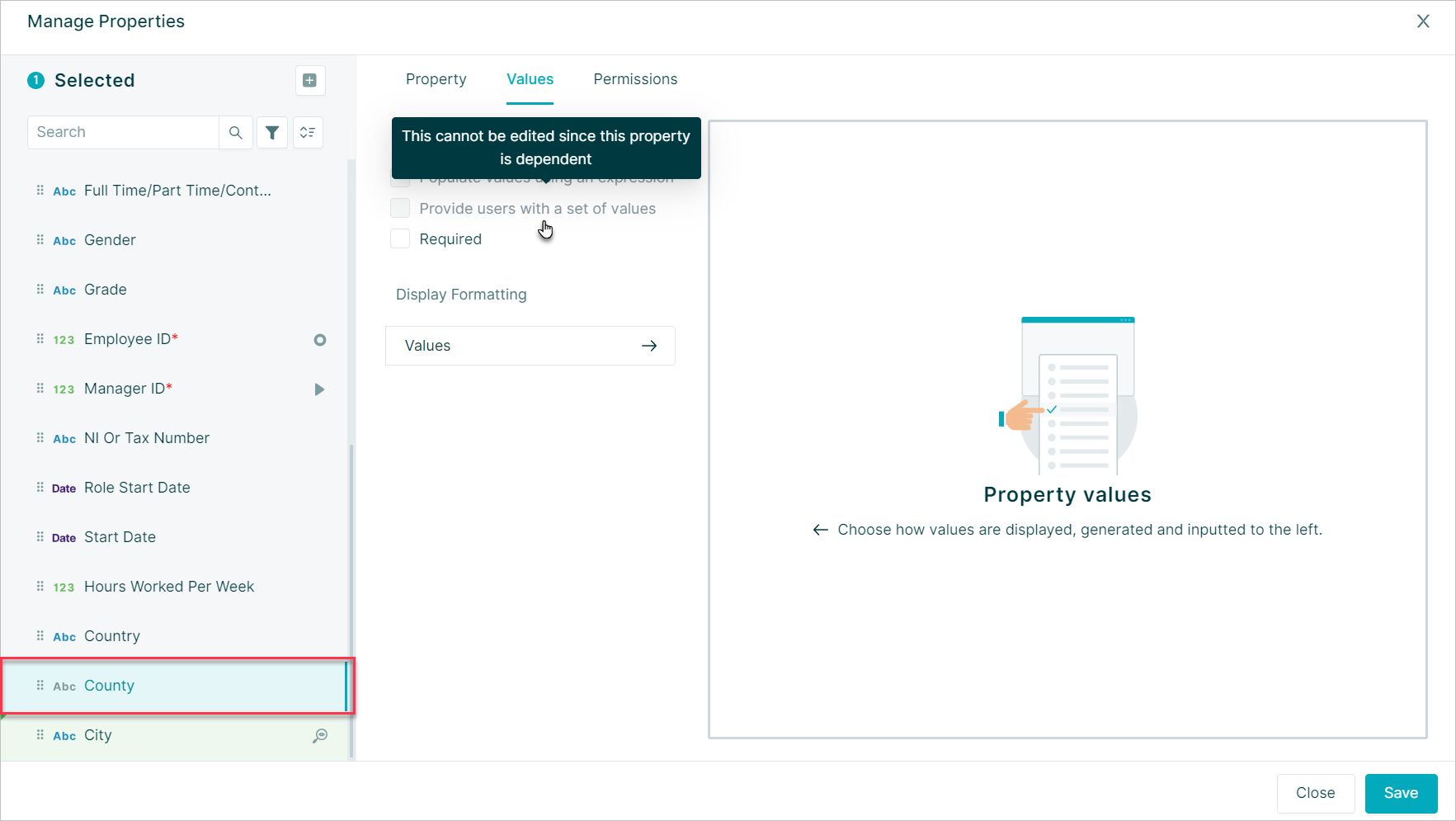
Selecting any of the other dependent properties in the property manager after this matching process will show the options on the values tab greyed out with a message to show the property cannot be edited
Dependent Lookup In Use
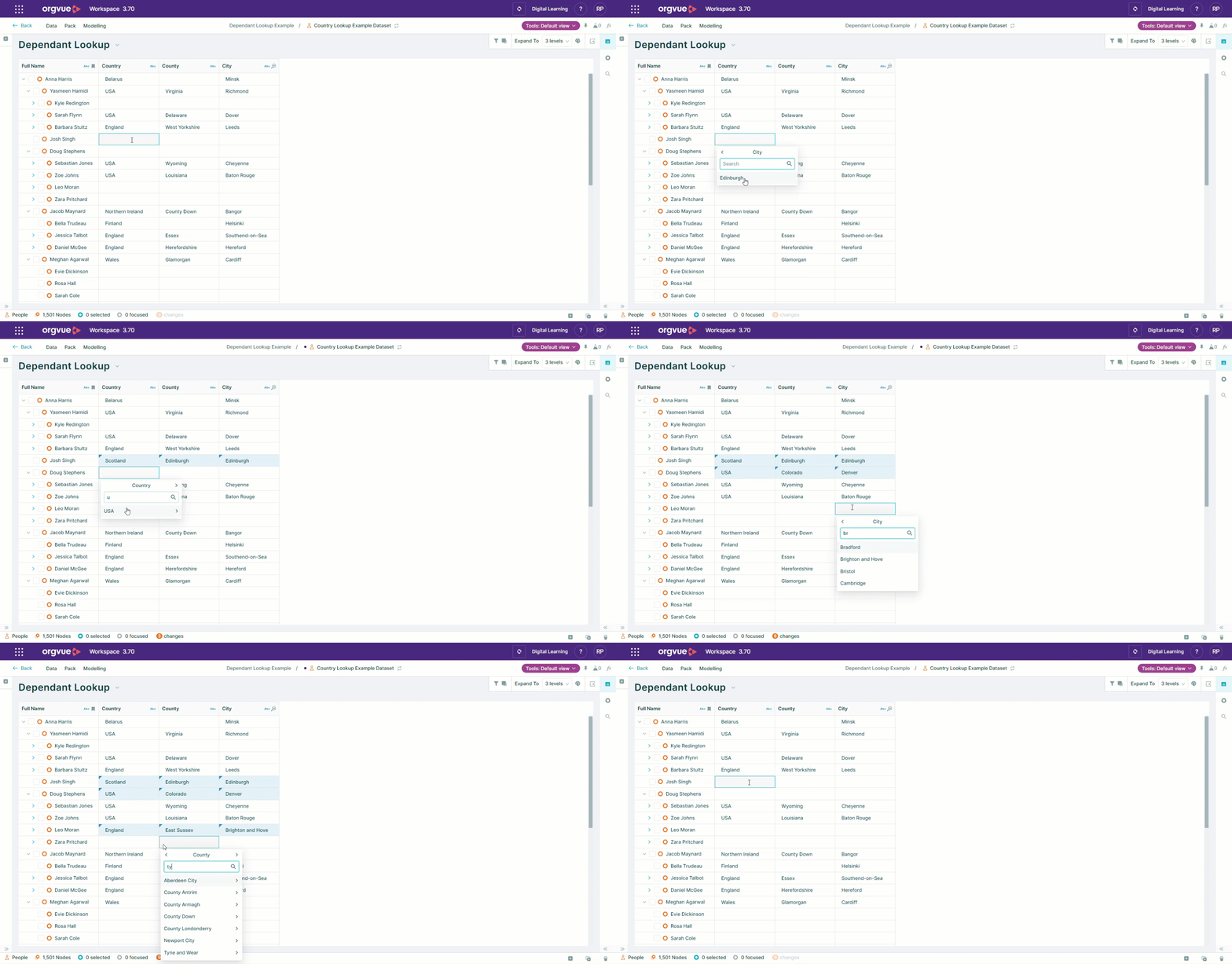
Once set up, adding the properties to a worksheet will allow you to select the required value from the dropdown for one property and dropdown options that are then available in other properties will be focused to valid dependent values
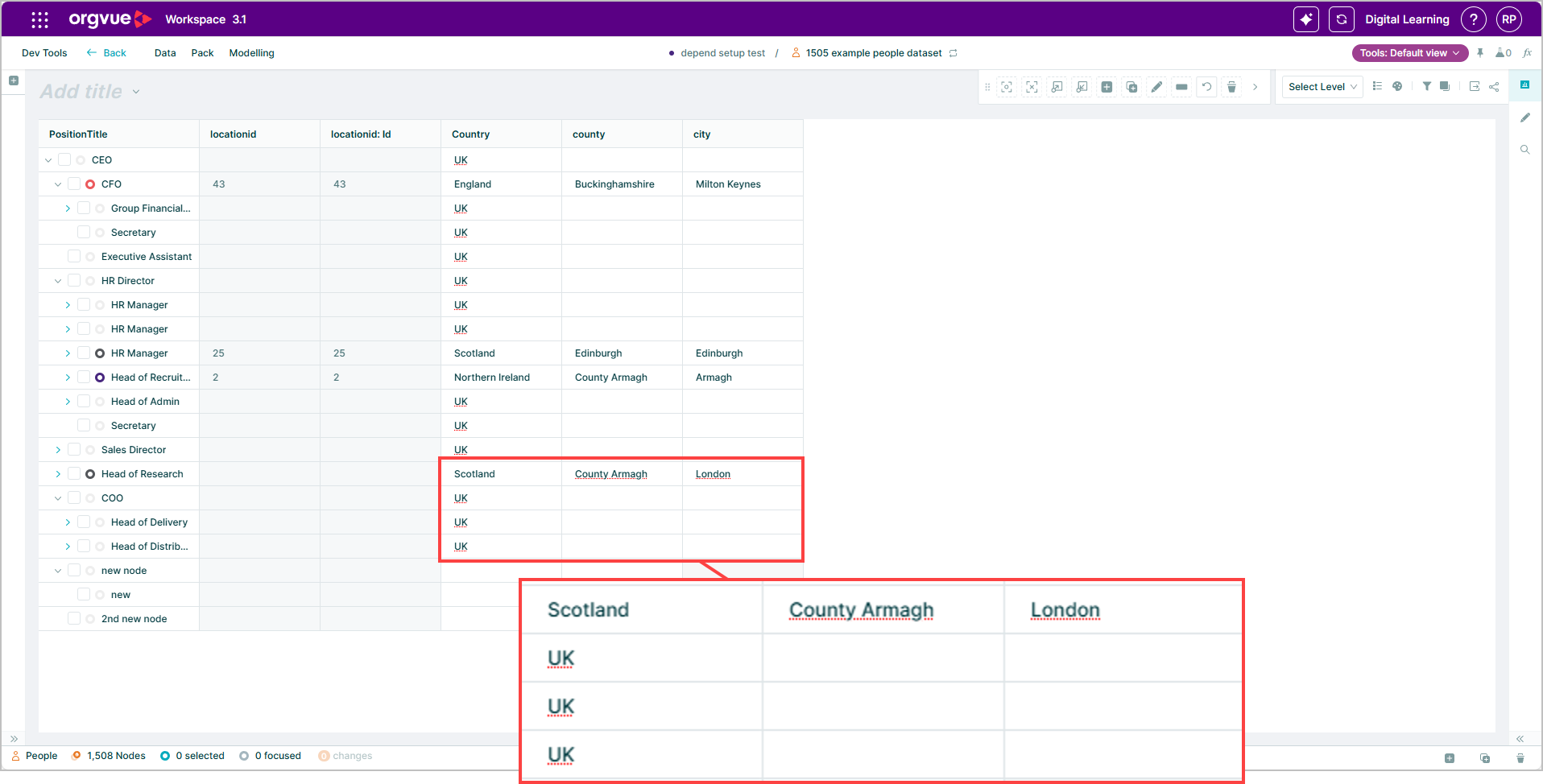
Any values already present in the target dataset will not be overwritten but will be highlighted with red dotted underline
Dependent Lookup Buckets
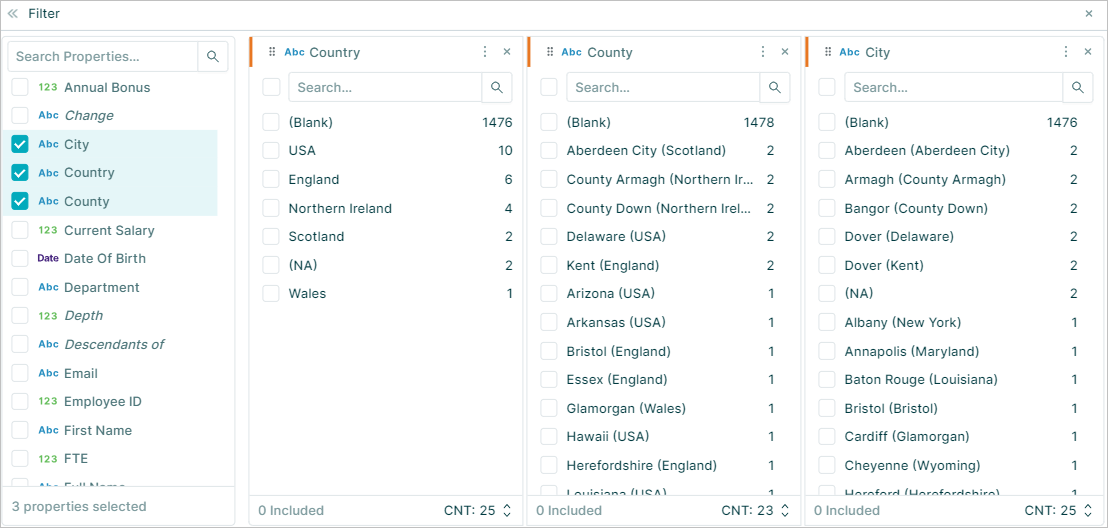
When viewing buckets for dependent lookup properties, additional detail is shown in brackets to indicate parent dependency
Dependent Lookup Bulk Edits
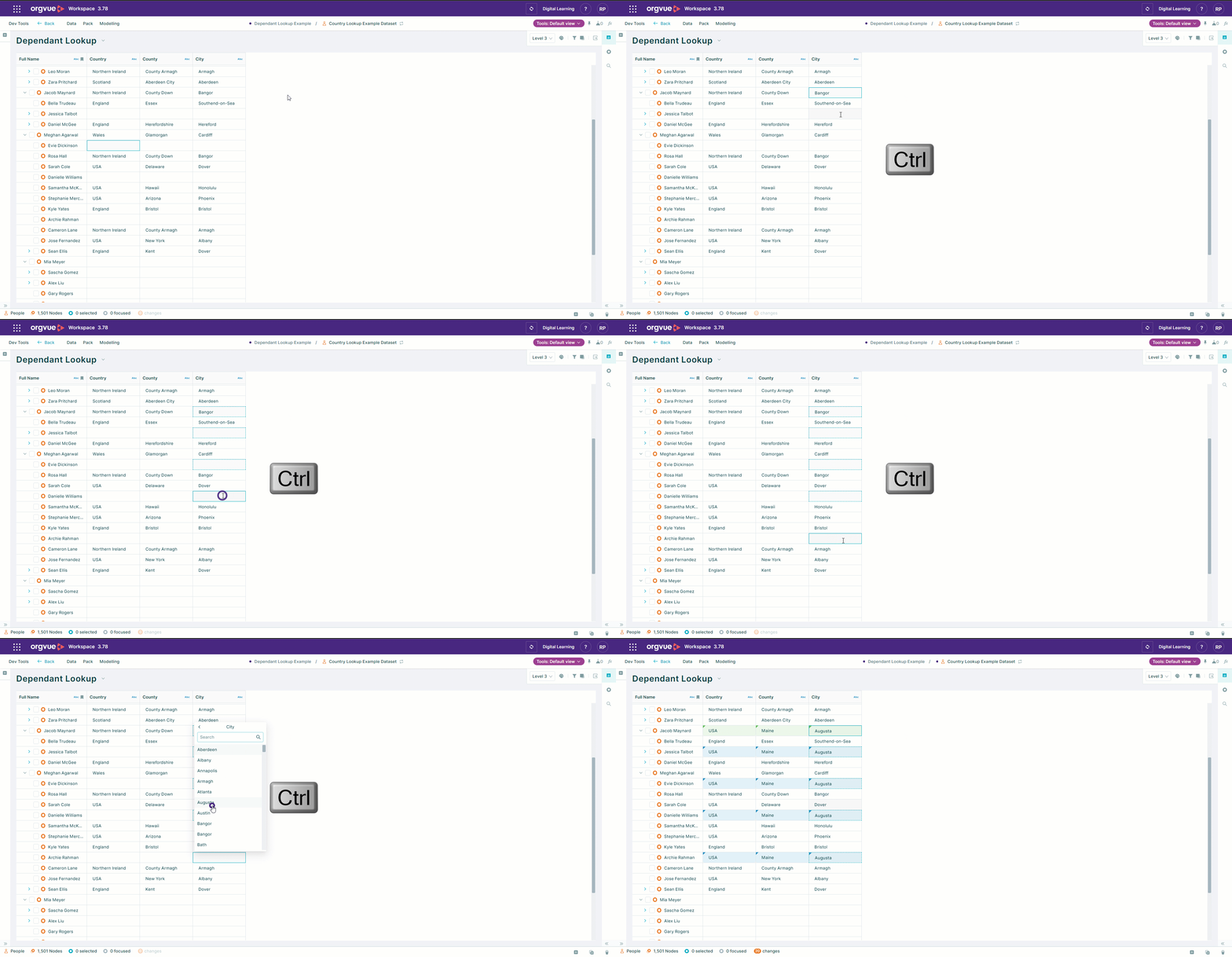
It is possible to apply dependent lookup values to multiple cells at the same time by holding down the CTRL key (CMD on a Mac) while selecting the cells and the required option in the dependent dropdown
Bulk editing via drag and drop within filter buckets is also possible
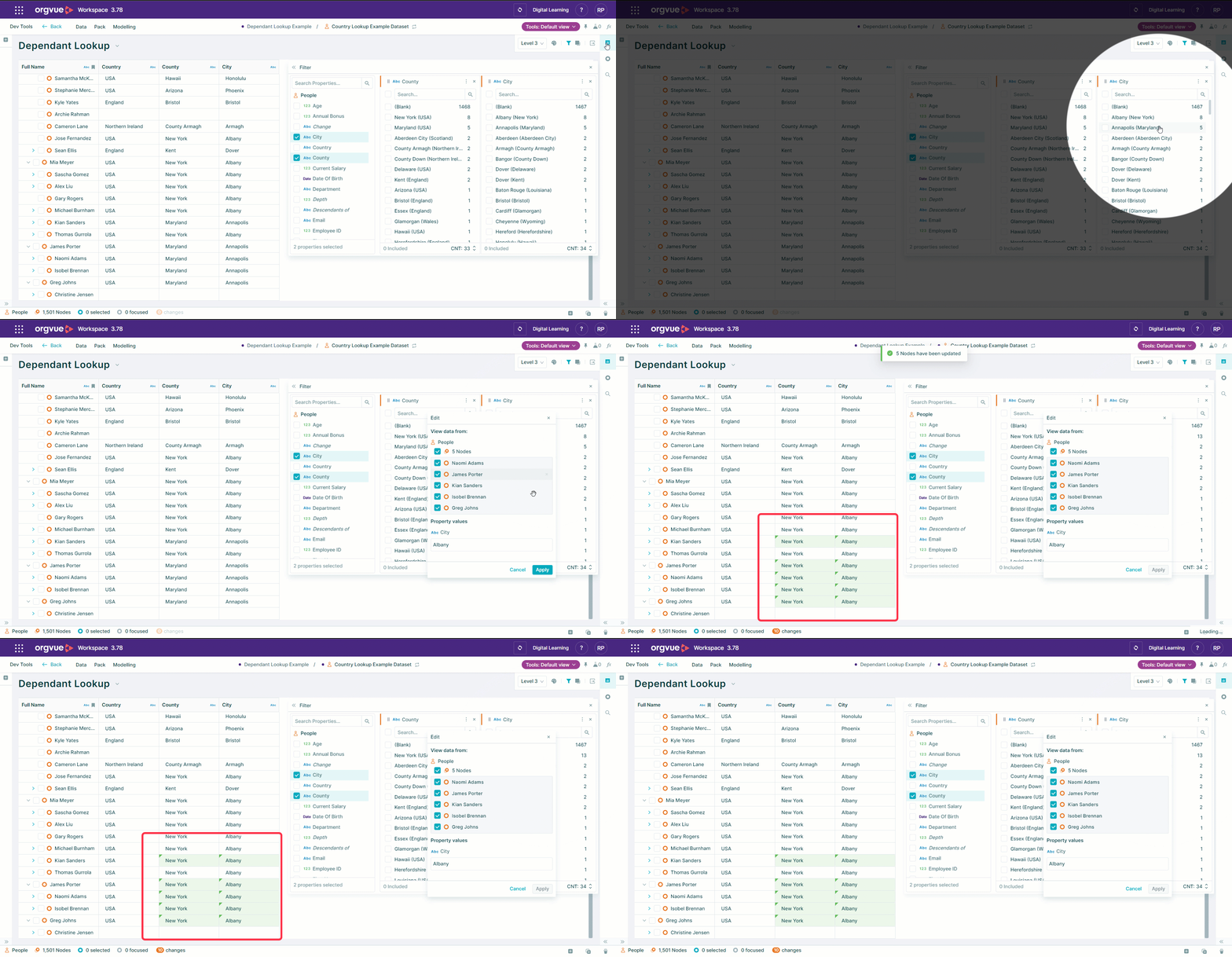
If your modifications necessitate reselecting lower dependencies the modal will alert you and guide you through the process