Links
Datasets of different Types may be linked to provide a connected view of data
Common examples of Linked Datasets are:
- People linked to Positions
- People linked to Activities
- Positions linked to Roles
This is especially useful when allocating people to new positions as part of the implementation of an organization change or when succession planning
Or when designing new Roles by allocating accountability for Activities and Competency targets to them
The Links between nodes in Linked Datasets may be Created, Edited or Deleted in a Tree Slide in workspace
Pre-requisites
To work with Links you must have configured a Links Dataset which joins two other existing Datasets (such as People and Positions) in
To view a video on Linking Two Datasets click the thumbnail to open the video in a new browser tab

Then either open an existing Pack Saved With Active Links or Create a New Pack by:
- Select the Links icon
- Select the required Links Dataset
- Select
+ Create New
or - Open an existing Pack Saved With Active Links
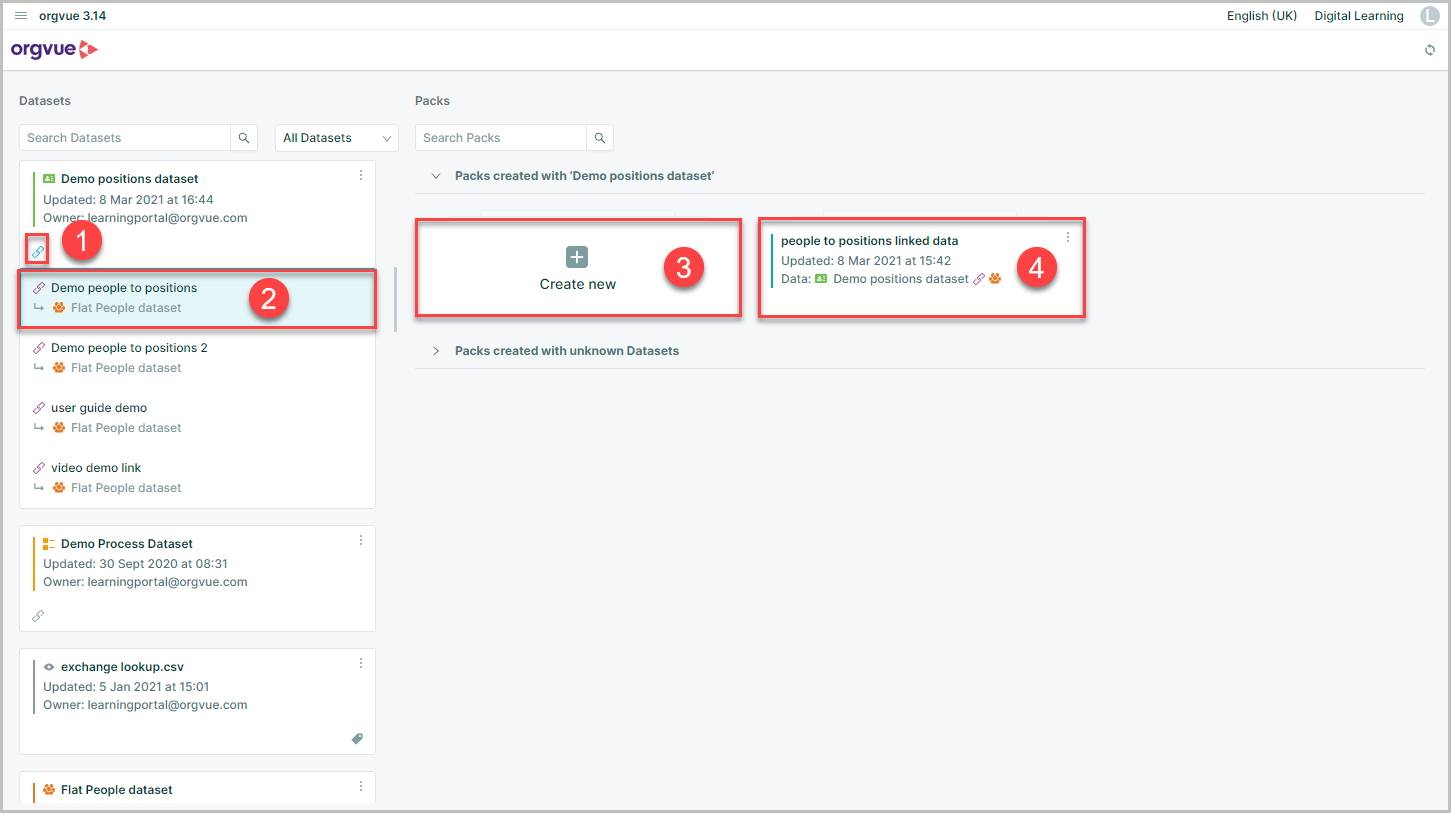
Once the pack is opened the Crumbtrail will show the Links are active between the two datasets

The Dataset Node Summary will also show the Linked datasets are active

Create Links
To create a Link:
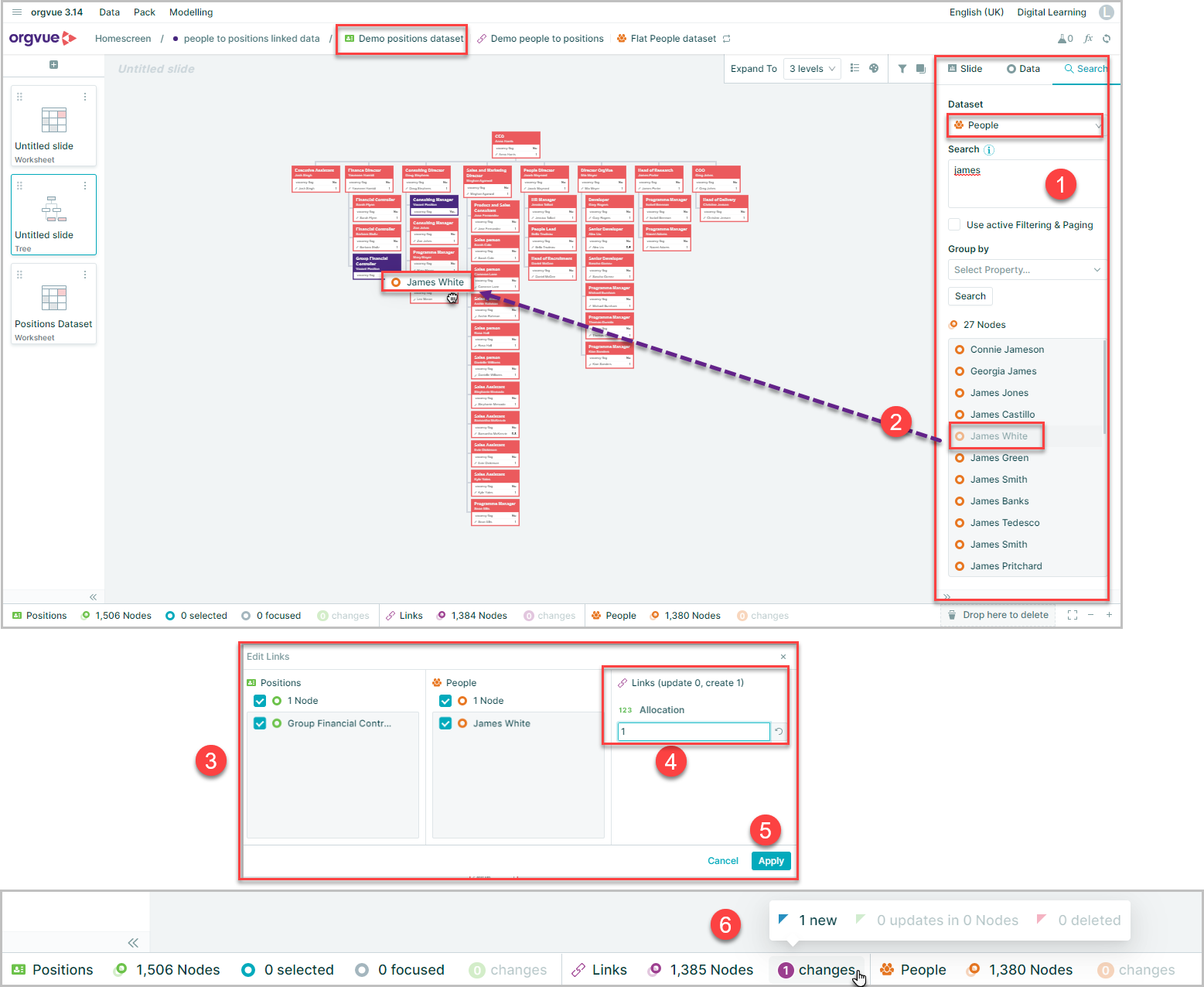
- Open a Tree Slide and use the search panel to find the relevant Node in the Linked To dataset
- Drag it from the Search Panel onto a Node on the Tree Slide to create the link
- The Edit Links window will open to show the link being created
- Enter the value to link the nodes across the Datasets
- Click
Applyto create the Link - The Dataset Node Summary will update to reflect the new Link created
To create a Link, values for required properties must be entered
Edit Links
To edit an existing Link:
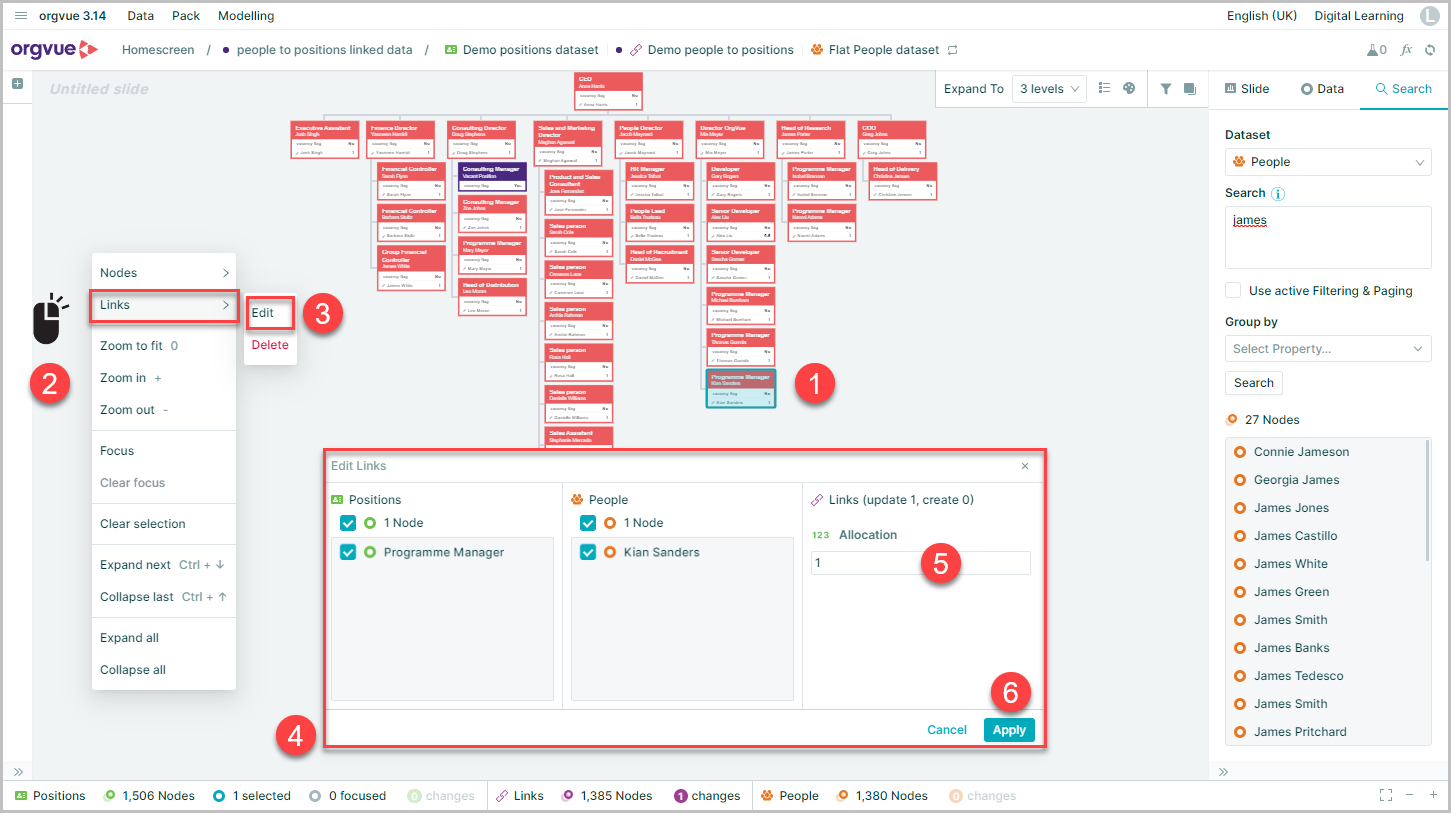
- Select the Node on the Tree Slide
- Right Click to open the menu
- Open the Links Menu and select
Edit - The Edit Links window will open to confirm the link being edited
- Enter an updated value to link the nodes across the Datasets
- Click
Applyto complete the edit process
To view a video on editing links click the thumbnail to open the video in a new browser tab

Delete Links
To delete a Link:
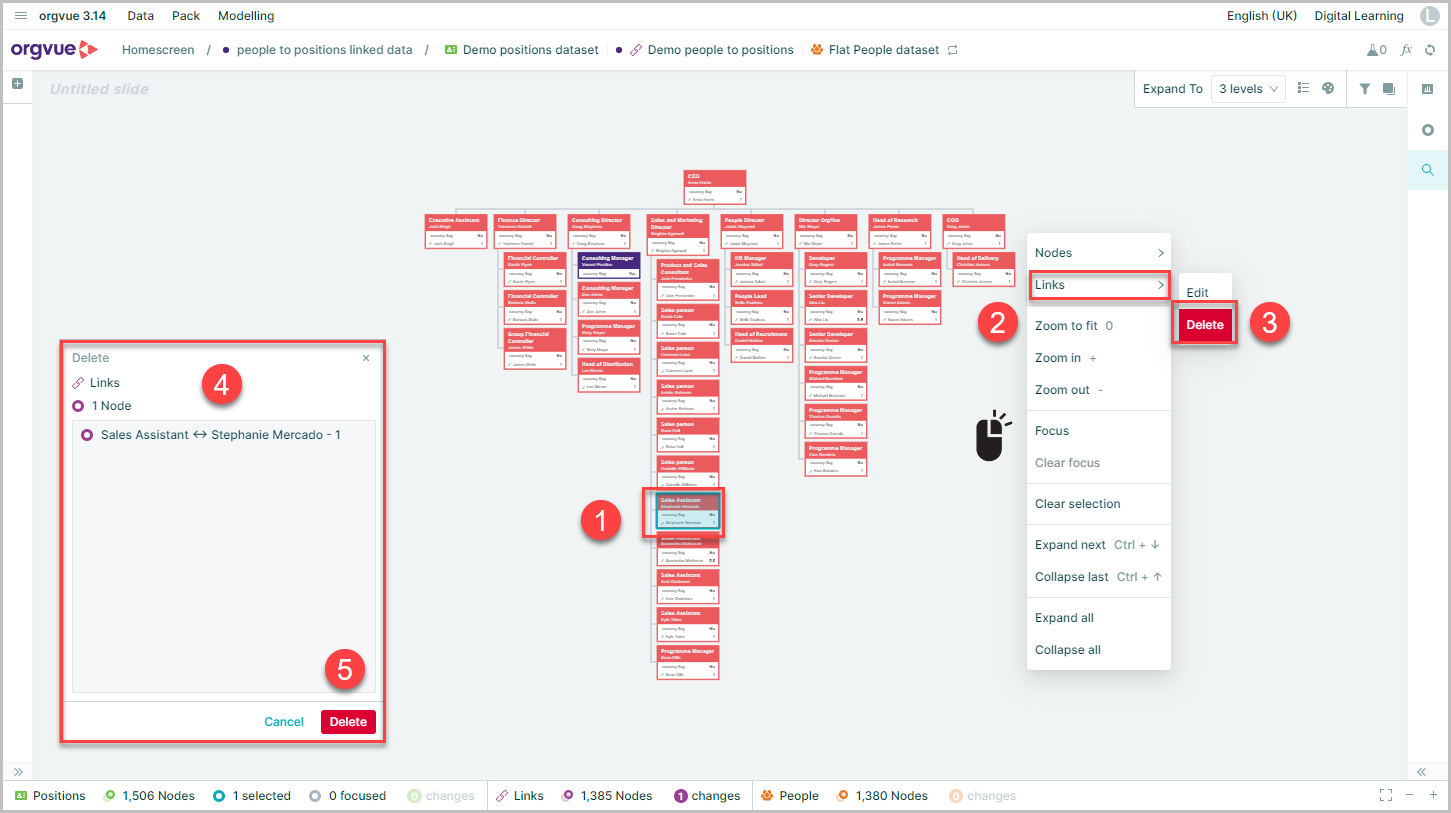
- Select the node on the Tree Slide
- Right Click to open the menu
- Open the Links Menu and select
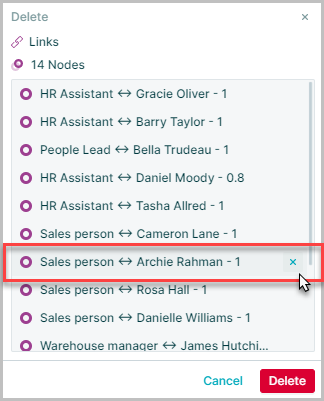
Delete - The Delete Links window will open to confirm Link being deleted
- Click
Deleteto confirm the deletion
Any nodes that are not to be deleted may be removed from the Delete Links panel by selecting the X icon
Revert Links Changes
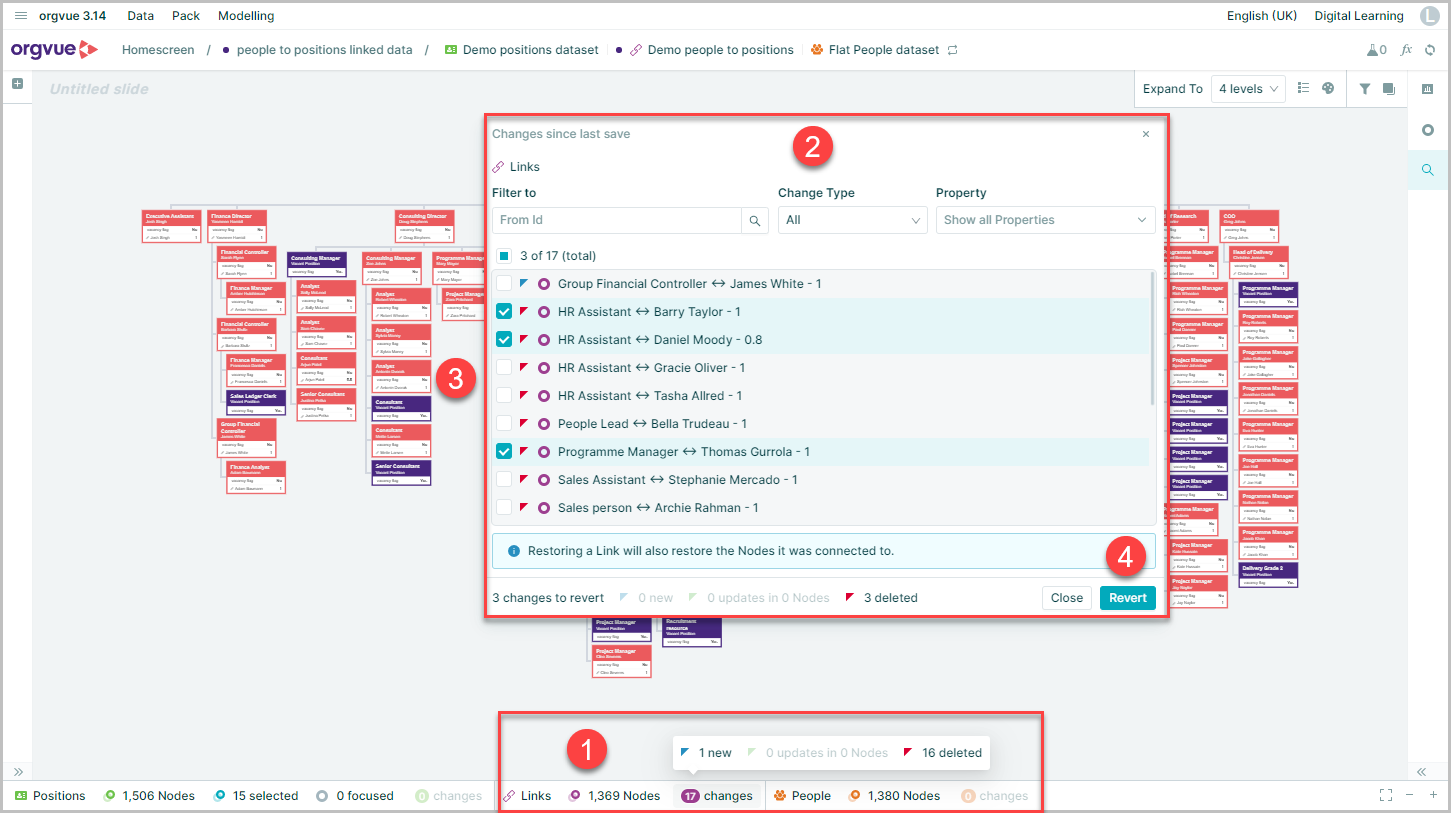
In common with other unsaved changes to Datasets, if you have created, edited or deleted Links, and you have not yet saved your changes, you can revert this action for all Links or for specific individual or groups of Links
To revert Links Changes:
- Select the
Changesarea of Links Dataset Node Summary - This will open the Revert Node Changes window
- Select the Node Changes to revert
- Select
Revertto complete the process