OAuth 2.0
Orgvue uses OAuth 2.0 client credentials to authenticate requests
Rather than a single static key, your application exchanges a client_id and client_secret for a short-lived access token (valid for 1 hour).
That token is then passed as a Bearer token on API calls.
When it expires, your application will need to request a new one.
This approach is more secure by design as the short token lifespan limits exposure if a token is ever compromised.
Only Admins can create and manage OAuth 2.0 client credentials. If you need credentials set up, contact your Orgvue Administrator.
Creating client credentials
API client credentials are created with the Tenant settings area of My work or from the API access option in Orgvue Settings
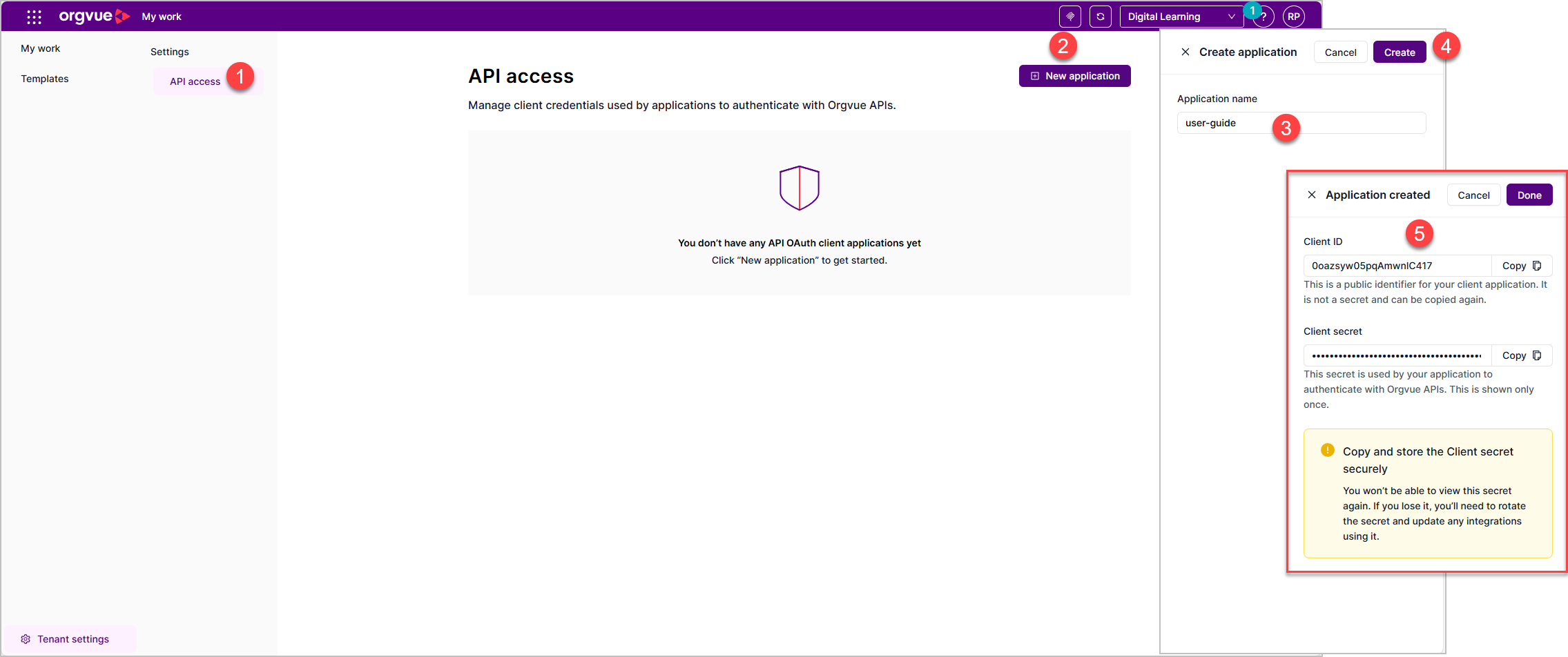
- API access
- Select + New application.
- Enter a name for the application
- Select Create.
- Orgvue generates a
client_idandclient_secretpair.
Save your credentials now. The client_secret is shown only once, at creation.
Copy and store it securely as it can't be retrieved again.
Once created, any Administrator can:
- View the credential in the credentials list.
- Delete the credential
- Rotate the secret
Service Principal
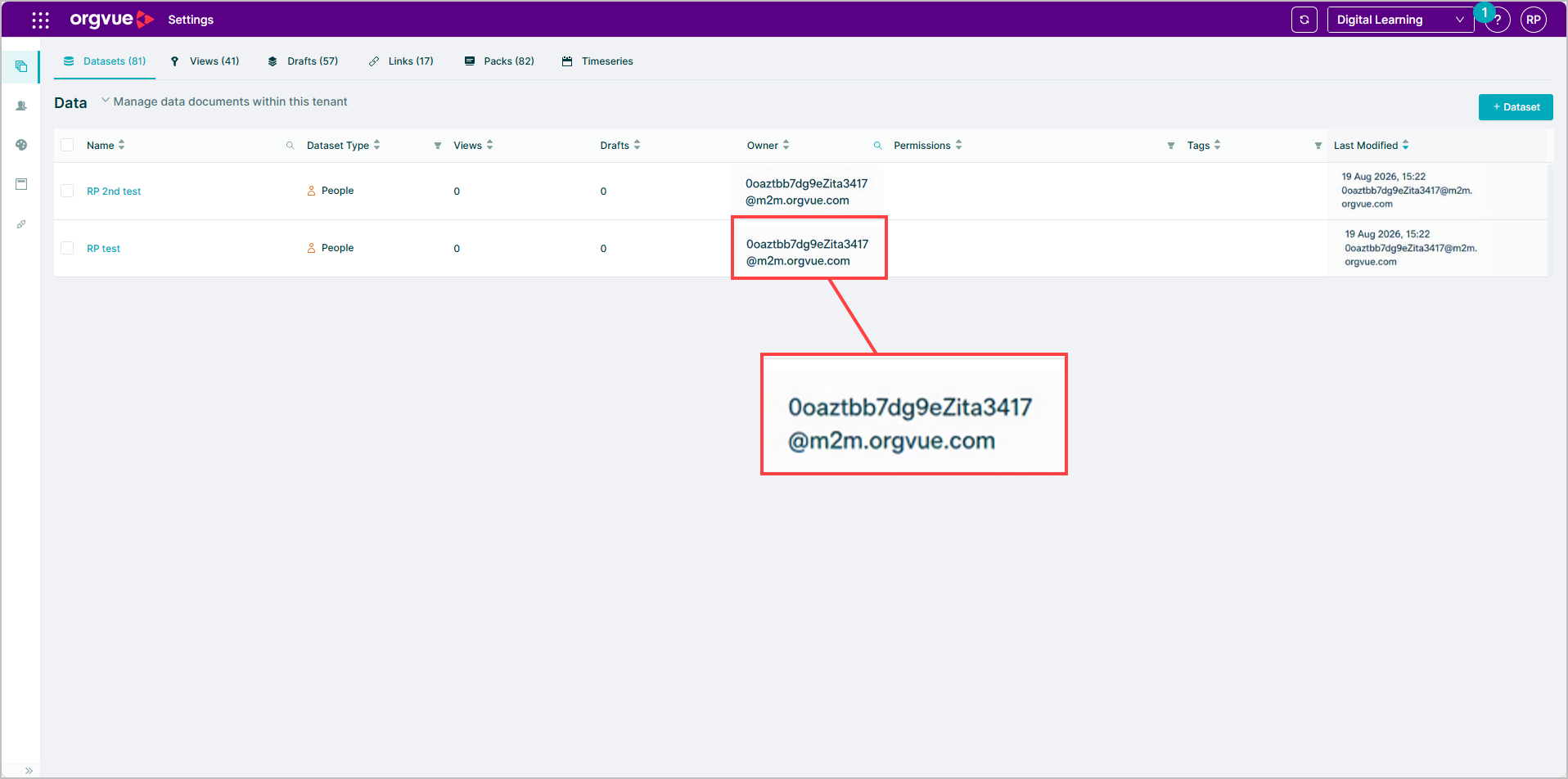
A service principal is an independent identity, not tied to any individual user and created automatically when an Administrator sets up OAuth client credentials.
Rather than acting on behalf of a user, the service principal makes API requests using its own identity.
All API activity by the service principal is recorded in the against the service principal's identity.
The service principle is limited to read and write access for all Orgvue public API endpoints defined in our API reference
The service principal ID uses the following format:
<client_id>@m2m.orgvue.com
OAuth Token Endpoint
To obtain an access token, send a POST request to the OAuth token endpoint for your environment and region.
| Environment | Token URL |
|---|---|
| EU West | https://auth.eu.concentra.io/oauth2/default/v1/token |
| US East | https://auth.us.concentra.io/oauth2/default/v1/token |
| AP SouthEast | https://auth.ap.concentra.io/oauth2/default/v1/token |
| EU West (Staging) | https://auth-stg.eu.concentra.io/oauth2/default/v1/token |
| US East (Staging) | https://auth-stg.us.concentra.io/oauth2/default/v1/token |
| AP SouthEast (Staging) | https://auth-stg.ap.concentra.io/oauth2/default/v1/token |
Generating an access token and calling the API
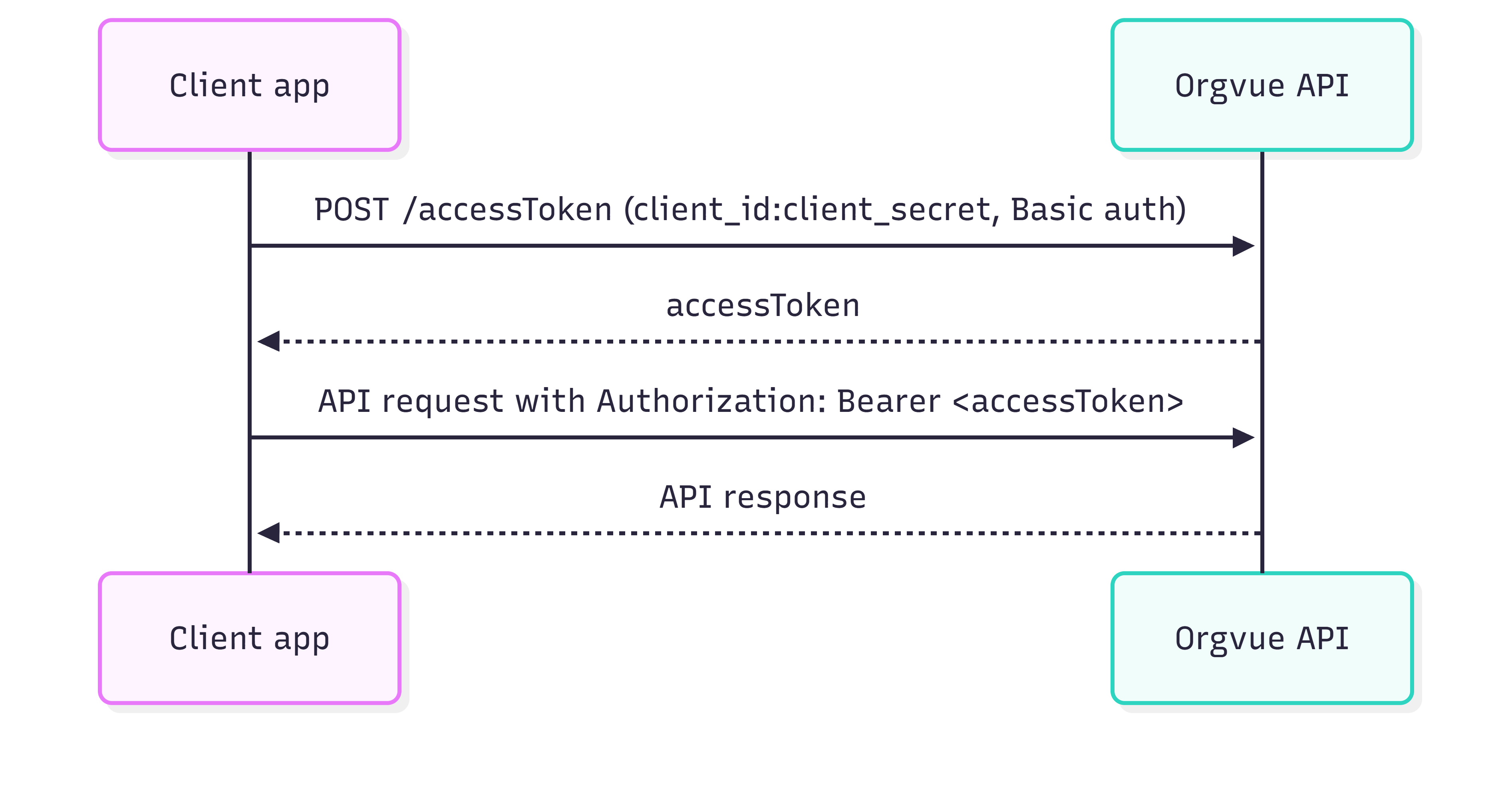
Your application uses the client_id and client_secret to request a short-lived access token (JWT). Pass this token as a Bearer token in the Authorization header of every subsequent API call. Orgvue validates the token on each request.
How it works
Step 1: Create an access token
Send a POST request to the Token Endpoint for your tenant environment using HTTP Basic auth.
Your client_id and client_secret should be base64-encoded in the format client_id:client_secret.
Method: POST: {Token Endpoint}
e.g. POST https://auth.eu.concentra.io/oauth2/default/v1/token
Headers:
| Header | Value |
|---|---|
Content-Type | application/x-www-form-urlencoded |
Authorization | Basic <base64(client_id:client_secret)> |
Request body (x-www-form-urlencoded):
| Parameter | Value |
|---|---|
grant_type | client_credentials |
scope | orgvue.intent.default |
Example Response
{
  "token_type": "Bearer",
  "expires_in": 3600,
  "access_token": "<JWT>",
  "scope": "orgvue.intent.default"
}
The access_token is a signed JWT. It expires 1 hour after creation (expires_in: 3600 seconds).
Step 2: Use the token in API requests
Pass the access token as a Bearer token in the Authorization header of every API request:
Authorization: Bearer <access_token>
Step 3: Refresh the token
Access tokens expire 1 hour after creation. Your application should contain logic to refresh the token before it expires
Repeat steps 1 and 2 shortly before expiry to ensure uninterrupted API access.
Rotate Secret
Client secret rotation is the process of replacing an existing client secret with a new one.
Organizations rotate secrets on a regular schedule as part of their security and compliance practices, or immediately if a secret is suspected to have been compromised.
Regular rotation limits the lifespan of any given credential, reducing the risk of unauthorized access from leaked or stolen secrets.
To rotate a client secret:
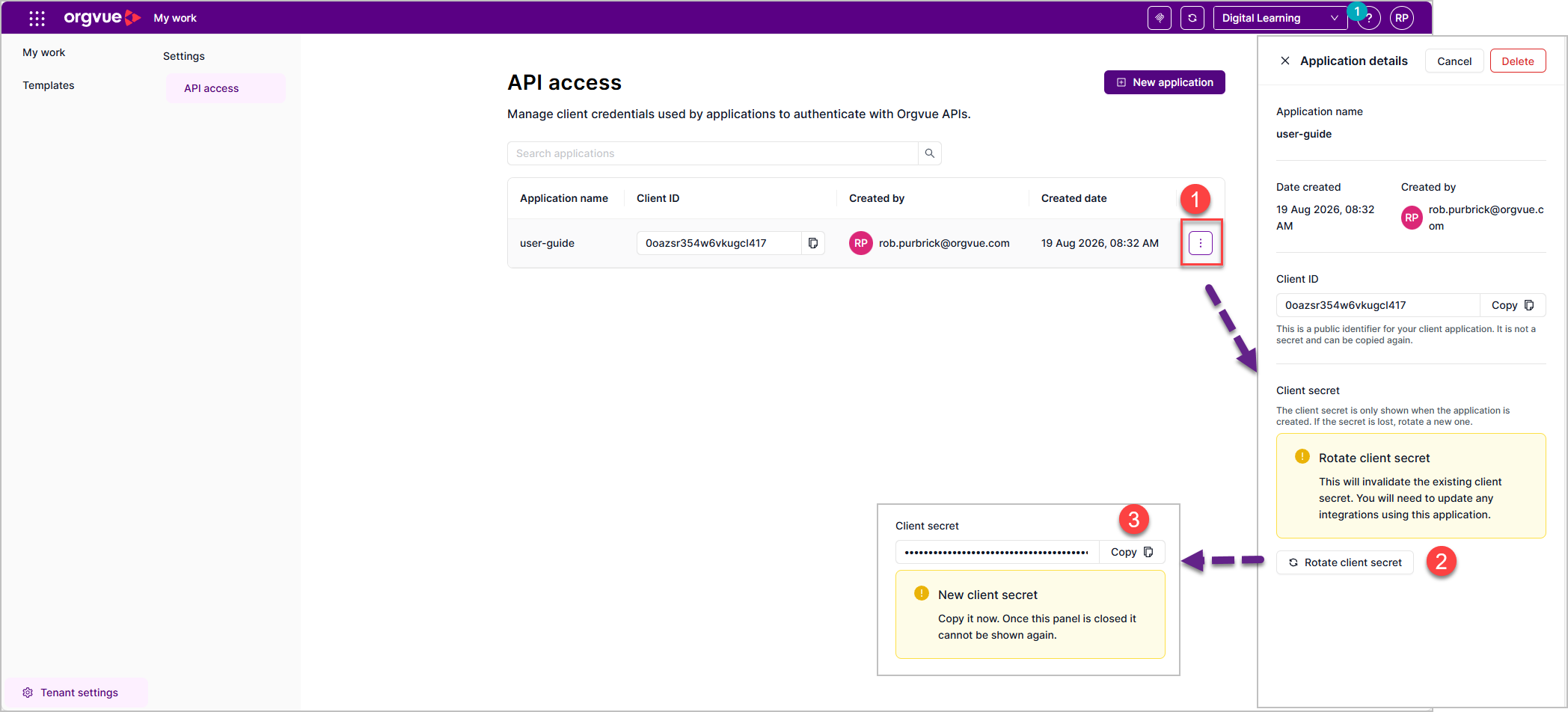
- Select the 3 dot menu for the credential
- Select Rotate client secret
- New Client secret is displayed. Ensure you copy it and replace it in your current workflow
Delete Credential
Deleting client credentials permanently removes an application's ability to authenticate with Orgvue.
Administrators typically delete credentials when an application is decommissioned, access is no longer needed, or as part of a secret rotation.
Removing unused credentials reduces the risk of unauthorized access through forgotten or unmanaged secrets.
Regularly reviewing and removing credentials you no longer need is good security hygiene.
To rotate a client secret:
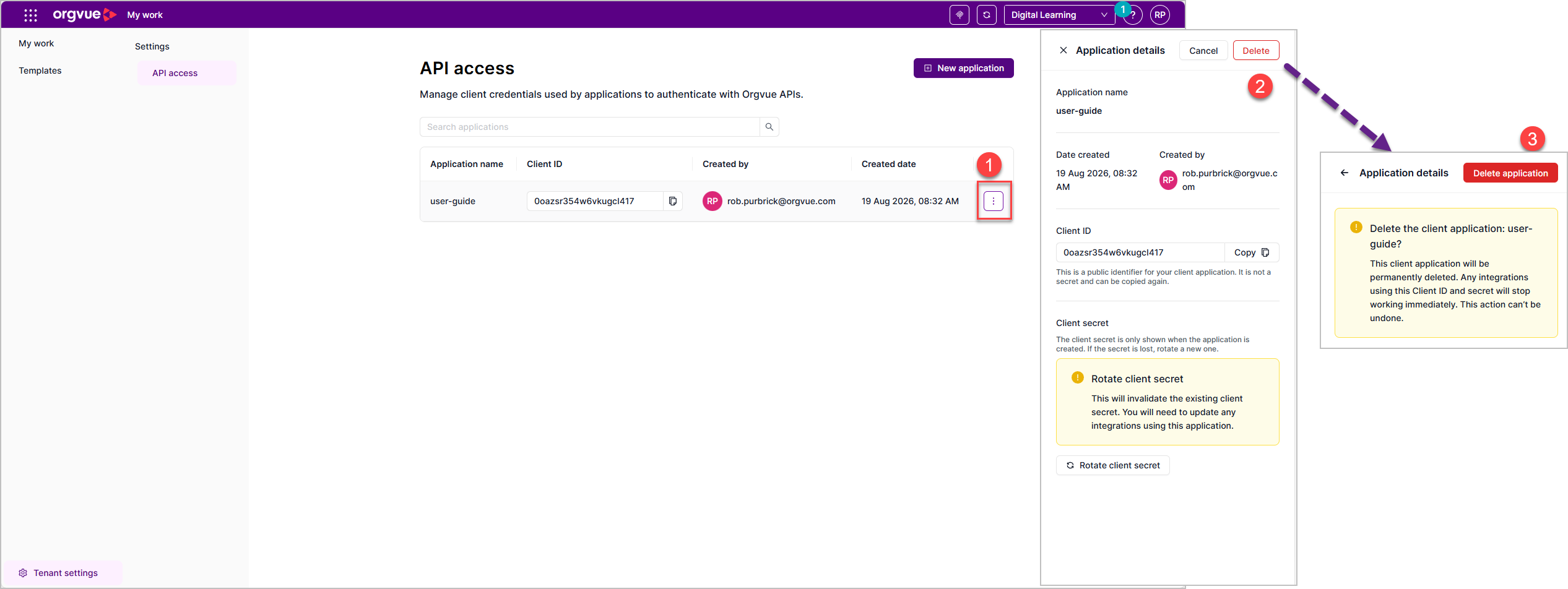
- Select the 3 dot menu for the credential
- Select Delete
- A confirmation message is displayed. Select Delete application to confirm deletion